General settings
On this page
General Settings is the default page under Organization Settings (available from the administration menu). It gathers organization-wide and per-user settings that don’t belong to a more specific settings area, such as UI preferences, notification preferences, and cluster details.
Notifications
The Notifications section lets you control how you, personally, are notified about activity in CluedIn. These settings are per-user: each person in your organization chooses their own notification preferences, and other users are not affected.
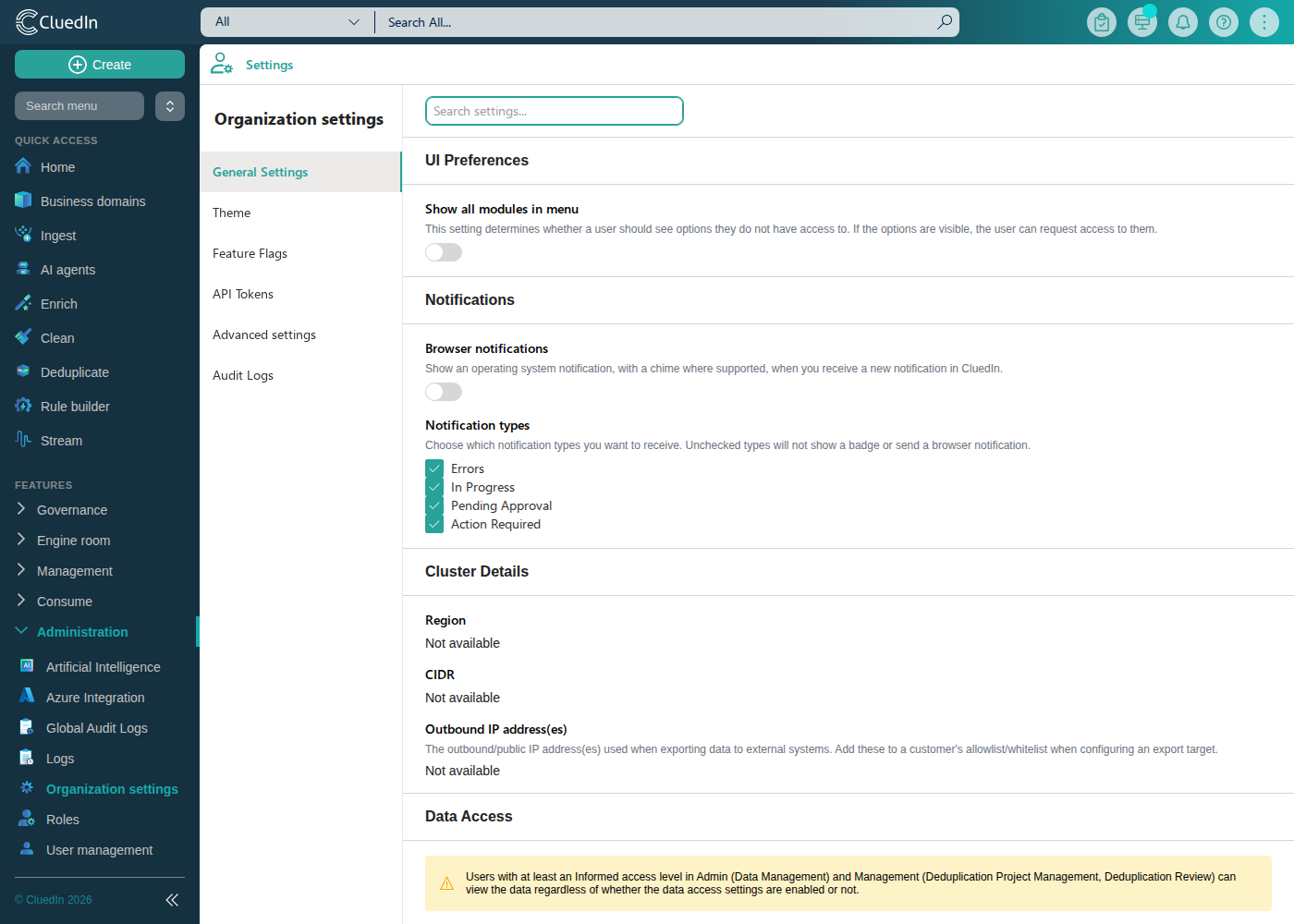
Browser notifications
The Browser notifications toggle turns operating system (HTML5) notifications on or off for your account. When enabled, CluedIn can show a native browser/OS notification — with an audible chime where your browser supports it — whenever you receive a new notification, even if the CluedIn tab isn’t in focus.
Turning this on for the first time prompts your browser to request notification permission. CluedIn only asks for this permission when you actively enable the toggle — it never requests it automatically.
- If you allow the permission, the toggle is enabled and persists across sessions.
- If you block the permission, CluedIn shows an error message, the toggle stays off, and no OS notifications are sent. To turn it on later, you typically need to allow notifications for the site in your browser’s own site settings before enabling the toggle again.
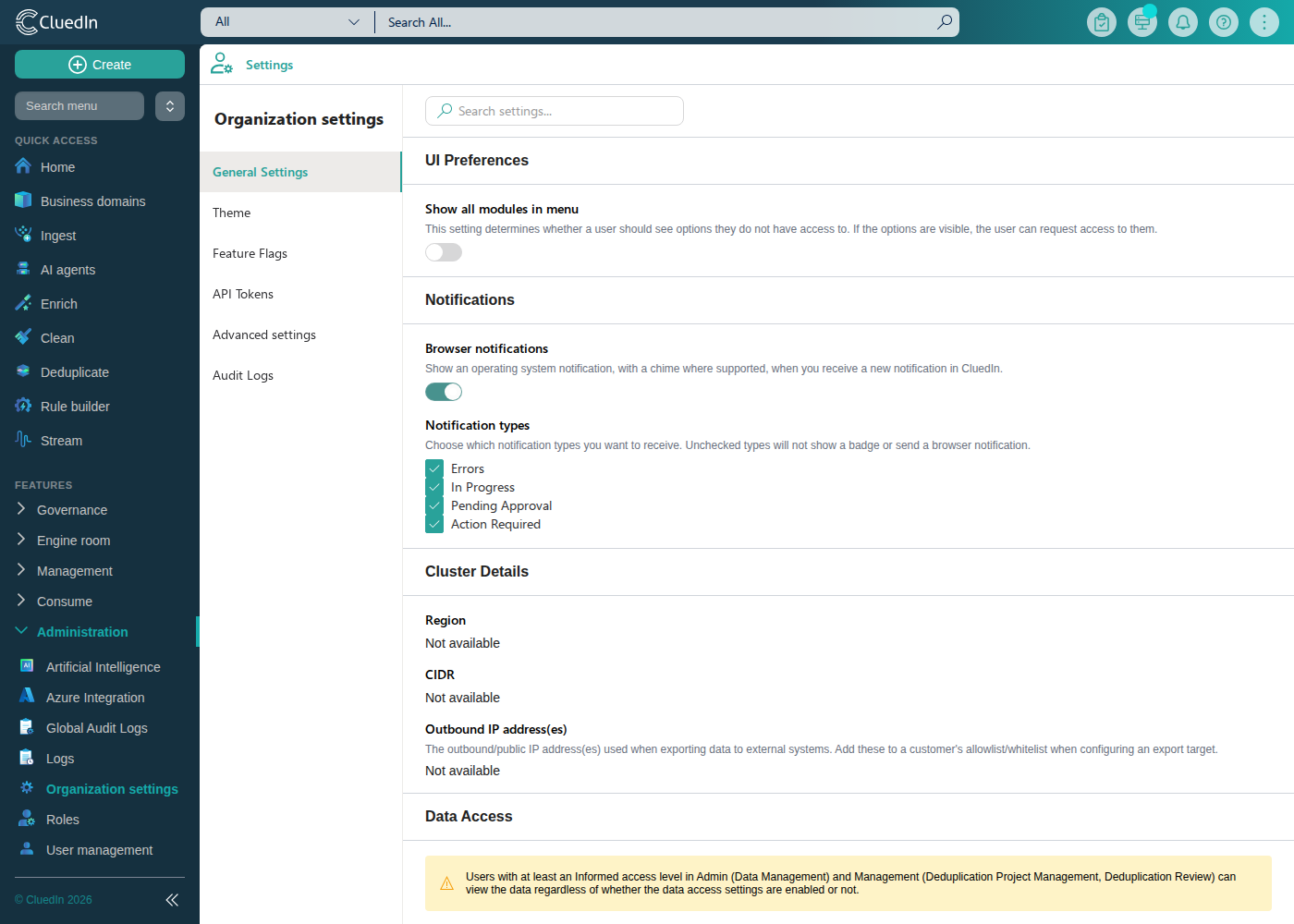
Notification types
The Notification types checkboxes let you choose which categories of notifications you want to receive:
- Errors
- In Progress
- Pending Approval
- Action Required
All types are enabled by default. Unchecking a type mutes it for your account only:
- It no longer contributes to your unread notification count (shown in the notification bell and the browser tab title).
- It no longer triggers a browser notification, even if Browser notifications is turned on.
Notifications of a muted type are still generated — you can re-enable a type at any time to resume being notified about it.
UI preferences
The UI preferences section controls whether users see modules in the side menu that they do not have access to. When this is enabled, users can see restricted modules and request access to them directly from the menu.
Cluster details
The Cluster details section shows read-only information about your CluedIn cluster, including its region, CIDR, and outbound IP address(es). Outbound IP addresses are useful when a customer’s export target needs to allowlist CluedIn’s traffic — see, for example, the Snowflake connector documentation.