Onboard datasets with an AI agent
On this page
- What the AI agent does
- Before you start
- Ask an AI agent to onboard datasets
- Review the plan
- Change the plan
- Approve or reject the plan
- After onboarding
- Limitations
In this article, you will learn how to ask an AI agent, such as the built-in Data Architect, to onboard datasets that you have uploaded to CluedIn. The AI agent proposes how the datasets map to business domains, vocabularies, and vocabulary keys, shows you the complete plan, and creates nothing until you approve it.
What the AI agent does
When you ask an AI agent to onboard one or more datasets, it does the following:
-
Analyzes the datasets from a sample of their rows, and profiles the values of every column (using up to the first 10,000 rows of each dataset).
-
Proposes a mapping for each dataset:
-
The business domain of the records that the dataset produces. When a dataset could reasonably belong to more than one business domain, the plan names the alternatives.
-
A source vocabulary that holds the dataset’s raw columns, and a source vocabulary key for every column.
-
The golden record vocabulary and golden record vocabulary key that each column’s values move into. Datasets that describe the same kind of record share a golden record vocabulary, so their records can be merged. Existing business domains, vocabularies, and vocabulary keys are reused when they mean the same thing.
-
Identifiers: the column that identifies a record within its source (the primary identifier), identifiers shared with other sources so that records with the same value merge into one golden record, and the column used as the display name.
-
-
Works out what has to be created for that mapping, and gives every new item a display name. Every new vocabulary key also gets a data type, which is checked against the column values (see Data types of new vocabulary keys).
-
Proposes up to five AI jobs for data-quality issues found in the data, for example, inconsistent formats that should be standardized or values that a data steward should review. AI jobs are created disabled and unscheduled.
-
Presents the plan to you. Nothing has been created at this point.
When you approve the plan, the AI agent creates the business domains, vocabularies, vocabulary keys, key mappings, dataset mappings, and AI jobs, and then verifies that everything in the plan exists as planned. The datasets are not processed until you process them.
Before you start
-
Complete the prerequisites to using AI agents.
-
Upload the datasets that you want to onboard. For more information, see Data sources.
-
Make sure that you have the following claim access levels.
To review an onboarding plan:
Section Claim Access level Management Data Catalog At least Informed Integration Data Source Groups At least Informed Management Annotation At least Informed To approve and execute an onboarding plan, you also need the access levels that the equivalent actions in the CluedIn UI need:
Section Claim Access level Needed to Management Entity Types At least Consulted Create business domains. Management Data Catalog At least Consulted Create vocabularies and vocabulary keys, and map vocabulary keys. Management Annotation At least Consulted Create and change dataset mappings. Management AI Agents At least Consulted Create AI jobs. When creating business domains, vocabularies, or vocabulary keys requires approval in your organization (an approval workflow is enabled for it), you need Accountable access to create them, because with a lower access level CluedIn only submits an approval request. For more information about access levels, see Feature access. To map the keys of an existing source vocabulary that you don’t own, you need Accountable access to the Data Catalog claim. If you are missing an access level, the plan says so up front, so you can ask an administrator before you approve it.
Ask an AI agent to onboard datasets
To ask an AI agent to onboard datasets
-
On the navigation pane, go to AI Agents (or, Management > AI Agents), and then open the AI agent, for example, Data Architect.
-
In the chat, ask the AI agent to onboard the datasets. For example: Onboard the Customers.csv and Orders.csv datasets I just uploaded. You can name the datasets or give their IDs.
You can add your own instructions, for example: Onboard the CRM contacts, and use Customer as their business domain.
-
Wait while the AI agent builds the plan. This usually takes one to three minutes, depending on the number of datasets and columns. While the AI agent is working, the status bar above the message box shows what it is doing, along with a stop button.

If you want to stop the AI agent, select the stop button. While the plan is being built, the AI agent stops within a moment and replies Stopped. Nothing is created.
Review the plan
The plan shows everything that would be created or reused. Items marked 🆕 will be created, and items marked 🔗 already exist and will be reused.
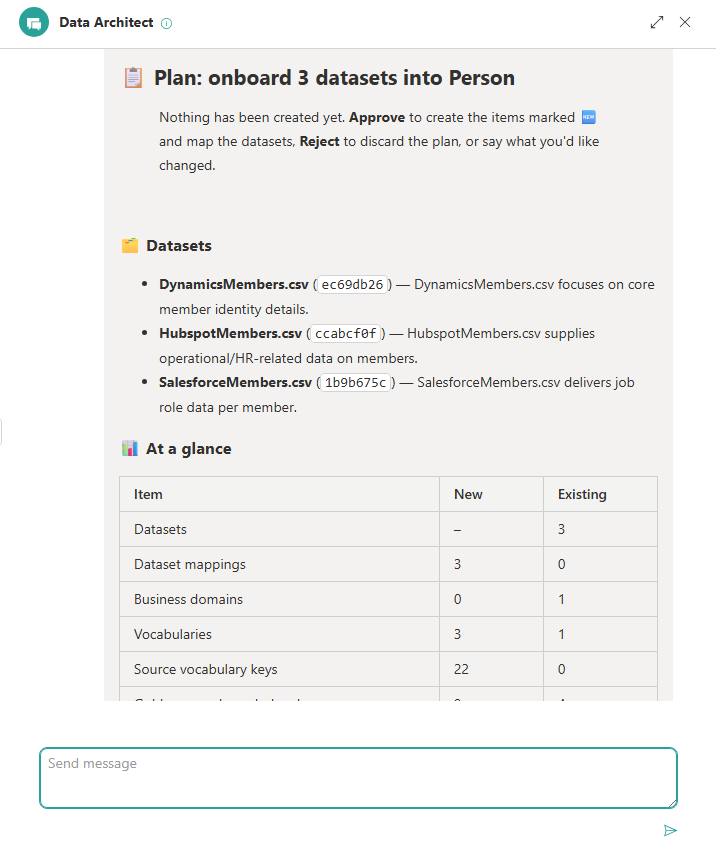
The plan consists of the following sections:
-
Datasets – a short summary of each dataset. If a dataset could belong to another business domain, the alternatives are listed with an example of how to switch to one of them.
-
At a glance – the number of datasets, dataset mappings, business domains, vocabularies, vocabulary keys, and AI jobs that will be created or reused.
-
Business domains & vocabularies – the business domains, source vocabularies, and golden record vocabularies of the plan.
-
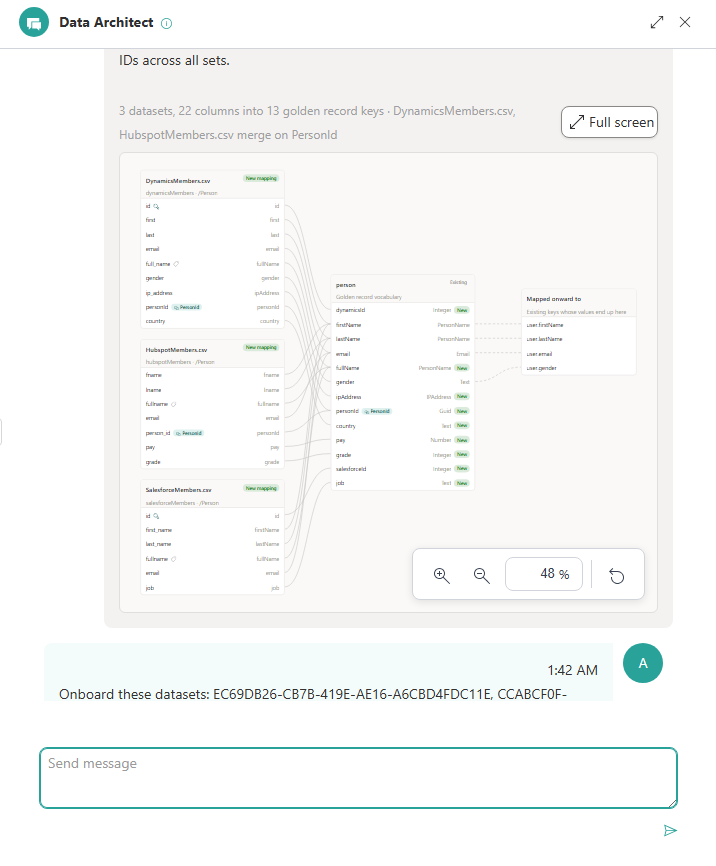
Column mappings – a diagram that shows how every column maps to its source vocabulary key and golden record vocabulary key. For more information, see Mapping diagram.
-
New golden record keys – the golden record vocabulary keys that will be created, with their display names, data types, and the columns that feed them.
-
Identifiers – the primary identifier, shared identifiers, and display name column of each dataset, and which datasets’ records will merge.
-
AI jobs – the AI jobs that will be created, with what each job does, the finding in the data that justifies it, and the golden record vocabulary keys it reads.
-
Things to review – observations about the data, such as possible relationships to other data or data-quality issues.
Mapping diagram
The mapping diagram shows the datasets on the left, the golden record vocabularies in the middle and, when existing vocabulary keys are mapped onward to other keys, the keys where the values end up on the right. Hover over a row to highlight how its values flow. Use the zoom controls or select Full screen to see large plans.
Data types of new vocabulary keys
Vocabulary keys with the Boolean, DateTime, Duration, Integer, Money, Number, or Time data type are indexed as typed values, so that they can be filtered, sorted, and used in rules. A value that can’t be converted to the key’s data type is left out of the key’s typed values. For this reason, the AI agent only chooses one of these data types when the profiled column values (from up to the first 10,000 rows) can be converted. A few values that can’t be converted (in up to 5% of the profiled rows) are tolerated, and values outside the profiled rows aren’t checked. For example:
-
Boolean only for the values true and false. Values such as yes, no, Y, or 1 are kept as Text.
-
Integer, Number, and Money only for plain numbers that use . as the decimal separator, without currency symbols, units, percent signs, or thousands separators.
-
Text for codes that look like numbers, such as postcodes, phone numbers, or account numbers, especially when they have leading zeros.
If a data type that the AI agent first chose, or that you asked for, doesn’t fit the values, the plan explains under New golden record keys why the key has a different data type. To standardize such values, consider the AI jobs that the plan proposes, or change the data type of the key later.
Change the plan
To change the plan, tell the AI agent what you want changed. For example:
-
Use Person for Contacts.csv
-
Rename customer.sourceId to customer.localId
-
Don’t use email as an identifier
-
Make customer.birthDate a DateTime key
-
Drop the AI job that validates email addresses
The AI agent revises the plan and lists the changes at the top of the revised plan. The revised plan goes through the same checks as the original one, and nothing is created until you approve it.
Approve or reject the plan
Below the plan, select one of the following:
-
Approve – creates everything in the plan. When it’s done, the AI agent summarizes what was created and verified.
-
Reject – discards the plan. Nothing is created.
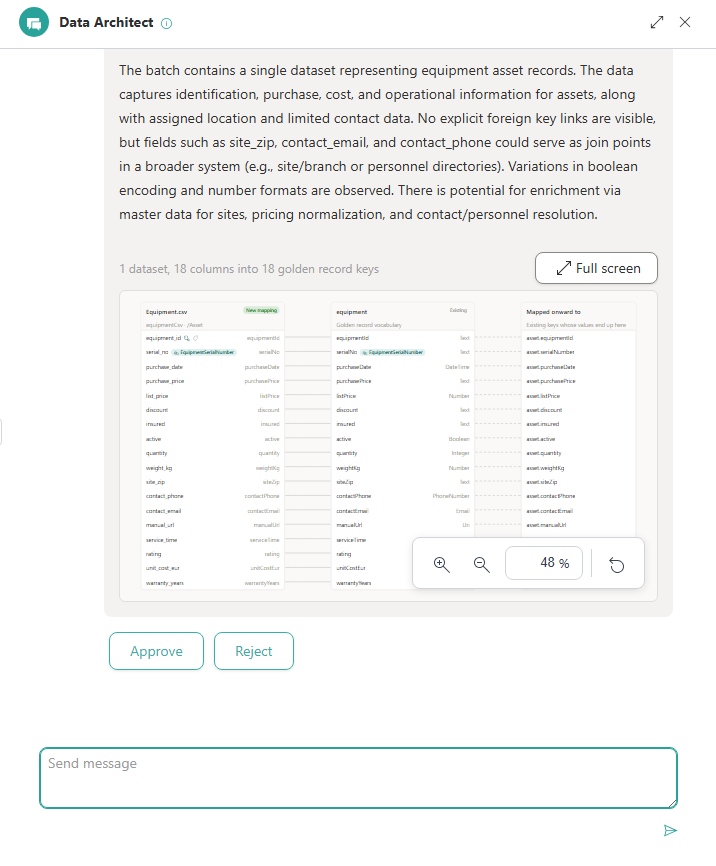
A plan is only executed when you approve it: select Approve, or reply Approve. The AI agent doesn’t treat any other reply as approval. If you change the plan, approve the revised plan.
If something fails while the plan is executed, the AI agent tells you what was created and what failed. Nothing that was created is undone. Once the problem is fixed, approve the plan again to continue from where it stopped.
After onboarding
After the plan is executed, the datasets are mapped but not yet processed. Process the datasets to create the golden records, either by asking the AI agent to process them or from the dataset. For more information, see Process data.
The AI jobs of the plan are created disabled and unscheduled. Once the datasets are processed, you can see how the AI jobs work before you enable them: ask the AI agent to test them, for example, Can I see the AI jobs working before I enable them? A test run is a dry run on a sample of up to 100 golden records: it makes no changes to your golden records, and its results are a preview that can’t be approved. You can also review a test run on the AI job’s page. For more information, see Test the job. When the results meet your expectations, enable the AI job. The results of its regular runs are the ones you review and approve. For more information, see Review the results returned by AI agent.
Limitations
-
Each dataset belongs to one business domain and has its own source vocabulary. Each column maps to one golden record vocabulary key.
-
For a dataset that is already mapped, the AI agent only adds to the existing mapping, for example, columns that aren’t mapped yet. The existing business domain, source vocabulary, column mappings, and identifiers are kept as they are.
-
Records from different datasets merge only through shared identifiers. To find duplicates that don’t share an identifier, use deduplication or a deduplication AI job.
-
Column profiles use up to the first 10,000 rows of each dataset.
-
Very large requests, with many datasets or several hundred columns, may be too large to plan at once. In that case, the AI agent tells you, and you can onboard fewer datasets at a time.
-
The AI agent doesn’t create Lookup vocabulary keys. You can set up a lookup on a key later.
-
Each AI job works on all golden records of its business domain, including records from other sources.
-
Stopping the AI agent while it executes a plan doesn’t interrupt the execution: the AI agent finishes executing the plan and then stops.