Multi-match enrichment
On this page
- About multi-match enrichment
- Review matches
- Enriched record statuses
- Match statuses
- Filter enriched records
- Compare candidates
- Process all matches
- Process all matches for an enriched record
- Configure multi-match settings
- Configure Auto-select Matches Conditions
- Configure Auto-select Matches using AI
- Recommended review workflow
This article explains how to review and process multiple enrichment candidates for the same golden record.
About multi-match enrichment
Some enrichers can return more than one possible match for a golden record. Instead of immediately applying a candidate, CluedIn stores the candidates as matches for review. Multi-match enrichment lets you compare those candidates with the enriched record and decide which matches to approve, reject, or revoke.
If an enricher returns only one match for a golden record, that match does not appear on the Matches tab. Instead, the enriched data appears directly on the Preview tab.
Review matches
-
On the navigation pane, go to Preparation > Enrich.
-
Open the required enricher and select the Matches tab.
-
In the Enriched records list, select the record whose candidates you want to review.
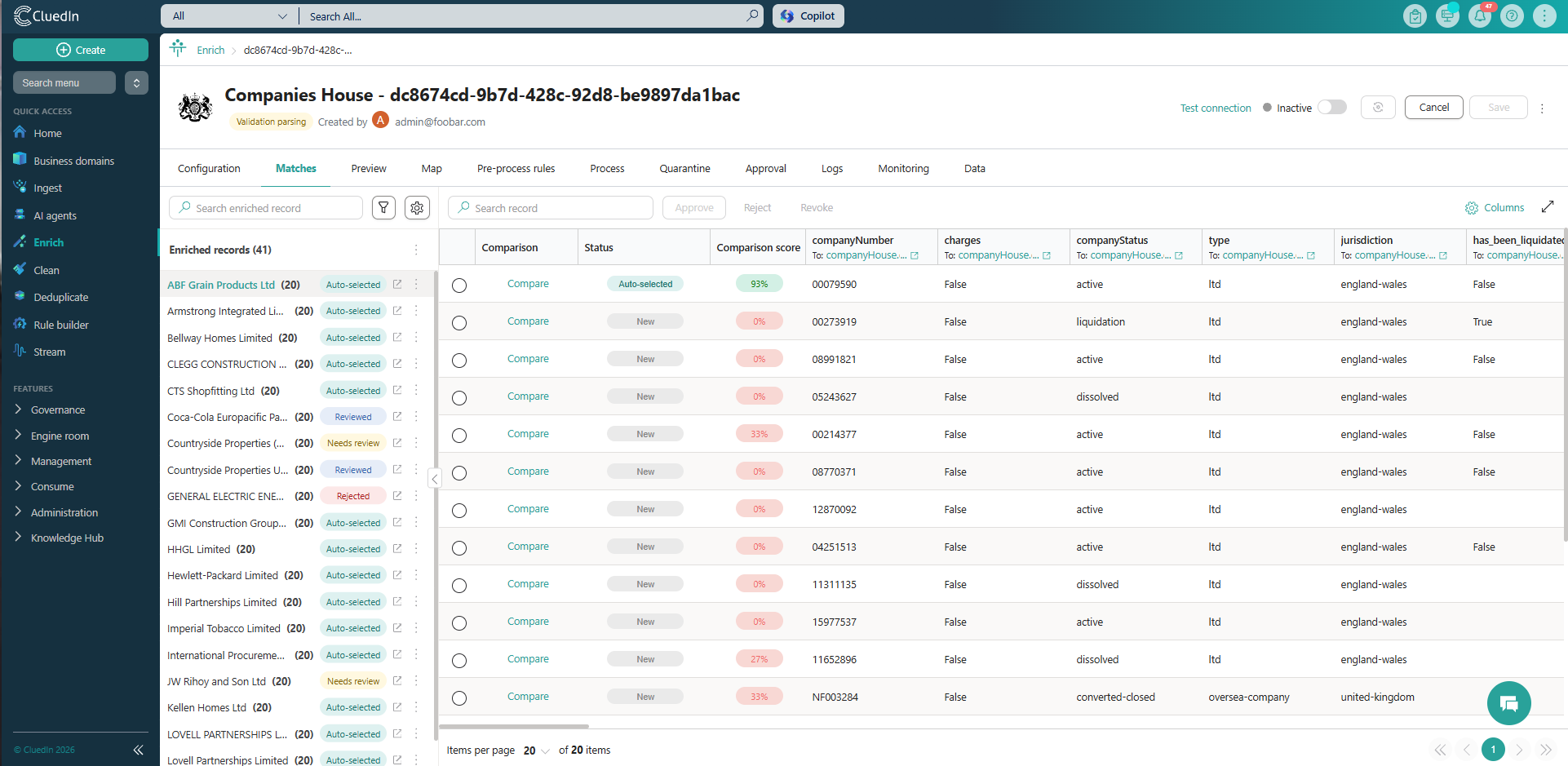
The matches table displays the candidates for the selected enriched record.
-
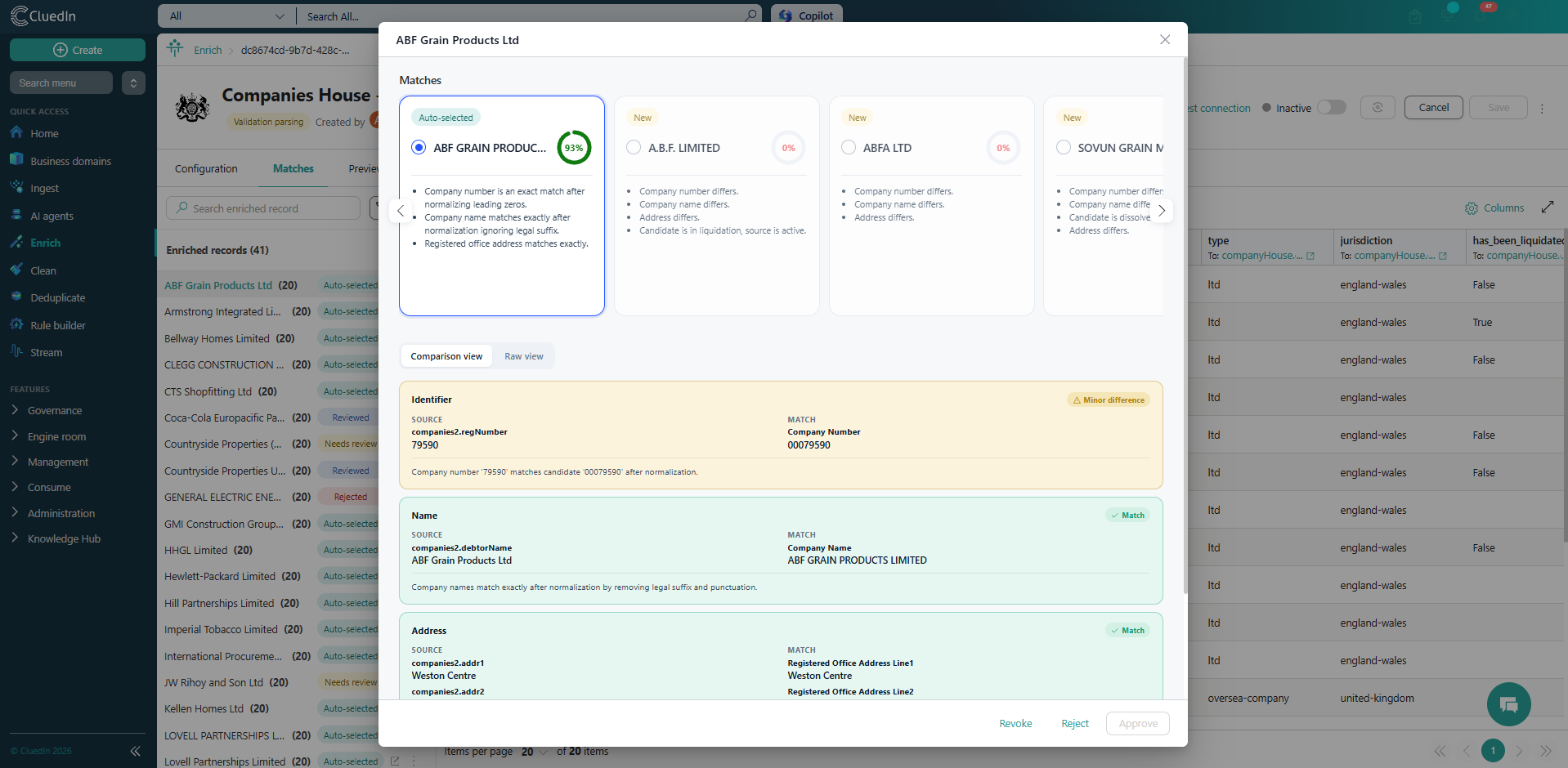
Review the values returned by each candidate. Use Compare to open the comparison view, where you can inspect the source and candidate values side by side.
-
Select one or more candidates and choose Approve, Reject, or Revoke.
- Approve accepts the selected match or matches.
- Reject marks the selected match or matches as unsuitable.
- Revoke removes a previous approval or rejection and returns the match to review.
Rejecting or revoking a candidate also removes that candidate’s data from the Preview tab.
Only enrichers with Allow Select Multiple Matches enabled in their settings allow multiple candidates for the same golden record to be selected.
Enriched record statuses
The status shown in the Enriched records list summarizes the statuses of all candidates for that record.
| Status | Description |
|---|---|
| Needs review | The enriched record has candidates that still require a manual decision. |
| Auto-selected | At least one candidate was auto-selected. You can still review and change the decisions. |
| Approved | All reviewed candidates were approved. |
| Rejected | All reviewed candidates were rejected. |
| Reviewed | The enriched record has a mixture of decisions, or both reviewed and pending candidates. |
| Conflicted | The enriched record has conflicting selected candidates. Review the candidates and resolve the conflict. |
Match statuses
Each candidate in the matches table has its own status.
| Status | Description |
|---|---|
| New | The candidate has not yet been reviewed. |
| Auto-selected | CluedIn selected the candidate automatically. You can still review and change the decision. |
| Approved | The candidate was approved. |
| Rejected | The candidate was rejected and is not auto-selected again, even if it matches an auto-select condition. |
| Conflicted | More than one candidate was selected where the enricher does not allow multiple selected matches. Review the candidates and resolve the conflict. |
Filter enriched records
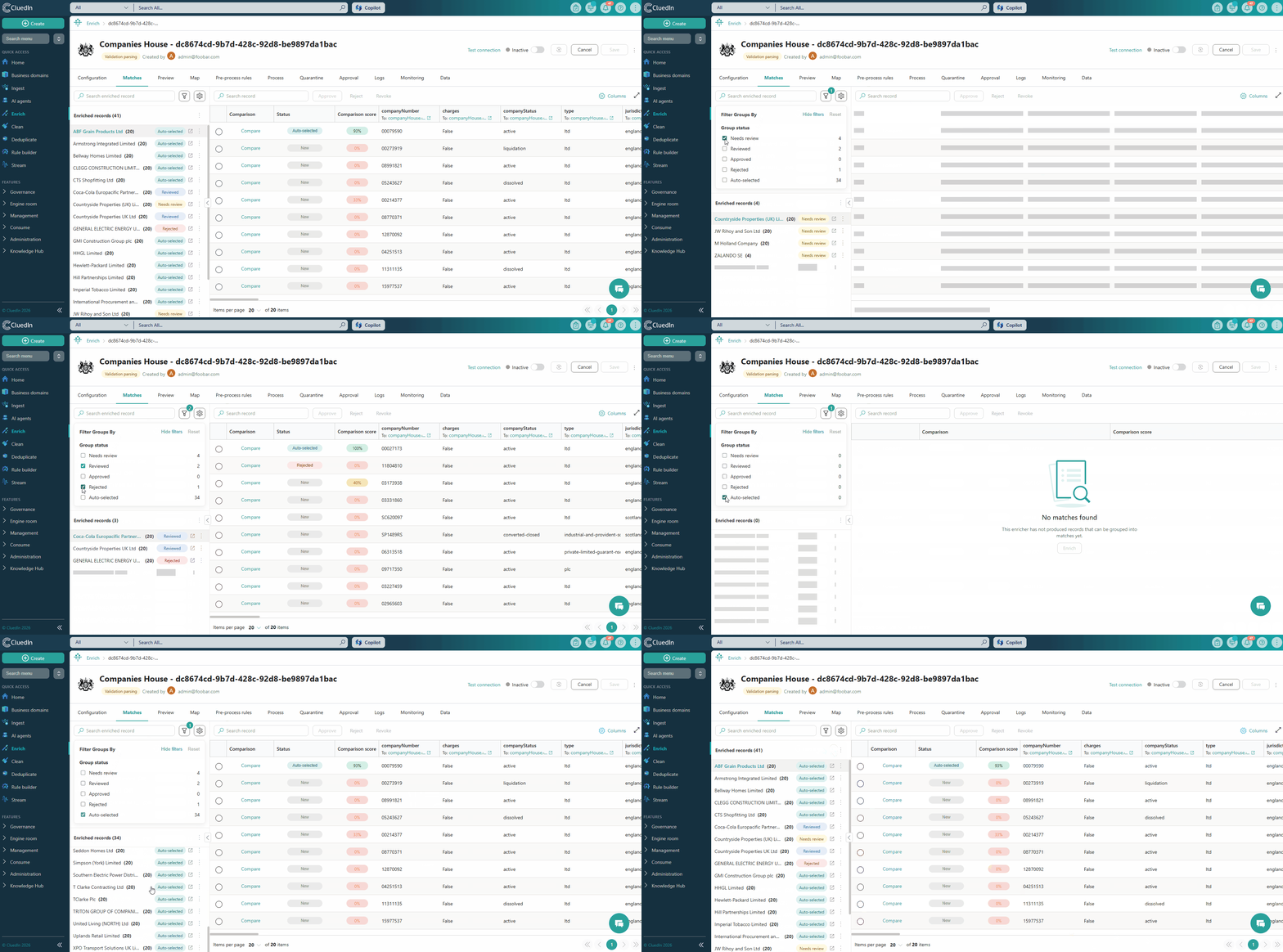
Use the filter above the Enriched records list to find records by their aggregate status.
-
Select the filter icon next to the Search enriched record field.
-
Under Group status, select one or more statuses to show only the matching enriched records.
The number next to each status shows how many enriched record groups have that status. Needs review excludes enriched records with auto-selected candidates; use Auto-selected to view those records.
-
Select Reset to clear the status filters and show all enriched records again.
Compare candidates
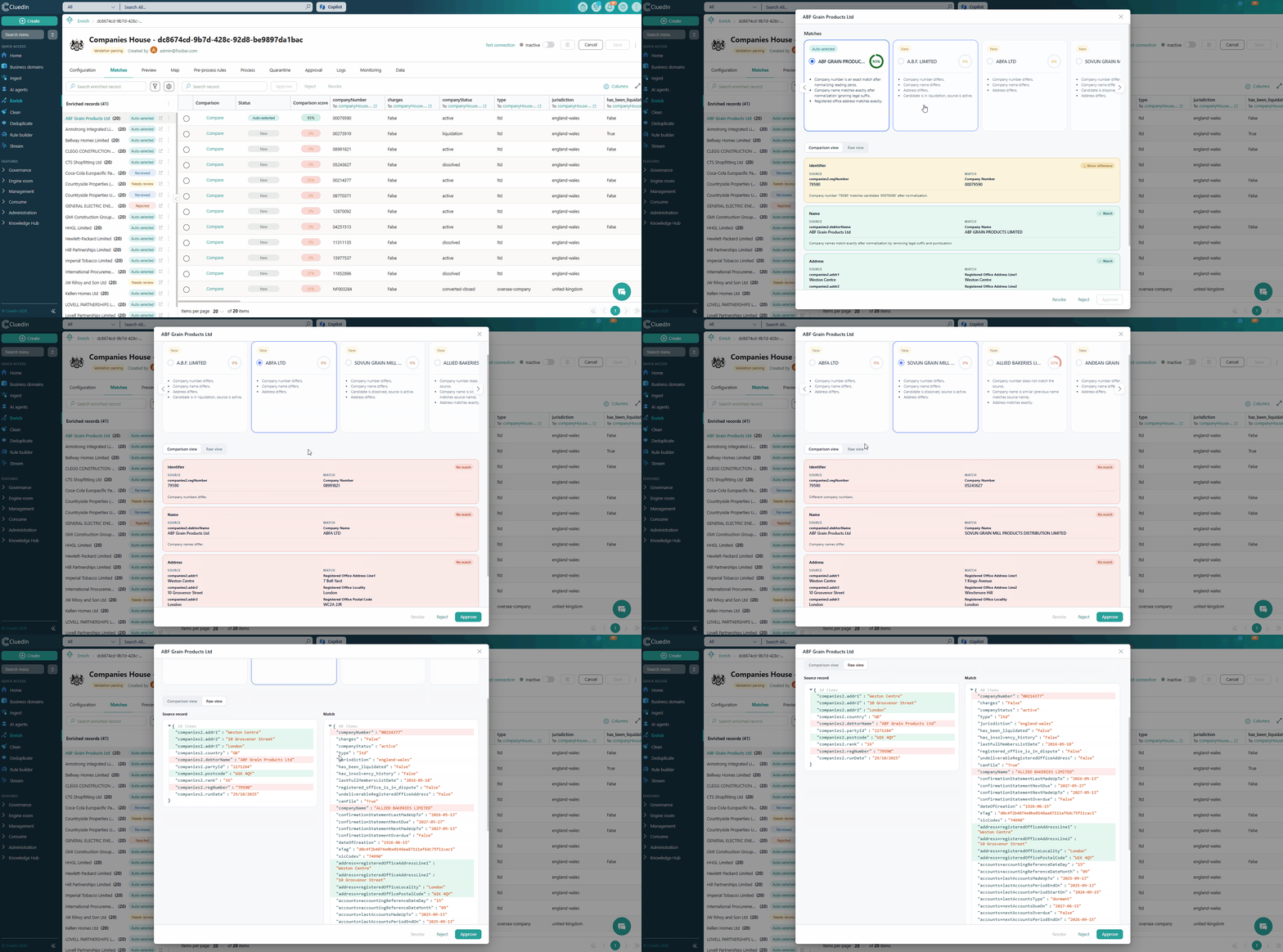
The Comparison column opens the comparison view for a candidate. The comparison view shows the source values and candidate values that CluedIn used to evaluate the match.
When AI comparison is enabled for the enricher, the matches table also shows a Comparison score. This score is an AI-generated indication of how closely the candidate matches the enriched record. Use it as review guidance, not as the only basis for an approval decision.
Process all matches
To process matches for all enriched records, select the More menu next to Enriched records. If you apply a filter, the action affects only the enriched records that match that filter.
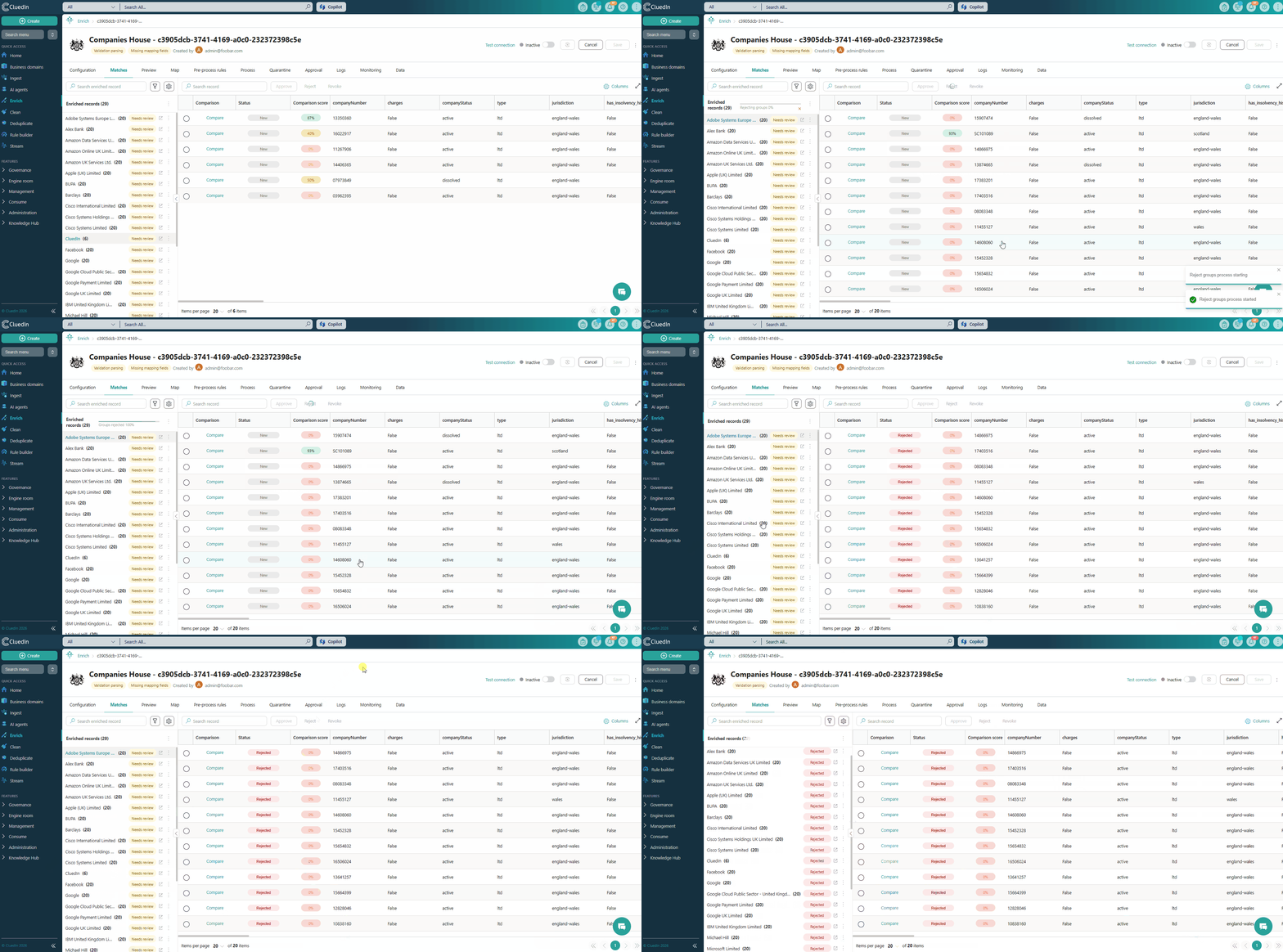
Process all matches for an enriched record
To process all candidates for one enriched record, select the More menu next to that record in the Enriched records list. These actions apply only to the candidates for that enriched record. They do not affect candidates that belong to another enriched record.
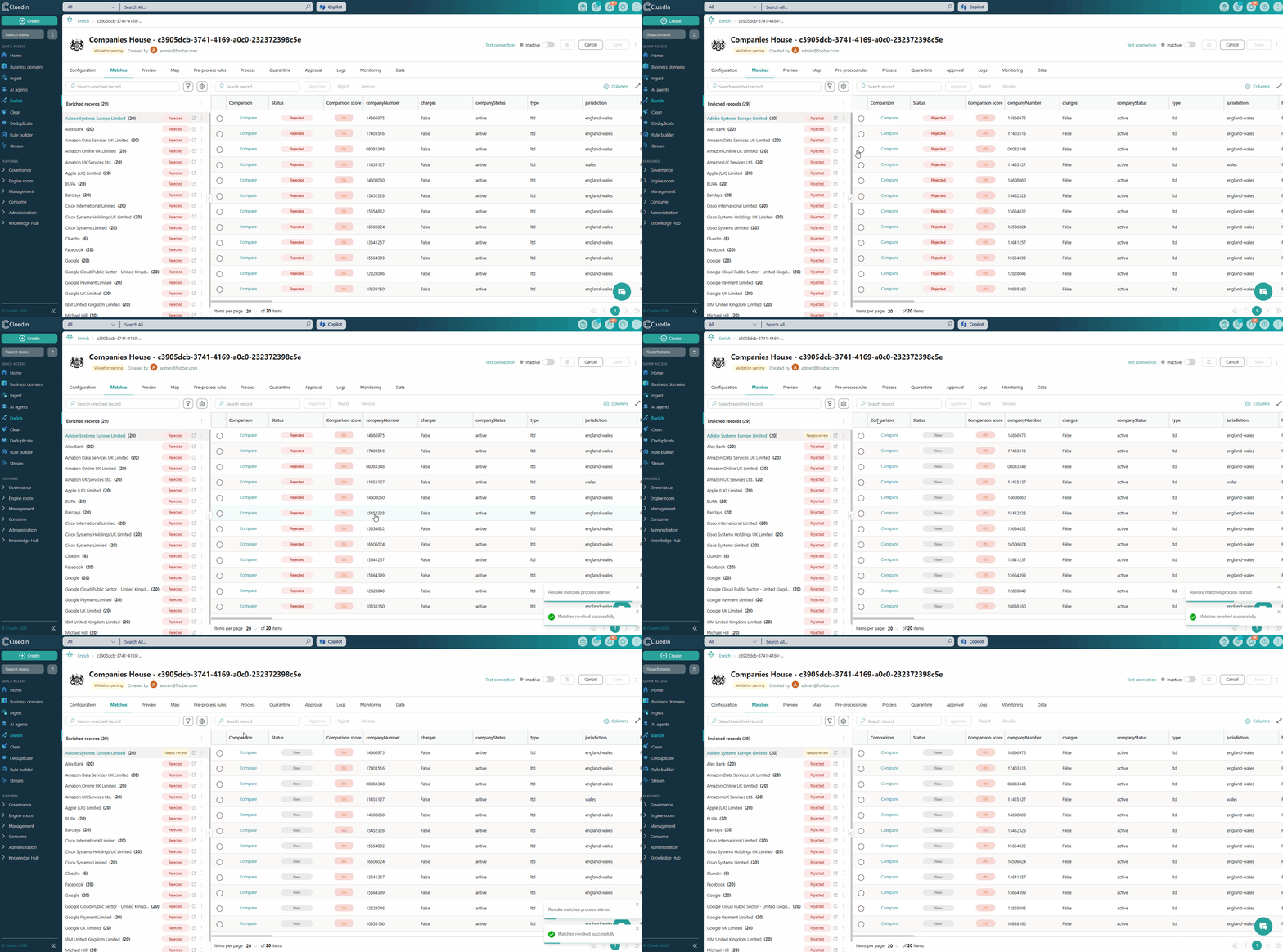
Configure multi-match settings
To configure multi-match behavior, open the enricher and select the settings icon on the Matches tab.
| Setting | Description |
|---|---|
| Allow Select Multiple Matches | Allows users to select more than one candidate for the same golden record. Leave this disabled when only one candidate can be approved. |
| Auto-select Matches | Enables rule-based automatic selection of the best matching candidate. |
| Auto-select Matches Conditions | Defines the rules a candidate must satisfy before CluedIn automatically selects it. This setting is available when Auto-select Matches is enabled. For details, see Configure Auto-select Matches Conditions. |
| Auto-select Matches using AI | Uses an AI model to evaluate the available candidates and select the most likely match. AI evaluation also provides the comparison content and score shown in the matches table. For details, see Configure Auto-select Matches using AI. |
| Endpoint | Selects the AI endpoint that evaluates the candidates. This setting is available when Auto-select Matches using AI is enabled. |
| Prompt | Provides instructions for the AI evaluation, including the important fields and selection criteria. This setting is available when Auto-select Matches using AI is enabled. |
Auto-selected candidates can still be reviewed and changed in the Matches tab. Configure the rules or prompt carefully and use the comparison view to validate the results before relying on automatic selections.
Configure Auto-select Matches Conditions
Use Auto-select Matches Conditions to define the rules a candidate must meet before CluedIn selects it automatically.
-
In Matches Settings, enable Auto-select Matches.
-
Under Auto-select Matches Conditions, add the conditions that identify a suitable candidate.
-
Save the settings.
CluedIn evaluates the conditions for the available candidates and automatically selects the best matching candidate when the conditions are met. Review auto-selected candidates in the Matches tab and adjust the decision when needed.
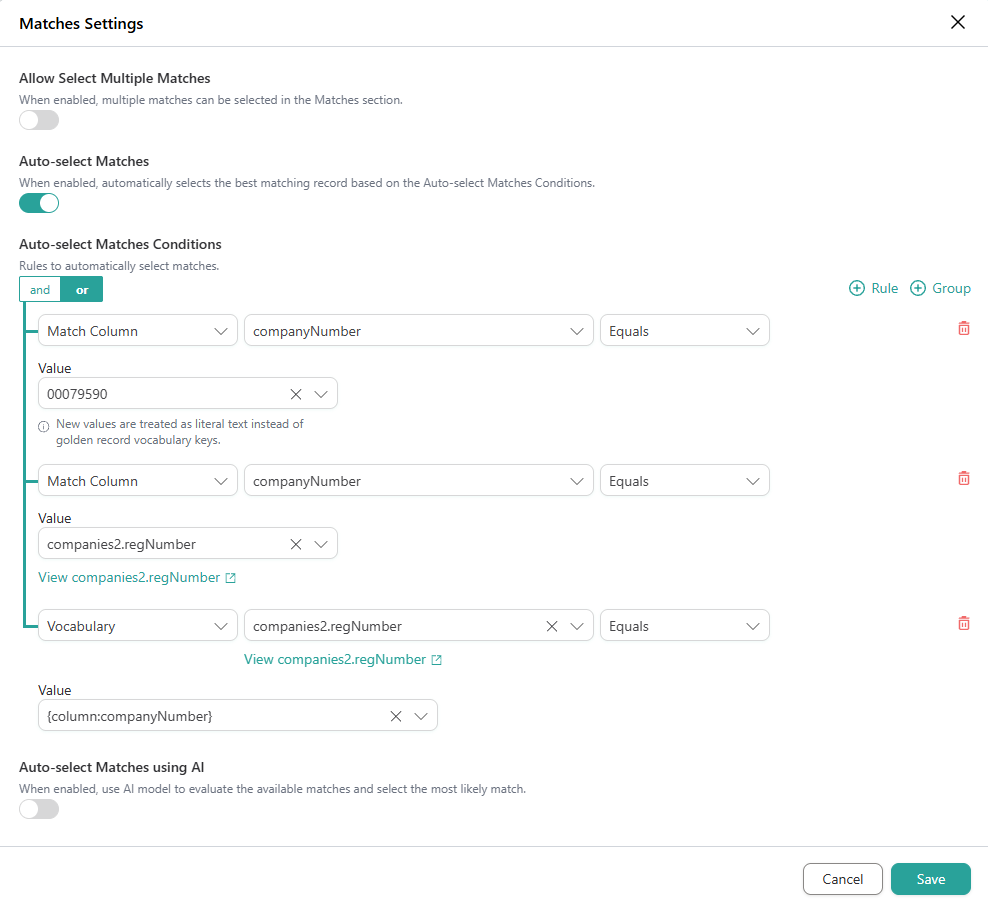
Example Auto-select Conditions
- Auto-select when the Matches
companyNumbercolumn equals00079590.

- Auto-select when the Matches
companyNumbercolumn equals the golden record’scompanies2.regNumbervalue.

- Auto-select when the golden record’s
companies2.regNumbervalue equals the MatchescompanyNumbercolumn.

Configure Auto-select Matches using AI
Use Auto-select Matches using AI when an AI model should evaluate the available candidates and select the most likely match.
-
In Matches Settings, enable Auto-select Matches using AI.
-
Select the AI Endpoint to use for the evaluation. To reduce repeat AI requests and associated costs, choose an endpoint with a longer cache duration when you expect to evaluate the same records more than once.
-
Enter a Prompt that describes how the AI should compare the source record and candidates. Include the fields that matter most and any selection criteria.
-
Save the settings.
AI evaluation produces comparison content and a comparison score for the candidate. Use the score as review guidance and verify the result in the comparison view before relying on an automatic selection.
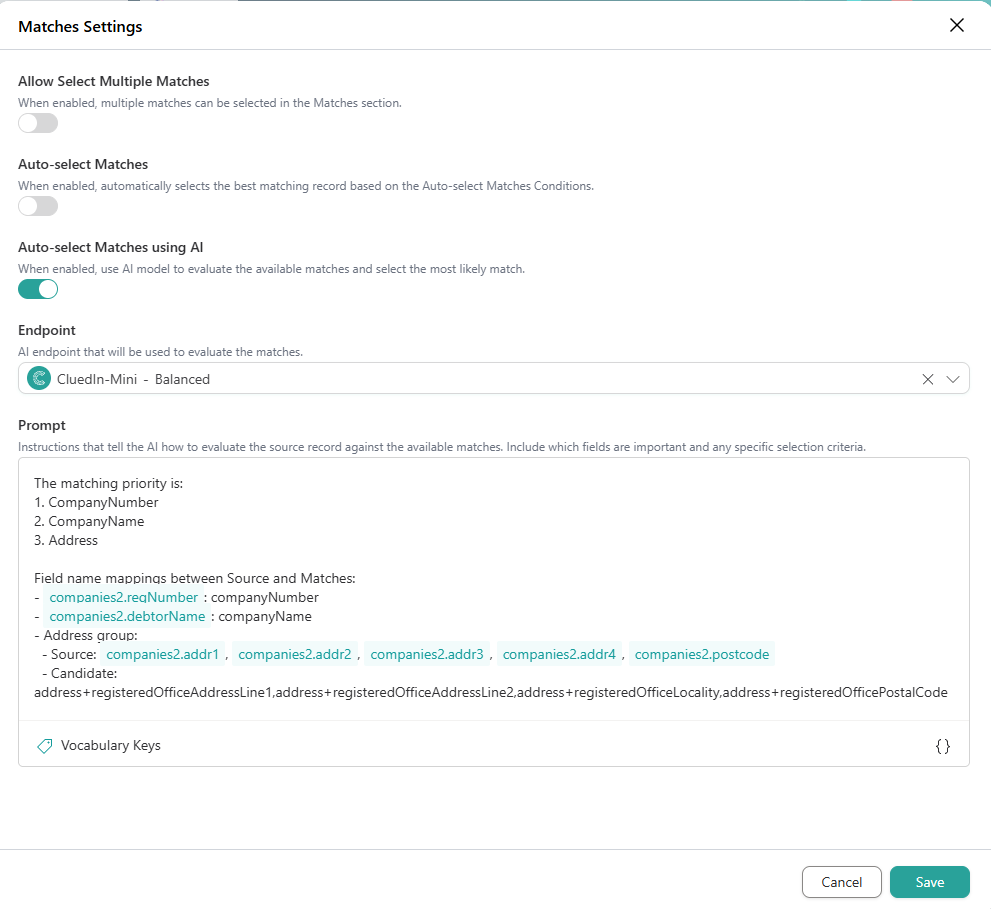
Example AI Prompt for Companies House
This prompt tells the AI how to map golden record properties to Matches columns when comparing a source record with a candidate.
The matching priority is:
1. CompanyNumber
2. CompanyName
3. Address

Field name mappings between Source and Matches:
- {Vocabulary:companies2.regNumber}: companyNumber
- {Vocabulary:companies2.debtorName}: companyName
- Address group:
  - Source: {Vocabulary:companies2.addr1}, {Vocabulary:companies2.addr2}, {Vocabulary:companies2.addr3}, {Vocabulary:companies2.addr4}, {Vocabulary:companies2.postcode}
  - Candidate: address+registeredOfficeAddressLine1,address+registeredOfficeAddressLine2,address+registeredOfficeLocality,address+registeredOfficePostalCode
Recommended review workflow
-
Enable the enricher and trigger the enrichment.
-
Review the Matches tab and enable Auto-select Matches if needed.
-
When available, review the comparison score and the properties used for comparison to confirm that the evaluation is appropriate.
-
Approve the appropriate candidate or candidates, and reject unsuitable candidates.
-
Use Revoke when a previous decision needs to be reconsidered.