

RACI matrix
how-to Steps to accomplish one task
On this page
- Prerequisites
- Describe responsibilities in plain language
- Set up responsibilities
- Verify the result
- Roles and users with broad access
- Make changes directly in the matrix
- Remove a responsibility
The RACI matrix lets you record who is responsible for which CluedIn function—deduplication, cleaning, enrichment, and so on—on which business domain, and see everything you have set up in one place. Use it when you need a clear, shared answer to “if there is a data quality problem with Customer records, who owns fixing it?” without digging through role assignments one at a time.
The RACI matrix is a planning and documentation tool. Adding a responsibility here does not change what a role or user can actually do in CluedIn—it does not grant claims or create access control policies. To change what someone can access, assign roles and claims, or configure access control.
Prerequisites
- The same claim as the Access Control module, at Informed access or higher. See Claims.
- The role or user you want to record a responsibility for must already exist. See Roles and User management.
- The business domain you want to record a responsibility for must already be configured. See Business domains.
- To describe responsibilities in plain language instead of picking them manually, an AI endpoint must be configured for your organization. See Configure a model endpoint.
Describe responsibilities in plain language
Instead of picking a role or user, functions and business domains one at a time, you can describe what you want in the box at the top of the page and let CluedIn work out the details:
To generate a proposal
-
In the text box, describe who should be responsible for what, in your own words—for example, “Make Sarah responsible for all tasks on Company and Employee records. Make Mark responsible just for reviewing duplicates on Company records.” You can describe more than one responsibility in a single instruction.
-
Select Generate.
-
Review the proposal. Each item shows the role or user, the functions, and the business domains it matched—and anything it couldn’t confidently match (a misspelled name, a business domain that isn’t configured) in red, so you can see the gap before anything is created.
-
Select the × on any item you don’t want to create.
-
Select Add.
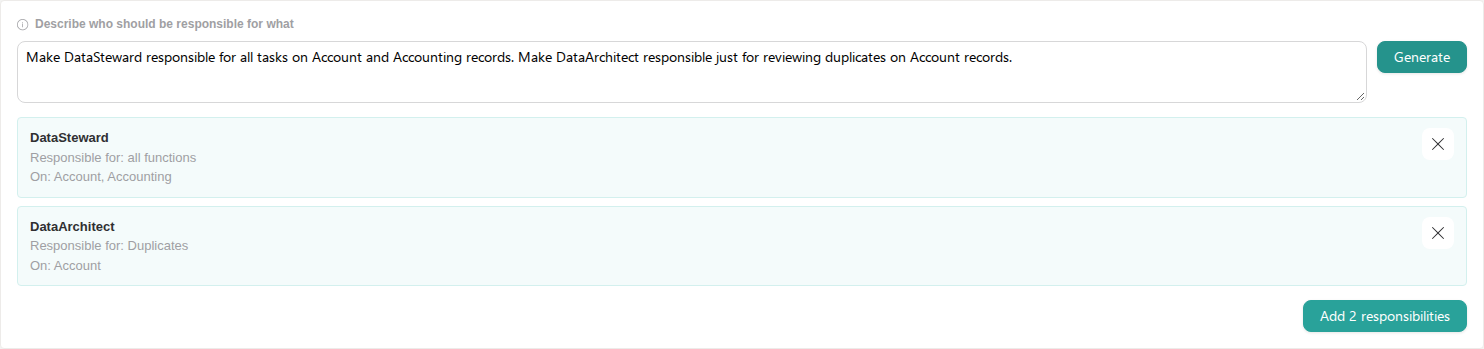
Only items with at least one matched function and one matched business domain are created—an item that only matched a role or user is kept visible (so you can see what it did and didn’t understand) but isn’t added. If nothing in your organization’s configured AI endpoint matches what you described, the proposal comes back empty; try naming the role, user, function, or business domain more directly.
Like the manual rule builder, this only creates RACI responsibility records—it never changes what a role or user can actually do in CluedIn, and it only ever uses your organization’s real roles, users, functions, and business domains. It cannot invent a role, user, function, or business domain that doesn’t already exist.
Set up responsibilities
To add one or more responsibilities
-
In the navigation pane, go to Management > RACI Matrix.
-
Under Who, select one or more roles or users.
-
Under Functions, select one or more CluedIn functions. The list is grouped by category—Management, Preparation, Integration, and so on—and covers every function a role can hold a claim for, such as Duplicates, Clean, or Streams.
-
Under Business domains, search for one or more business domains. This searches the business domains you have already configured, so you always pick a domain that actually exists rather than typing a name that might not match anything. If the domain you need isn’t listed, create it first, then come back here.
-
Check the summary above the button—it states exactly how many responsibilities this creates (every combination of who, function and business domain you picked) and, when you want to double-check before committing, Show the combinations expands the full list.
-
Select Add.

Because Who, Functions and Business domains can each hold more than one selection, one Add can set up many responsibilities at once—for example, two roles across three functions and one business domain creates six responsibilities in a single action. This is the fastest way to set up several similar roles or users together; see Make changes directly in the matrix for one-off additions afterward.
Verify the result
After you select Add, a confirmation message appears and the matrix below updates immediately:
- A row appears for each function and business domain combination you just created, grouped by the function’s category.
- Each role or user you selected shows a checkmark in that row.
If you selected a function and/or a business domain in the rule builder without saving yet, a summary line above the matrix already tells you who is responsible for that combination—or, if no one is, says so directly so you can spot the gap before you close the page.
Roles and users with broad access
Some roles and users already have broad access in CluedIn—the same claim-based exception that lets them bypass access control everywhere else. The matrix marks their column with a distinct icon and a tinted background so you can tell at a glance which columns are “everything, because of their claims” rather than responsibilities you set up one by one. Use the toggle above the matrix to hide these columns when you want to focus on the responsibilities that differ from person to person.
Make changes directly in the matrix
Beyond the rule builder, the matrix itself can be edited directly—useful for a one-off change, or for extending something you already set up:
- Add a single responsibility. Select the + in any empty cell to add just that one role-or-user/function/business-domain combination, without reopening the rule builder.
- Assign a row to more roles or users at once. Point at a row’s function/business domain label and select the + that appears next to it. This opens a list of every role or user who doesn’t already have that responsibility—select one to assign it immediately, and repeat for anyone else you want to add to that same row.
- Copy a role or user’s responsibilities to another. Select the ⋮ menu on a column header and choose Copy to, then the role or user to copy to. Every responsibility the source role or user has is duplicated onto the target, skipping anything the target already has. This is the fastest way to set up a role or user that should mostly match an existing one.
Remove a responsibility
To remove a responsibility
-
In the matrix, find the checkmark for the responsibility you want to remove.
-
Select the checkmark.
-
In the confirmation dialog, select Confirm.
The responsibility is removed immediately and cannot be undone. If a row no longer has any responsibility assigned to it, the row disappears from the matrix.