

Create a rule
how-to Steps to accomplish one task
On this page
- Prerequisites
- Inputs
- How a rule is applied
- Create a rule
- Test a rule on one record
- Apply a rule to all records
- View rule execution logs
- Verify the result
- What this changes
- If something goes wrong
Create a rule in the rule builder to change records automatically, test it on one golden record, and then apply it to all golden records that match its filters. Use a data part rule to normalize values in records from different sources, a survivorship rule to choose which value the golden record uses, and a golden record rule to tag or otherwise act on golden records; see Rule types.
In this article, “rule” means a rule created in the rule builder. It is not a property rule or a pre-process rule, which act on records during mapping. Inside the Filters section, the conditions you add with Rule and Group are filter conditions, not rules of their own.
Prerequisites
-
The Rule Builder claim with at least the Consulted access level, which lets you create and manage your own rules. Informed lets you view rules only. See Feature access.
-
Golden records for the rule to act on, produced by processing a data set.
-
A decision on the rule type, which you choose in step 2 of Create a rule. See Rule types.
Inputs
| Field | Required | What it accepts |
|---|---|---|
| Rule type | Yes | Data part rules, Survivorship rules, or Golden record rules. See Rule types. |
| Name | Yes | The name of the rule. |
| Filters | Not marked as required | Filter conditions that define the golden records the rule applies to. See Filters. |
| Action Name | Yes | The name of the action. |
| Action | Yes | The action to perform. The actions available depend on the rule type; see Rules reference. Some actions need more details, such as a Value. |
| Description | No | A rich-text description of how the rule works. |
| Folder | No | An existing folder, or the name of a new one. See Organize rules into folders. |
How a rule is applied
-
Filters decide which records the rule applies to. Within a filter, the AND/OR operator decides how conditions combine: AND returns only records where all conditions match, OR returns records where any condition matches. Each group has its own operator. See Filters.
-
Actions run in the order in which they are listed. You can reorder actions.
-
Rules run in the rule processing order, which by default is the order in which the rules were created. See Edit rule processing order.
-
Only active rules are applied, to records that match the filter during processing or reprocessing. Saving and activating a rule does not apply it to golden records that already exist; they have to be reprocessed.
-
Data part rules and golden record rules see different values. Golden record rules take into account only the properties of the golden record, not the properties of its specific data parts. See Best practices for rules.
Create a rule
Creating a rule involves defining the golden records to which the rule will be applied and specifying the actions to modify these records. The procedure of creating a rule is the same for all types of rules. However, the actions associated with each type of rule are different.
To create a rule
-
On the navigation pane, go to Management > Rule builder.
-
Choose the type of rule that you want to create. Then, select Create rule.
-
Enter the name of the rule, and then select Create. The rule details page opens.
-
In the Filters section, select Add first filter, and then specify the golden records to which the rule will be applied. For more information on how to set up a filer, see Filters.
-
In the Actions section, select Add action, and then configure the action that will be applied to the golden records matching the filters:
-
Enter the name of the action.
-
In the Action section, choose the action to be performed by the rule. For more information about the available actions for each rule type, see Rules reference. Depending on the chosen action, you might need to provide additional details.
-
In the lower-right corner, select Add action.
-
-
If you want to add more actions to the rule, repeat step 5.
-
Near upper-right corner, select Save, and then confirm that you want to save the rule.
-
Activate the rule by turning on the toggle next to the rule status.
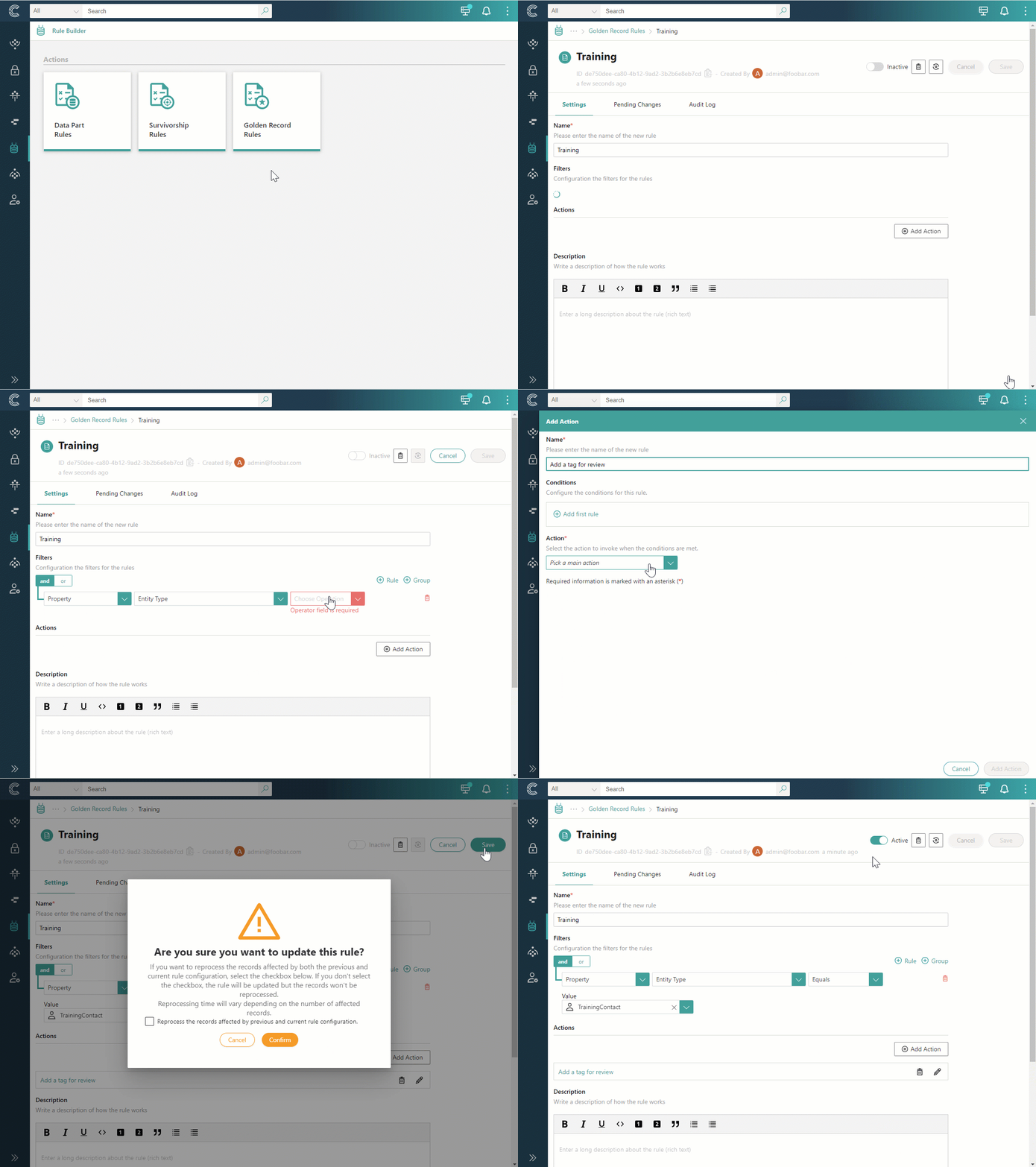
At this point, the rule has not yet been applied to the golden records. To ensure the rule is configured correctly, we recommend applying it to one golden record to verify the results.
Test a rule on one record
After creating a rule, it is a good idea to test it on one golden record to verify that the configuration is correct. This way, you can reprocess just the one golden record instead of all affected golden records. If you find that the rule’s actions have not been applied as intended, you can edit the rule and test it on one golden record again until you achieve the desired configuration.
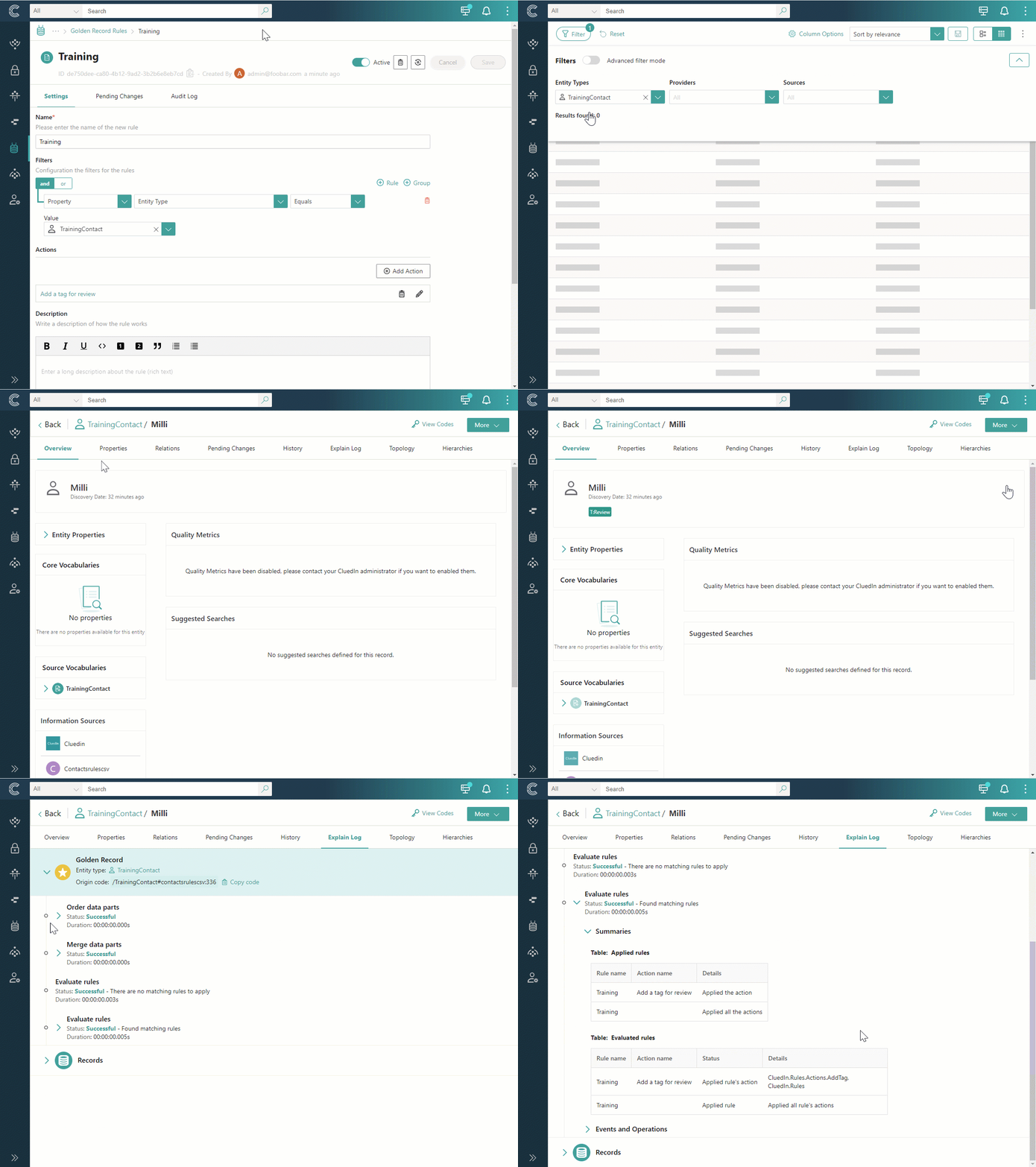
To test a rule on one golden record
-
Go to search and add the same filters that you set up in the rule (step 4 in Create a rule). Then, start the search.
-
Open one golden record from the search results.
-
Near upper-right corner, select More > Re-process entity.
-
After you see a notification that the request for reprocessing has been sent, reload the page.
-
Check if the golden record has been modified according to the rule.
-
Check what rule has been applied to the golden record:
-
Go to the Explain log tab.
-
Expand the Golden record entry.
-
Expand Evaluate rules > Summaries.
In the tables, you can view the rules and actions that have been applied to the golden record.
-
-
Depending on the results of your review, do one of the following:
-
If the rule has been applied to the golden record as you intended, proceed to apply the rule to all golden records.
-
If the rule has not been applied to the golden record as intended, edit the rule, and then repeat steps 1–7 until you achieve the desired result.
-
Apply a rule to all records
After testing a rule on one golden record and verifying that it is applied as intended, you can proceed to apply the rule to all golden records.
To apply a rule to all golden records
-
On the navigation pane, go to Rule Builder (or, alternatively, Management > Rule Builder).
-
Choose the needed type of rule, and then open the rule that you created.
-
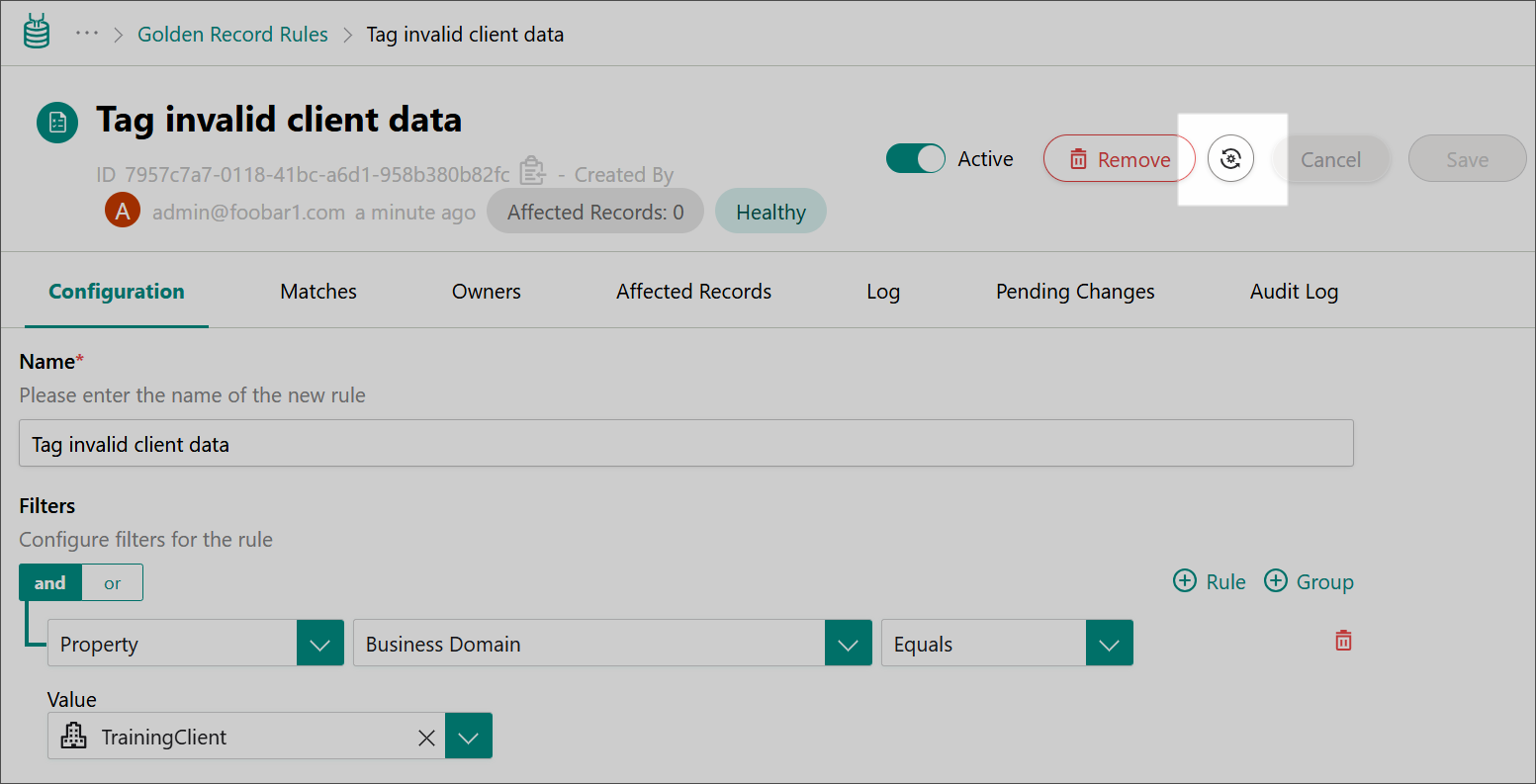
In the upper-right corner of the page, select the reprocessing button.
-
Confirm that you want to reprocess all golden records that match the rule’s filters.
The reprocessing option available on the rule details page is applicable only to the records that match the rule’s filters.
You can track the reprocessing of records in the status bar. If, during the reprocessing, you decide to add another action to the rule or modify a filter, you can cancel the current reprocessing operation and make the needed changes.

-
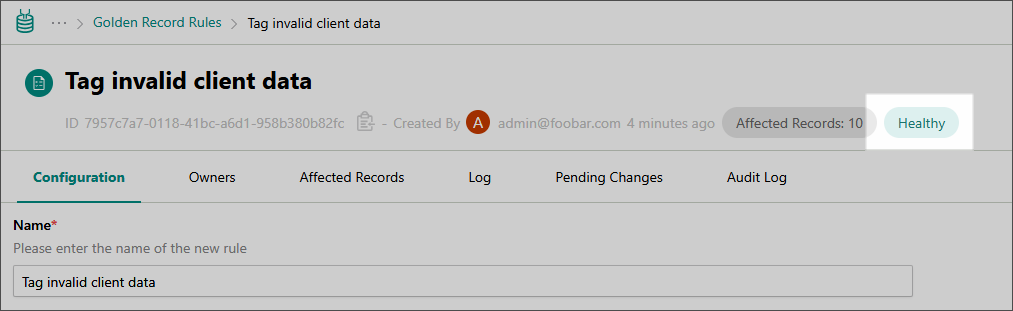
After the reprocessing is complete, check the rule status.
-
Healthy – the rule executed successfully:
-
Records associated with the rule are modified in accordance with the rule’s actions.
-
The Affected Records tab shows the list of modified records.
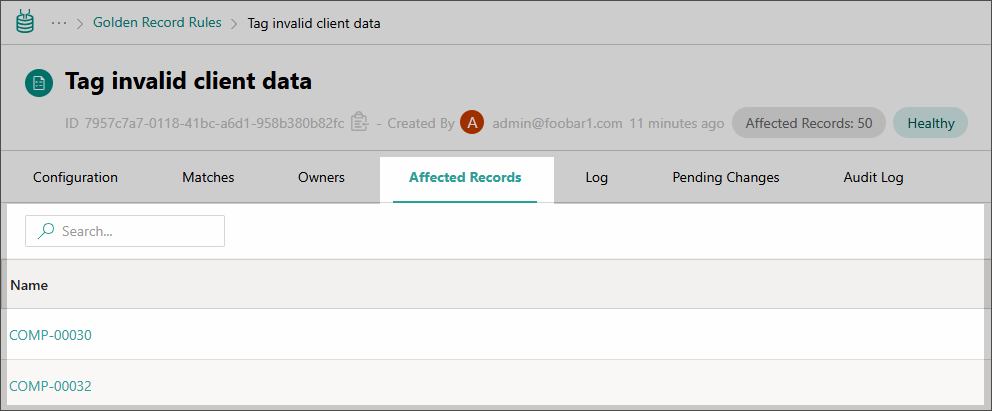
To view the changes made to a specific record, go to the History or Topology tab of the golden record page.
-
-
Unhealthy – issues occurred during rule execution. Open the rule execution logs to review the details and adjust the rule as needed.
-
There is an alternative approach to reprocess the records associated with the rule. It involves the GraphQL tool.
To reprocess records using GraphQL
-
On the navigation pane, go to Consume > GraphQL.
-
Enter a query to reprocess the records that should be affected by the rule.
For example, the following query will reprocess all records that contain the “customer.location” vocabulary key set to “New York”.
{ search(query: "customer.location:New York") { entries { actions { postProcess } } } } -
Execute the query.
After the query is executed, the rule’s action will be applied to the records matching the rule’s filter.
View rule execution logs
If there are issues in the rule configuration or when applying the rule to the golden records, corresponding information appears in rule execution logs. Use these logs to identify the root cause of an issue and adjust the rule as needed.
CluedIn stores logs only from the last unsuccessful rule execution. Historical logs from earlier executions are not retained.
Each log entry is assigned a severity type, which indicates the importance or seriousness of the logged event. Currently, CluedIn retains only logs of the Error severity type (messages about problems that prevented part of a rule from executing correctly). Support for additional severity types will be added in the future.
To view rule execution logs
-
On the navigation pane, go to Rule Builder (or, alternatively, Management > Rule Builder).
-
Choose the needed type of rule, and then open the rule that you created.
-
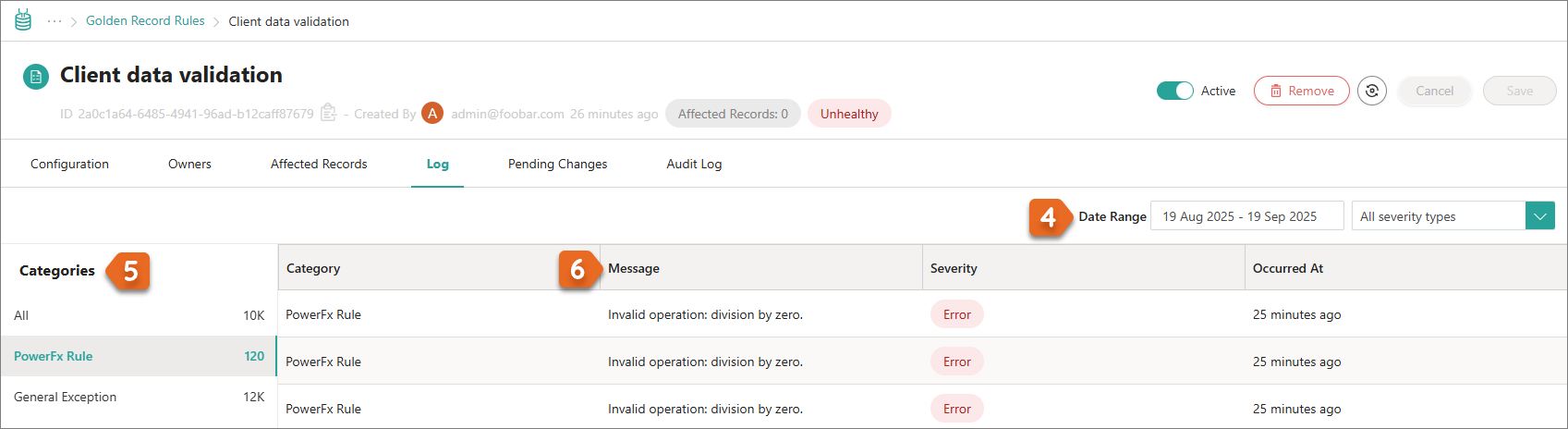
On the rule page, go to the Log tab.
-
In the upper-right corner of the page, select the period for which you want to view the logs.
-
Select the category of interest:
-
PowerFx Rule – contains logs about errors caused by the configuration of PowerFx formulas in the rule.
-
General Exceptions – contains logs about other errors that prevented the rule from executing correctly.
-
All – includes both types of information: errors related to PowerFx rules and general exceptions.
-
-
Review the Message column for details about why the issue occurred.
Verify the result
Reprocessing runs in the background. Selecting the reprocessing button starts it, and you can track its progress on the rule details page.
-
While reprocessing runs, the rule details page shows a progress bar and a Cancel Reprocessing button.
-
When it has finished, the rule shows its status, Healthy or Unhealthy, and the number of Affected Records.
-
On the Affected records tab, the modified golden records are listed. To view the changes made to one record, go to the History or Topology tab of the golden record page.
-
On one golden record, the Explain log tab shows under Evaluate rules > Summaries which rules and actions were applied. See Test a rule on one record.
What this changes
-
Saving and activating a rule saves configuration only. Golden records that already exist are not changed until they are reprocessed. While the rule is active, it is applied to records that match its filter whenever they are processed or reprocessed.
-
Reprocessing applies the rule’s actions to the records that match its filters: data part rules change values in data parts, survivorship rules change which value the golden record uses, and golden record rules act on the golden record, for example by adding a tag.
-
Undoing a rule. Deactivating or deleting a rule does not undo its changes by itself: the records affected by the rule still contain changes according to the rule’s action, and return to their initial state when they are reprocessed. When you edit a rule’s filters or actions, you can choose to reprocess the records affected by the previous and current configuration. See Manage rules.
If something goes wrong
-
The rule status is Unhealthy. Open the rule execution logs to see why. Only the logs from the last unsuccessful execution are kept.
-
Errors in the PowerFx Rule log category. A PowerFx formula in the rule is misconfigured.
-
The rule was not applied to a golden record. Check that the rule is active, that the golden record matches the rule’s filters (run the same filters in search), and that the record has been reprocessed since the rule was activated. The Explain log shows whether any matching rules were found. See Rules not working as expected.
-
Another rule overrides the result. Rules run in the rule processing order. See Edit rule processing order.
-
Reprocessing is slow. See Rules running slowly.
-
You need to change the rule during reprocessing. Select Cancel Reprocessing, make the changes, and reprocess again.