

View and revert changes made by AI agent
how-to Steps to accomplish one task
On this page
All changes that an AI agent makes to golden records are recorded for further review. You can revert any of the changes whenever needed.
View changes made by an AI agent
You can view the list of all golden records that an AI agent modified, as well as the changes made to a specific golden record.
To view the changes made by an AI agent
-
On the navigation pane, go to AI agents (or, alternatively, Management > AI Agents).
-
Select the needed agent in the list. Then, select the needed job.
-
On the job page, go to the Affected Records tab. You can now view the list of all golden records that the agent modified.
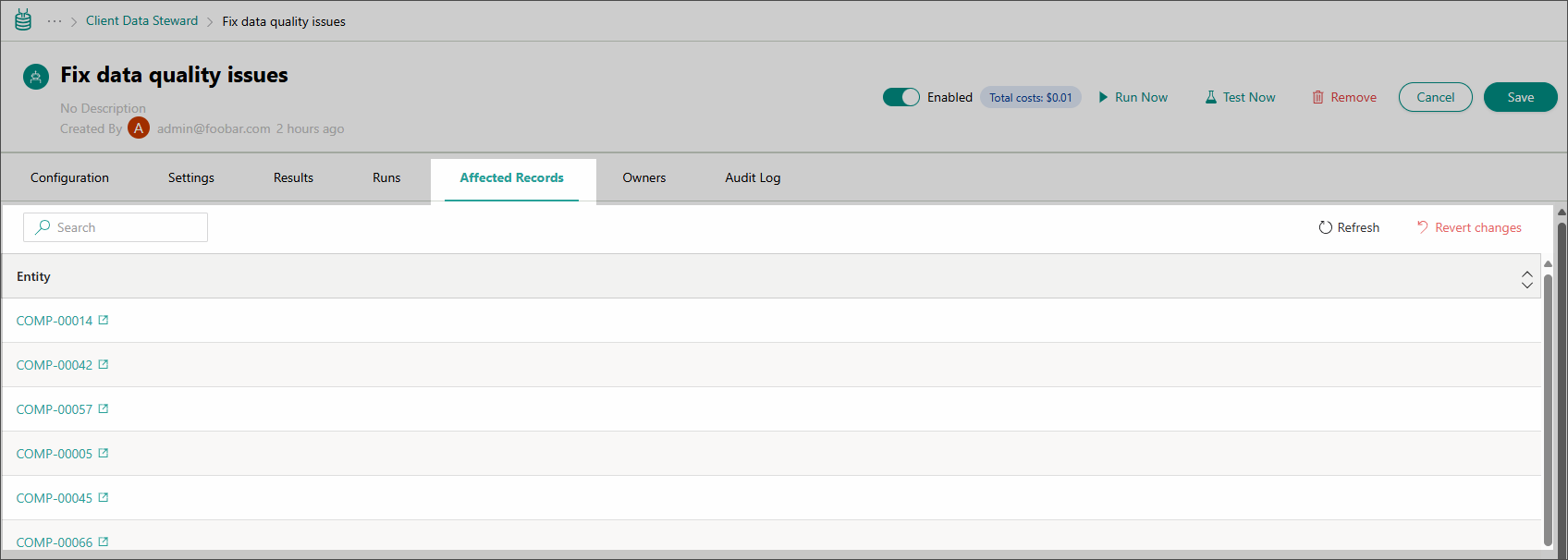
-
To view the changes made to a specific record, select that record in the list.
-
On the golden record page, do one of the following:
-
Go to the History tab. Then, locate the record named AI Agent Job Source - Agent name - Job name. For example, AI Agent Job Source - Client Data Steward - Fix data quality issues.
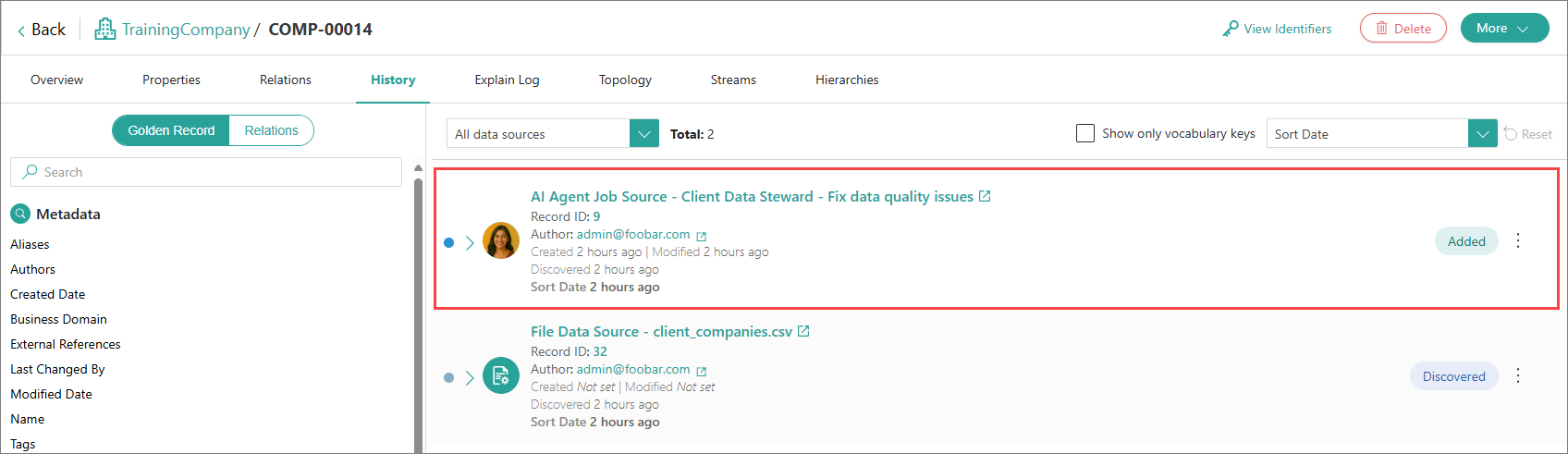
Expand the record to view the list of changes made.
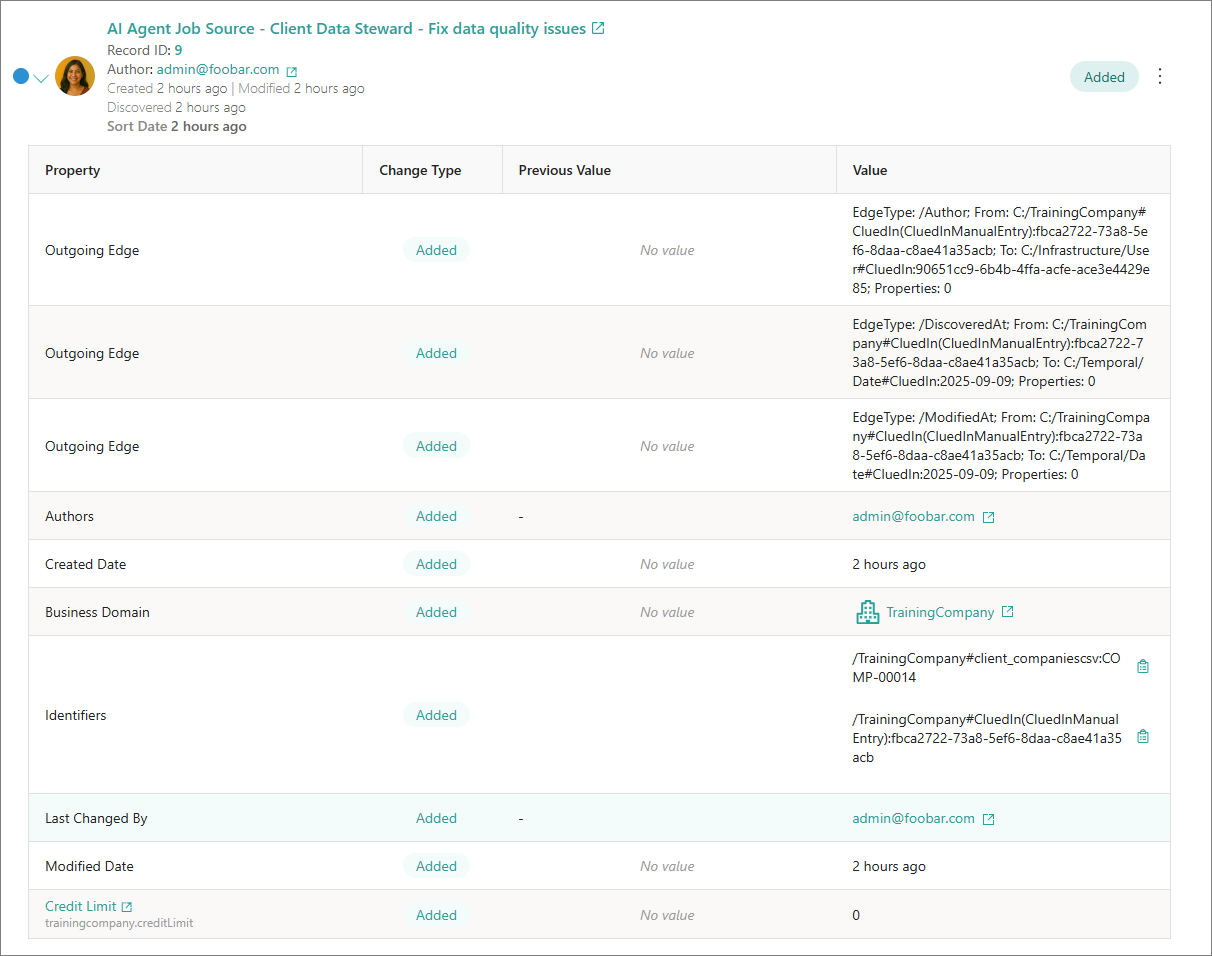
-
Go to the Topology tab. Then, locate the node that indicates the changes made by the AI agent. Such nodes are marked with the AI agent icon.
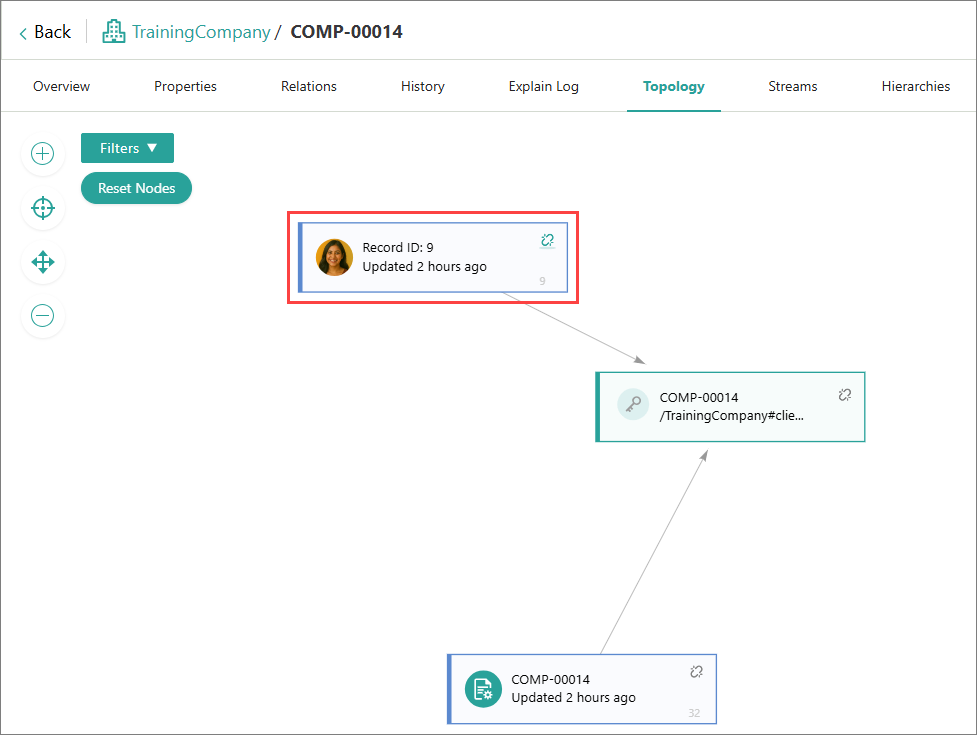
Click the node to view the list of changes made.
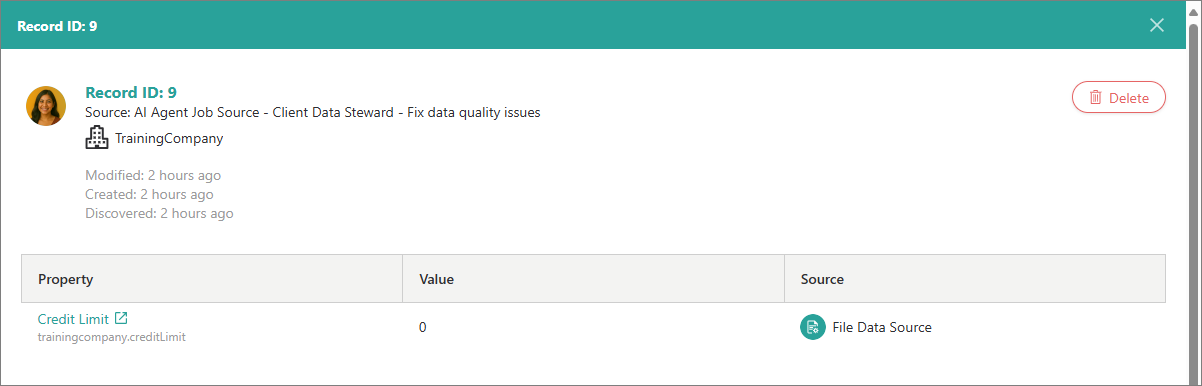
In the Value column, you can view the new property value that the record received after the AI agent made the changes. If you want to view the values both before and after the changes, use the History tab.
-
Revert changes made by an AI agent
You can revert the following changes made by an AI agent:
-
All changes made as part of a specific job.
-
All changes made to a specific golden record.
To revert all changes that an AI agent made
-
On the navigation pane, go to AI agents (or, alternatively, Management > AI Agents).
-
Select the needed agent in the list. Then, select the needed job.
-
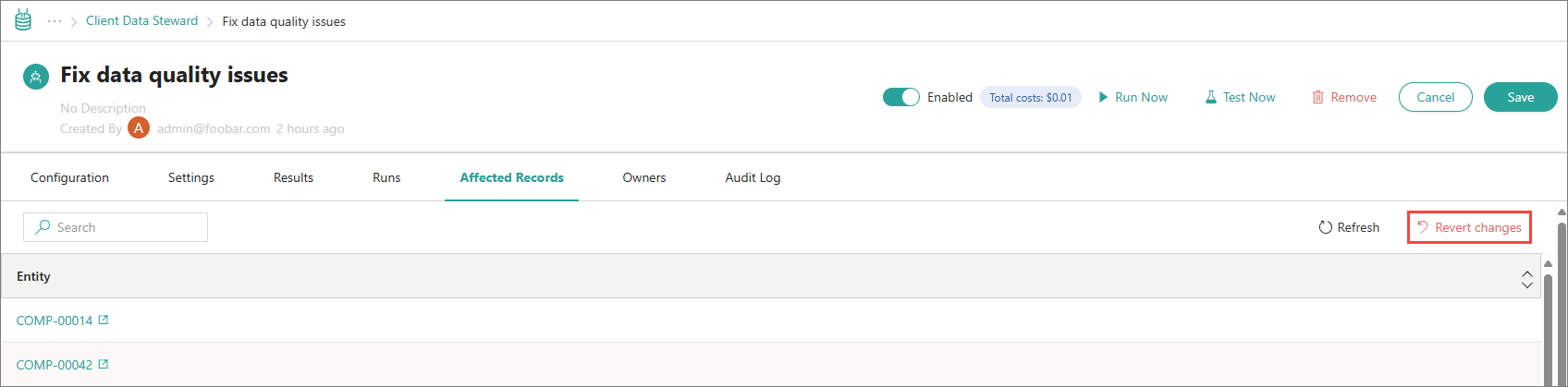
On the job page, go to the Affected Records tab.
-
In the upper-right corner of the Affected Records tab, select Revert changes.
-
Confirm that you want to revert the changes.
To revert changes that an AI agent made to a specific golden record
-
Locate and open the needed golden record. You can do this as follows:
-
Using search.
-
From the AI agent page. To do this, on the navigation pane, go to AI agents. Select the needed AI agent and AI agent job, and then go to the Affected Records tab.
-
-
To revert the changes, do one of the following:
-
Go to the History tab. Then, locate the record named AI Agent Job Source - Agent name - Job name. For example, AI Agent Job Source - Client Data Steward - Fix data quality issues.
Open the three-dot menu and select Delete.

Then, confirm that you want to revert the changes.
-
Go to the Topology tab. Then, locate and open the node that corresponds to the needed change.
In the upper-right corner of the node pane, select Delete.
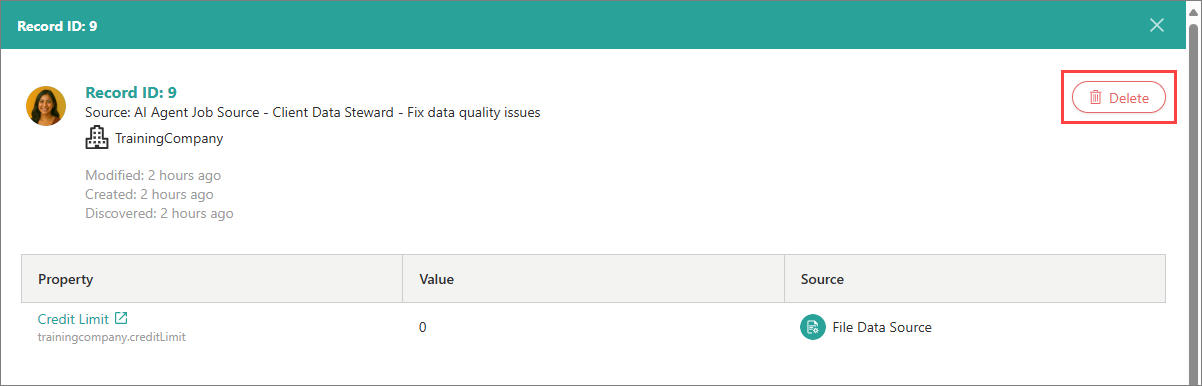
Then, confirm that you want to revert the changes.
-