Data factory pipeline run schedule
how-to Steps to accomplish one task
On this page
- TL;DR – Quick examples
- Syntax
- Frequencies and allowed parameters
- Parameter keys and default values
- Date/time and time zone details
- Platform differences (Azure and Fabric)
- How combinations work
- Validation checklist
- Extended examples
- FAQ
- Verification
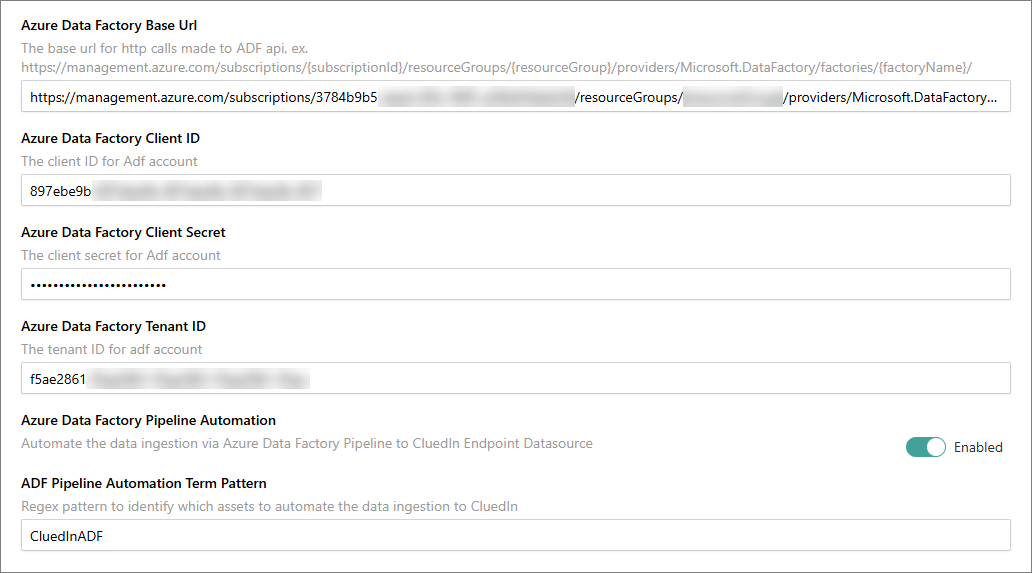
Use this setting to automate when your pipeline runs by entering a single schedule string in the textbox next to the toggle. This feature supports both Azure Data Factory and Microsoft Fabric–compatible scheduling formats.
You can define the following:
-
Cadence – how often the pipeline runs (minutely, hourly, daily, weekly, or monthly).
-
Timing – specific days or times within that cadence.
-
Optional boundaries – start and end times, and time zone.
If a parameter is omitted, CluedIn applies sensible defaults (see the tables below for details).
You will paste one of the strings below into the textbox next to your toggle.
TL;DR – Quick examples
Minutely:Interval=15
Hourly:Interval=2
Daily:Interval=1&Hours=[0,12,18]&Minutes=[0,30]
Weekly:Interval=1&WeekDays=[1,3,5]&Hours=[8,16]&Minutes=[0,45]
Monthly:Interval=1&MonthDays=[1,15,-1]&Hours=[9,21]&Minutes=[15,45]
These settings work as follows:
Minutely:Interval=15– runs the pipeline every 15 minutes.Hourly:Interval=2– runs the pipeline every 2 hours.Daily:Interval=1&Hours=[0,12,18]&Minutes=[0,30]– runs the pipeline daily at 00:00, 00:30, 12:00, 12:30, 18:00, and 18:30.Weekly:Interval=1&WeekDays=[1,3,5]&Hours=[8,16]&Minutes=[0,45]– runs the pipeline weekly on Monday, Wednesday, and Friday at 08:00, 08:45, 16:00, and 16:45.Monthly:Interval=1&MonthDays=[1,15,-1]&Hours=[9,21]&Minutes=[15,45]– runs the pipeline monthly on the 1st and 15th, as well as at the end of month at 09:15, 09:45, 21:15, and 21:45.
MonthDays=[-1] (end of month (EOM)) is supported only in Azure. If you also target Fabric, use explicit day values (for example, compute the EOM externally and pass 1–31 only).
Syntax
<Frequency>:<Key>=<Value>[&<Key>=<Value>...]
Frequency– The value must be one of the following:Minutely | Hourly | Daily | Weekly | Monthly.KeyandValuepairs – Must be separated by&.- Arrays – Must be enclosed in brackets and comma-separated (for example,
[1,3,5]). - Times – Can be specified using the
HoursandMinutesarrays. - Optional bounds:
StartDateTime,EndDateTime. - Optional parameters:
TimeZone.
Formal grammar (EBNF style)
schedule     = frequency ":" params ;
frequency    = "Minutely" | "Hourly" | "Daily" | "Weekly" | "Monthly" ;
params       = pair | pair "&" params ;
pair         = key "=" value ;
key          = "Interval" | "WeekDays" | "MonthDays" | "Hours" | "Minutes"
             | "StartDateTime" | "EndDateTime" | "TimeZone" ;
value        = integer | array | datetime | string ;
array        = "[" elements "]" ;
elements     = integer | integer "," elements ;
integer      = "-"? DIGITS ;
datetime     = DATE | DATE "T" TIME ;      // e.g., 10-08-2025 or 10-08-2025T14:30
DATE         = "MM-DD-YYYY" ;              // DateFormat = MM-dd-yyyy
TIME         = "HH:MM" ;                   // TimeFormat = HH:mm (24-hour clock)
Frequencies and allowed parameters
Minutely
- Keys:
Interval,StartDateTime,EndDateTime,TimeZone - Limits:
- Azure:
Interval=1–720000 - Fabric:
Interval=1–720
- Azure:
Hourly
- Keys:
Interval,StartDateTime,EndDateTime,TimeZone - Limits:
- Azure:
Interval=1–12000 - Fabric:
Interval=1–72
- Azure:
Daily
- Keys:
Interval,Hours,Minutes,StartDateTime,EndDateTime,TimeZone - Limits:
- Azure:
Interval=1–500 - Fabric:
Intervalis not supported Hours=0–23,Minutes=0–59
- Azure:
Weekly
- Keys:
Interval,WeekDays,Hours,Minutes,StartDateTime,EndDateTime,TimeZone - Limits:
- Azure:
Interval=1–71 - Fabric:
Intervalis not supported WeekDays=[1–7], where1=Mon … 7=SunHours=0–23,Minutes=0–59
- Azure:
Monthly
- Keys:
Interval,MonthDays,Hours,Minutes,StartDateTime,EndDateTime,TimeZone - Limits:
- Azure:
Interval=1–16 - Fabric:
Interval=1–12 - Azure MonthDays:
1–31,-1for end of month - Fabric MonthDay*:
1–31(no-1) Hours=0–23,Minutes=0–59
- Azure:
Parameter keys and default values
| Key | Type | Meaning | Default value if omitted |
|---|---|---|---|
Interval | Integer | Frequency step (for example, every N minutes/hours/days/weeks/months) | 1 |
WeekDays | Int[] | Days of week (1=Mon … 7=Sun) for Weekly | Current day of week (1–7) |
MonthDays | Int[] | Days of month (1–31, and -1 for end of month (EOM) in Azure) for Monthly | Today’s day of month |
Hours | Int[] | Hours in a 24-hour clock (0–23) | Current hour |
Minutes | Int[] | Minutes (0–59) | Current minute |
StartDateTime | Date/time | MM-dd-yyyy or MM-dd-yyyyTHH:mm | Current date/time |
EndDateTime | Date/time | Upper bound for firing | Minutely/hourly: end of day Daily/weekly: end of month Monthly: end of year |
TimeZone | String | IANA/Windows time zone ID (for example, Asia/Manila, Pacific Standard Time) | Current system time zone |
If you provide Hours without Minutes, the current minute is used. The same is true for Minutes without Hours.
Date/time and time zone details
- Date format –
MM-dd-yyyy(for example,10-08-2025). - Time format –
HH:mm(for example,14:30). StartDateTimeandEndDateTimeacceptMM-dd-yyyyorMM-dd-yyyyTHH:mm.- Time zone – If omitted, your server’s or application’s current time zone is assumed.
- Bounds behavior – Triggers occur on or after
StartDateTimeand before or onEndDateTime(inclusive end varies by implementation, refer to the list of default values).
Examples:
Daily:Interval=1&Hours=[6,18]&Minutes=[0]&StartDateTime=10-01-2025T06:00&TimeZone=Asia/Manila
Weekly:Interval=2&WeekDays=[2]&Hours=[9]&Minutes=[30]&EndDateTime=12-31-2025
Monthly:Interval=1&MonthDays=[-1]&Hours=[23]&Minutes=[59]&TimeZone=UTC
Platform differences (Azure and Fabric)
Some ranges differ by platform:
- Interval (minutely):
1–720000in Azure,1–720in Fabric. - Interval (hourly):
1–12000in Azure,1–72in Fabric. - Interval (monthly):
1–16in Azure,1–12in Fabric. - End of month (
-1): Azure only forMonthDays.
If you target both platforms, avoid MonthDays=-1 and use explicit end-of-month dates wherever possible (for example, compute 28–31 externally).
How combinations work
-
Daily, weekly, and monthly intervals execute at the Cartesian combinations of
Hours × Minutes.For example,
Hours=[8,16]andMinutes=[0,45]runs at08:00, 08:45, 16:00, 16:45. -
Weekly schedules use
WeekDays × Hours × Minutes. -
Monthly schedules use
MonthDays × Hours × Minutes. -
If a specified day does not exist in a given month (for example,
31in February), the run is skipped for that date.
Validation checklist
- ✅
Frequencyis set to one of the five supported values. - ✅ Numeric ranges fit the target platform (Azure or Fabric).
- ✅ Arrays are enclosed in brackets and comma-separated, without spaces (for example,
[1,3,5]). - ✅ No unsupported values (for example,
MonthDays=-1andIntervalforDailyandWeeklyon Fabric). - ✅
StartDateTimeis less than or equal toEndDateTime, if both are provided. - ✅
TimeZoneis a valid identifier (for example,Asia/Manila,UTC, orPacific Standard Time).
Extended examples
- Every 10 minutes from now until the end of the day.
Minutely:Interval=10 - Every 4 hours between two dates in UTC.
Hourly:Interval=4&StartDateTime=10-08-2025T00:00&EndDateTime=10-15-2025T23:59&TimeZone=UTC - Daily at 07:30 only.
Daily:Hours=[7]&Minutes=[30] - Weekly on weekends at the top of the hour.
Weekly:WeekDays=[6,7]&Minutes=[0] - Monthly on the 1st, 15th, and 30th at 09:00 and 18:00.
Monthly:MonthDays=[1,15,30]&Hours=[9,18]&Minutes=[0] - (Azure only) Monthly on the last day of the month at 23:59.
Monthly:MonthDays=[-1]&Hours=[23]&Minutes=[59]
FAQ
Q: What happens if I omit Hours and Minutes for daily, weekly, or monthly schedules?
A: They default to the current hour and minute at the time you enable or save the schedule.
Q: How are StartDateTime and EndDateTime interpreted?
A: They define the active window during which the schedule can run, based on the specified (or default) TimeZone.
Q: Can I specify seconds?
A: No. Seconds are not supported in the current format. Use HH:mm for time values and, if needed, schedule more frequent runs instead.
Verification
Use the following checklist to verify end-to-end behavior.
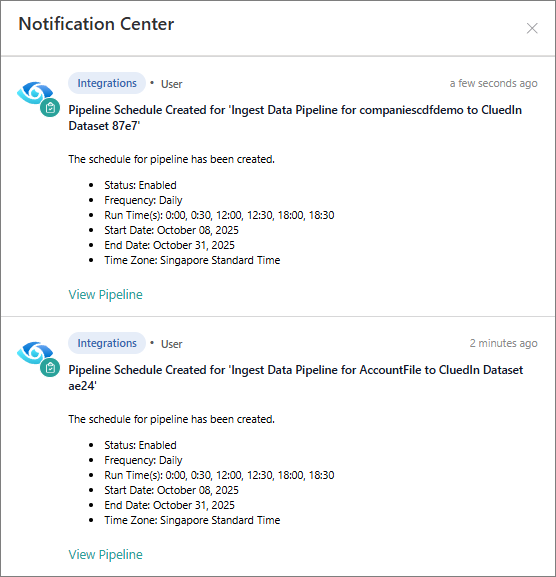
- CluedIn – Notification about schedule being created.
- What to capture: The in-app notification (toast) confirming that the schedule was created successfully.
- When to capture: Immediately after clicking Save with a valid schedule string.
- Expected text (example): Pipeline run schedule created for ‘Pipeline name‘.
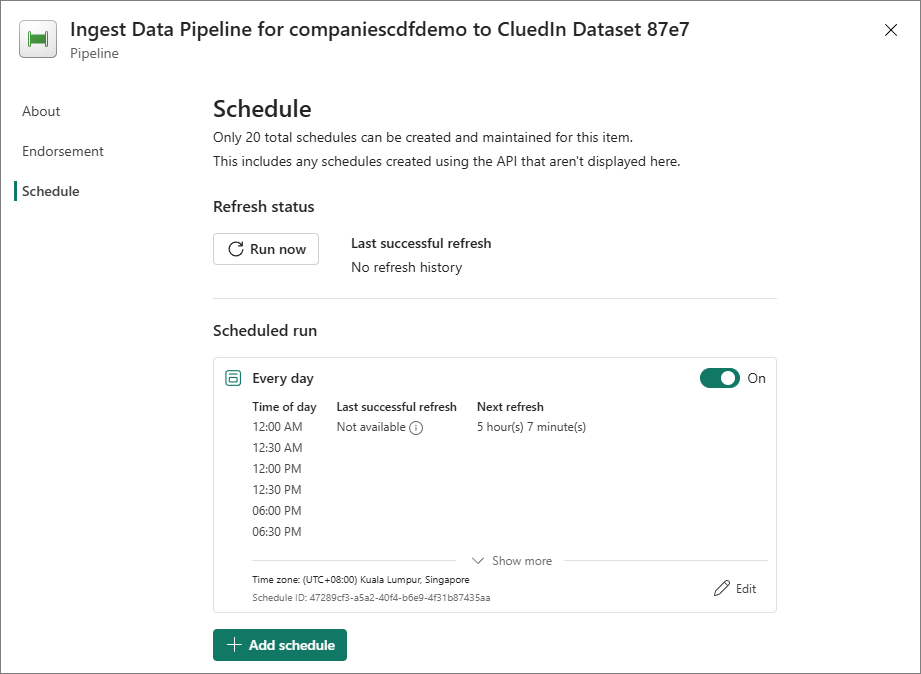
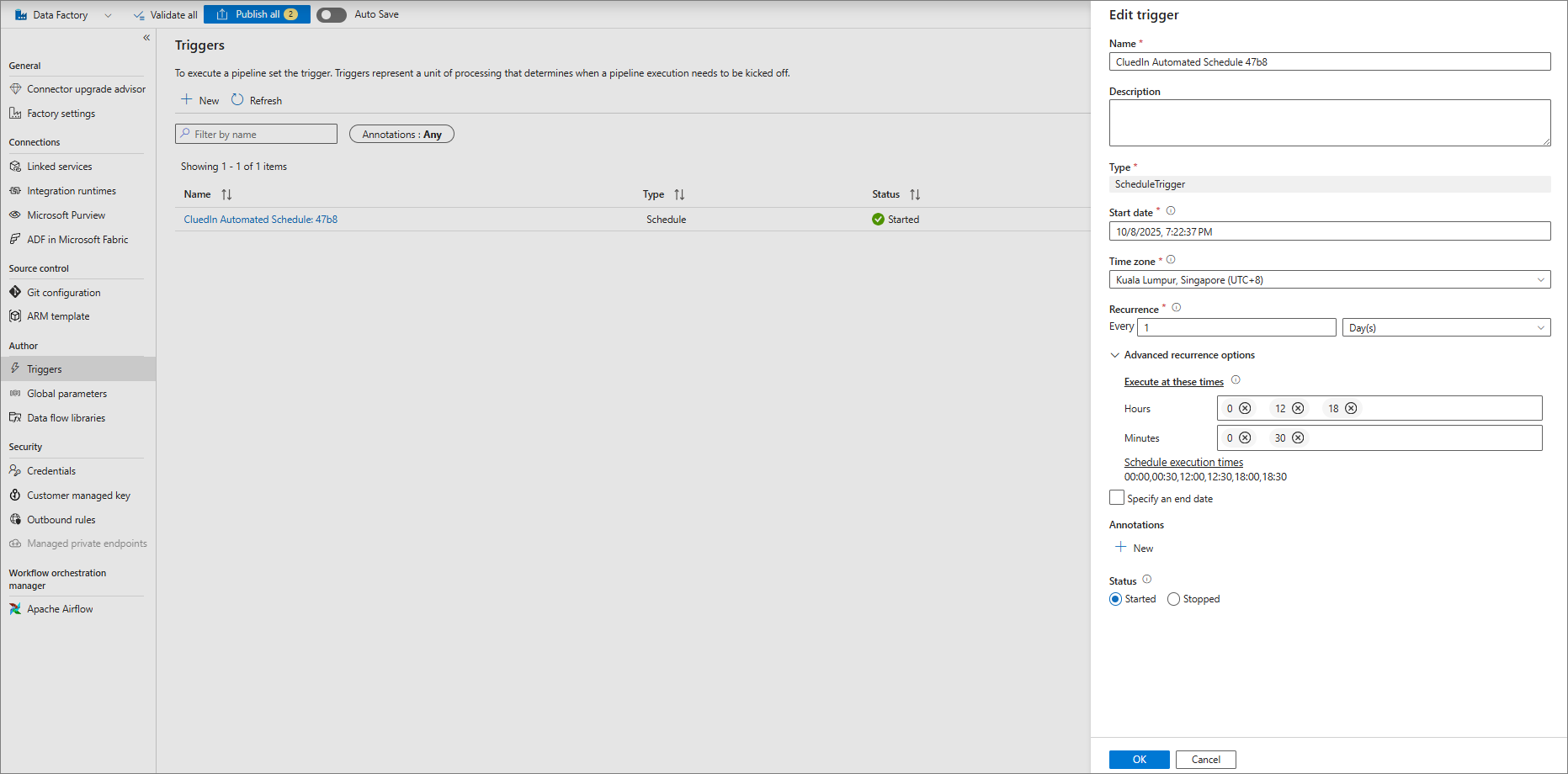
- Fabric and Azure – Schedule artifact.
- What to capture: The corresponding schedule or trigger is created in Microsoft Fabric or Azure Data Factory (ADF).
- When to capture: After the CluedIn success message appears, open the target platform and navigate to the trigger or schedule details.
- Fabric path (example): Workspace > Pipelines > pipeline of interest > Schedules > your schedule.
- ADF path (example): Authoring > Triggers > trigger of interest > Schedule.
Fabric example:
ADF example:
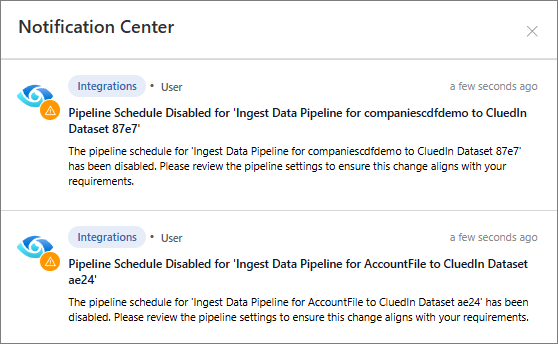
- CluedIn – Notification about schedule being disabled (toggle off).
- What to capture: The in-app notification confirming that the schedule was disabled after turning the toggle off (or clearing the textbox and saving).
- When to capture: Immediately after disabling the setting.
- Expected text (example): Pipeline run schedule disabled.