Sync Purview glossaries to CluedIn vocabularies
how-to Steps to accomplish one task
On this page
In this article, you will learn how to sync Purview glossaries to CluedIn vocabularies.
Preparation
To sync glossaries from Purview to CluedIn vocabularies and vocabulary keys, complete 2 preparation steps:
-
Prepare glossary terms in Purview – create a new term template with an attribute to indicate that glossary terms can be synced to CluedIn vocabulary keys and prepare glossary terms for syncing.
-
Configure settings in CluedIn – enable the sync Purview glossaries to CluedIn vocabularies feature and provide the attribute to identify the glossary terms for syncing.
Preparation in Purview
Make sure you have the existing classic type glossary that contains some glossary terms along with child glossary terms. The child glossary terms in Purview must be assigned to the schema of the asset that is synced with CluedIn. Purview glossary terms will be synced to CluedIn vocabularies and Purview child glossary terms will be synced to CluedIn vocabulary keys.
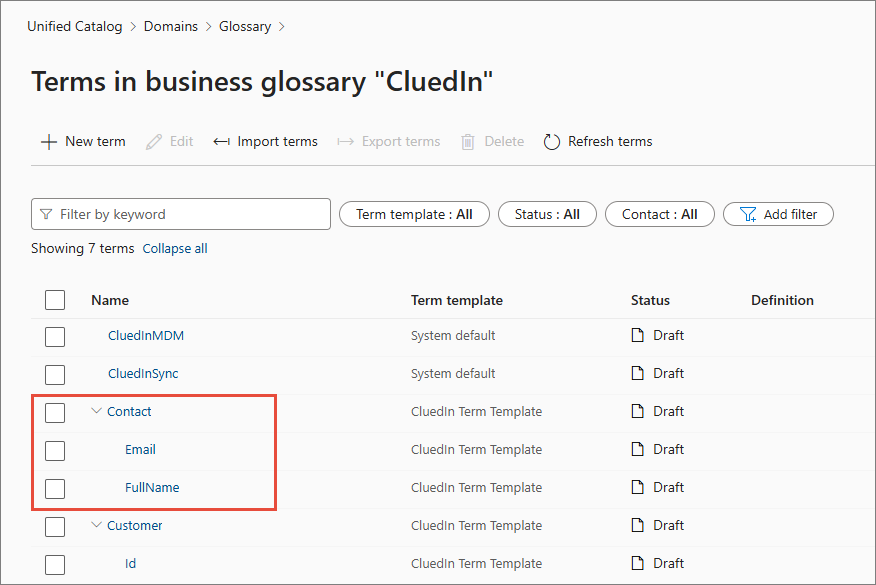
On the following screenshot, we have the CluedIn glossary that contains 7 glossary terms. The Contact glossary term contains 2 child glossary terms: Email and FullName. In this section, you will find an instruction on how to prepare these two child glossary terms for synchronization with CluedIn.
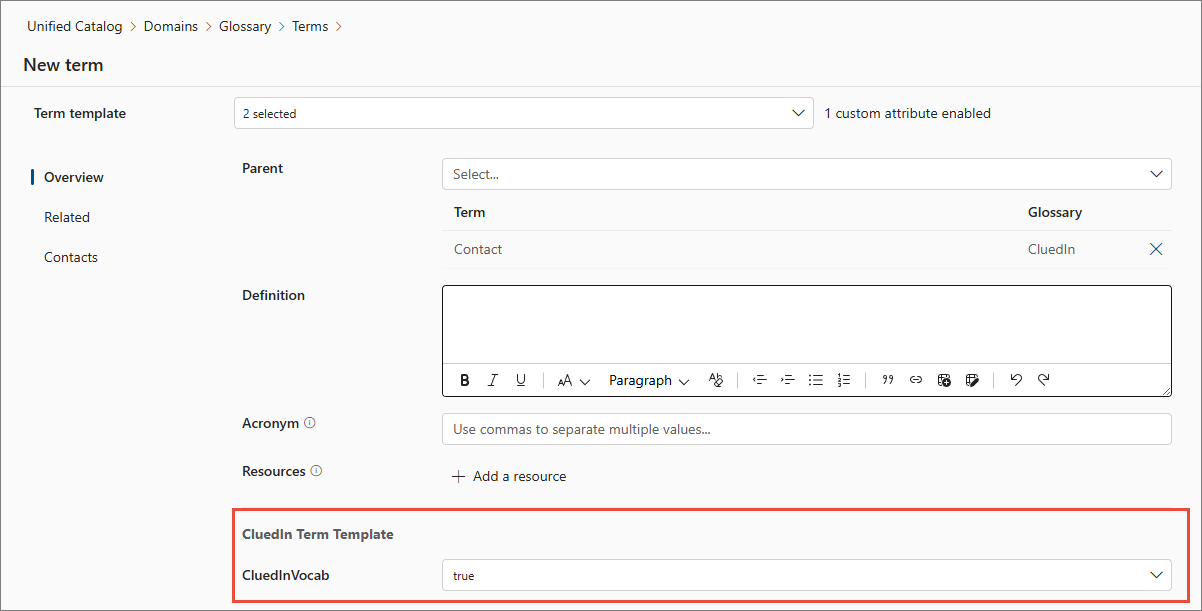
Additionally, the glossary terms should contain an attribute to indicate that they can be synced to CluedIn vocabulary keys. The name of this attribute should be the same as in the Glossary to Vocabulary Attribute Filter field from CluedIn settings. The default value is CluedInVocab. You can create this attribute in Purview with the help of a new term template.
To create a new term template
-
In the Microsoft Purview portal, navigate to Unified Catalog > Catalog management > Classic types, and then select the glossary that contains the term you want to sync to CluedIn.
-
On the glossary terms details page, select New term.
-
Select New term template.
-
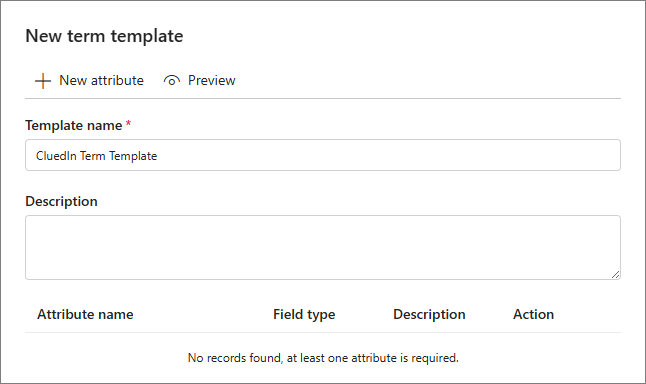
Enter the Template name.
-
Select New attributes.
-
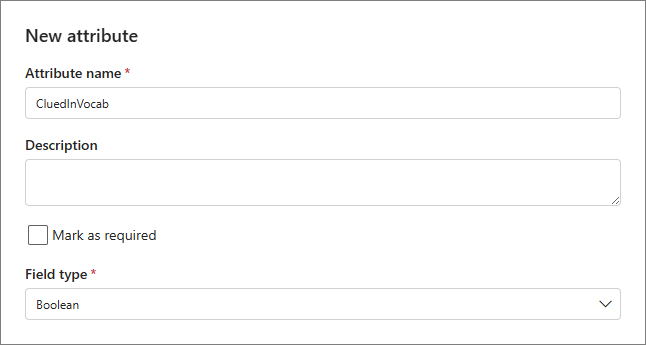
Enter the Attribute name. It should be the same as in the Glossary to Vocabulary Attribute Filter field from CluedIn settings. The default value is CluedInVocab.
-
In Field type, select Boolean.
-
Select Apply, and then select Create.
Now, when you create a new glossary term that you want to sync to CluedIn vocabulary key, set the attribute to True.
To prepare Purview child glossary terms
-
In the Microsoft Purview portal, navigate to Data Map > Domains. In your default domain, select the collection that stores the assets from Azure Data Lake Storage.
-
Select the assets card.
-
Find and select the asset that is synced with CluedIn.
-
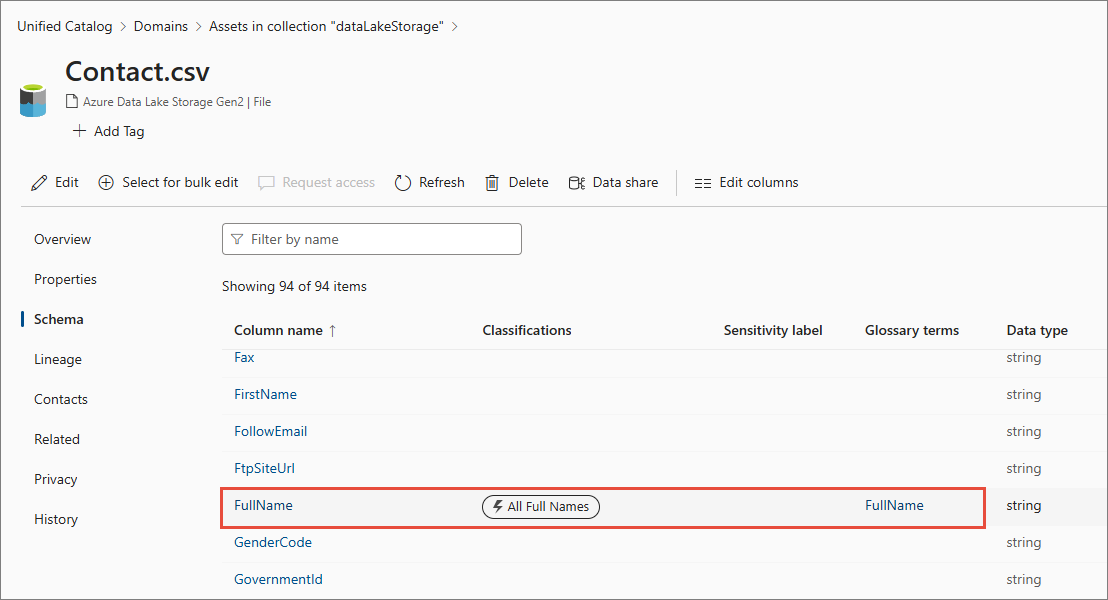
On the asset details page, select Schema.
-
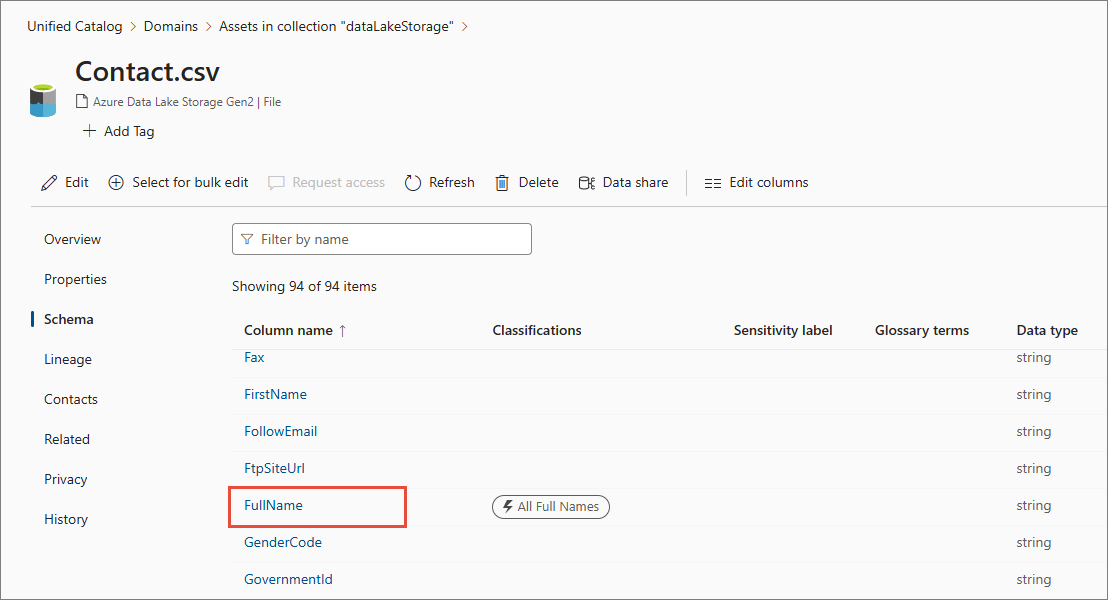
Find and select the column that should be associated with the child glossary term that you want to sync.
-
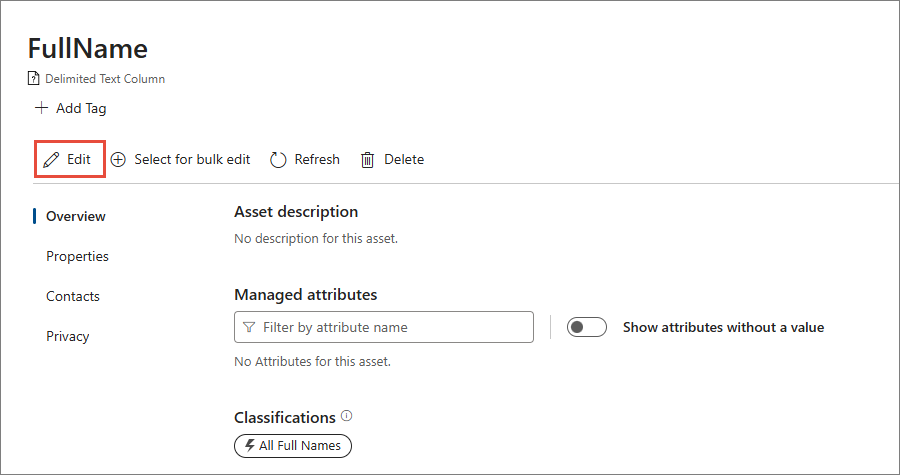
On the column details pane, select Edit.
-
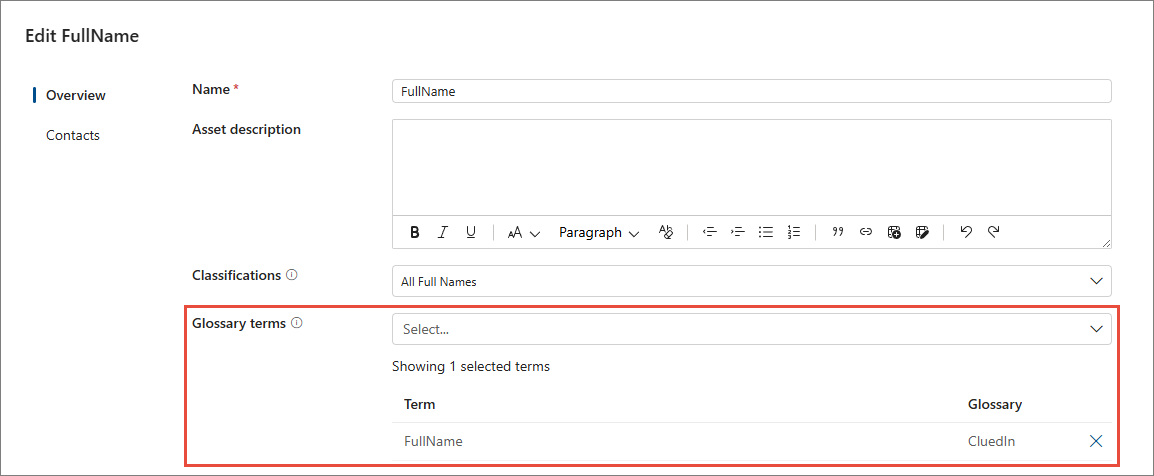
In Glossary terms, find and select the child glossary term that you want to assign to the column.
-
Select Save.
The child glossary term is now associated with the column.
-
Repeat steps 1–8 for all child glossary terms that you want to sync to CluedIn vocabularies.
Preparation in CluedIn
-
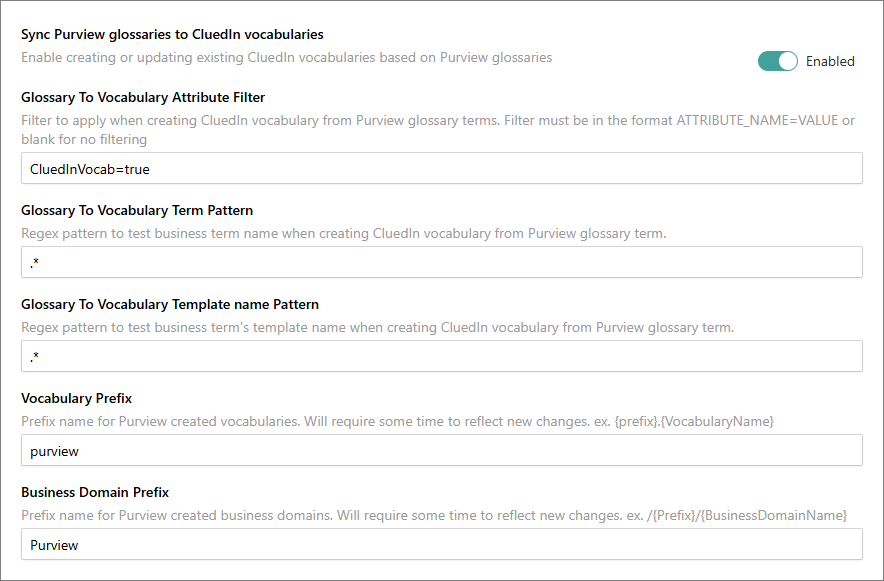
In CluedIn, go to Administration > Settings, and then scroll down to find the Purview section.
-
Turn on the toggle in Sync Purview glossaries to CluedIn glossaries.
-
You can leave the other settings for this feature at their default values.
-
Select Save.
Feature demonstration
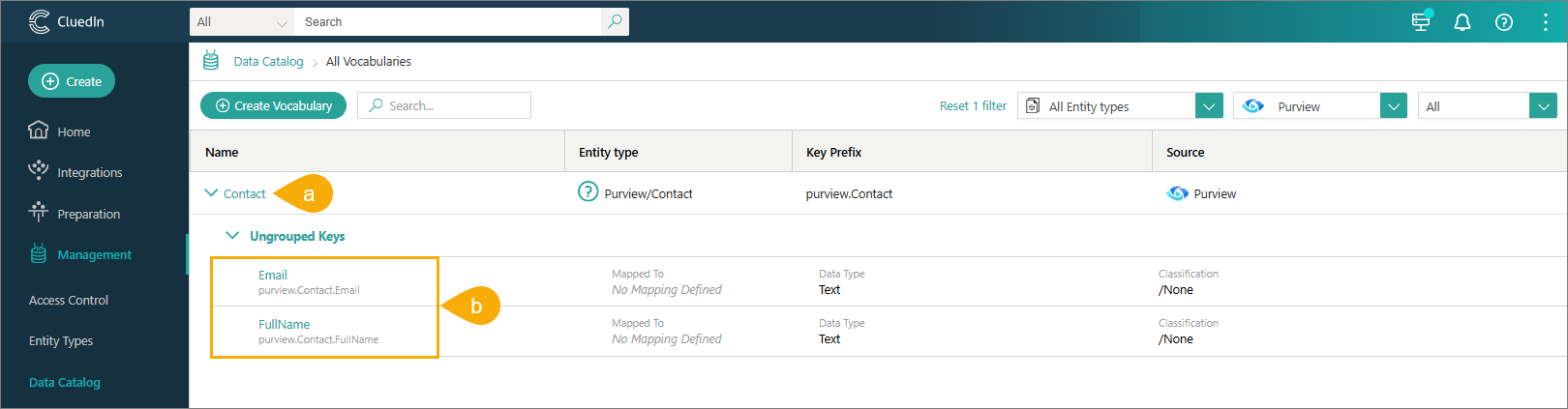
Once you enable synchronization of Purview glossaries to CluedIn vocabularies, you will receive a notification when the vocabulary key is created in CluedIn. If there are matching CluedIn vocabularies, they will be updated; otherwise, new CluedIn vocabularies are created for the incoming Purview glossaries.
To find synced vocabulary keys in CluedIn
-
On the navigation pane, go to Management > Data Catalog > View All Vocabularies.
-
Find and expand the vocabulary that is named as the Purview glossary term.
The vocabulary (a) corresponds to the glossary term in Purview. It contains vocabulary keys (b) that correspond to child glossary terms in Purview. According to default settings, the vocabulary is automatically associated with the Purview/Contact entity type, and the vocabulary key prefix is “purview”. However, you can change these settings if needed.