

Create a stream
how-to Steps to accomplish one task
On this page
- Prerequisites
- Inputs
- Create a stream
- Configure an export target
- Verify the result
- What this changes
- If something goes wrong
Create a stream when you want to send golden records from CluedIn to an external system (for example, a Microsoft SQL Server database) and keep sending them as they change. You create the stream and choose which golden records it sends, and then configure the export target and the properties to send. Creating and configuring a stream does not send anything: records are sent once you start the stream.
Prerequisites
- The Streams claim, which covers creating a stream and its export target configuration. See Claims.
- An export target where you want to send the records from CluedIn, added and configured, with a Healthy status. For more information, see Export targets.
Inputs
| Field | Required | What it accepts | Example |
|---|---|---|---|
| Name | Required | The name of the stream. | Training |
| Filters | Optional | Filter rules that select the golden records to send. Without filters, all golden records are sent. | Entity Type equals TrainingContact |
| Actions | Optional | One or more actions applied to the records before they are sent. | Mask a value |
| Description | Optional | Details about the stream. | |
| Connector | Required to send records | A configured export target that is not Unhealthy. | SQL Server Connector |
| Target name | Not stated | The name of the container that receives the records: a table in a SQL database, an index in Elasticsearch. | Customers |
| Streaming mode | Not stated | Synchronized stream or Event log stream. | Synchronized stream |
| Export edges | Optional | Outgoing and Incoming toggles. | Outgoing on |
| Properties to export | Optional | Entity properties and vocabulary keys. Without a selection, the export target’s default properties are sent. | trainingcontact.email |
Create a stream
The first step to send the records from CluedIn to an export target is to create a stream and define what golden records you want to share.
To create a stream
-
On the navigation pane, go to Consume > Streams.
-
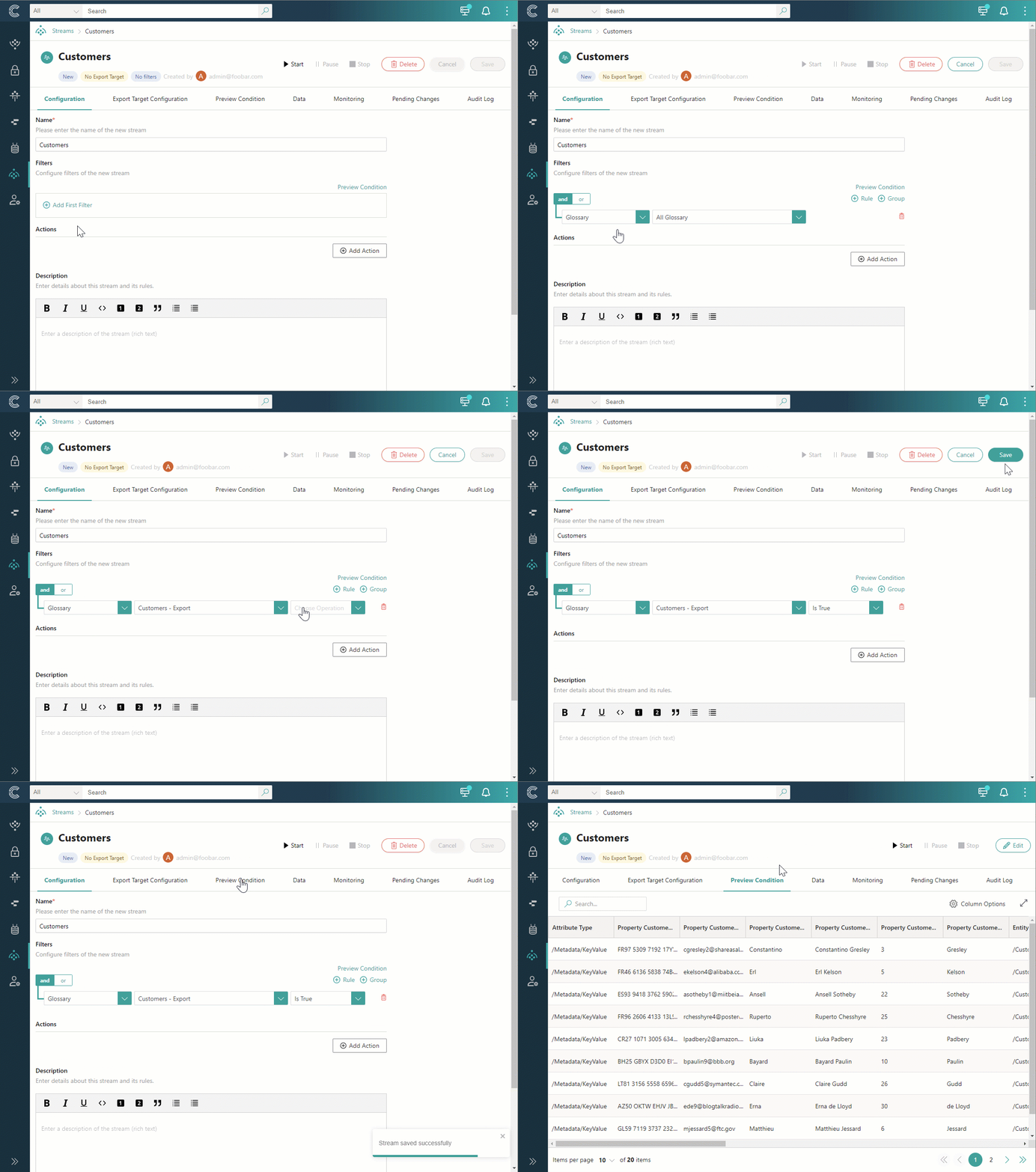
Select Create Stream. Enter the name of the stream, and then select Create.
The stream details page opens, where you can configure the stream and the export target for the stream, as well as view all stream-related data.
-
In the Filters section, select Add First Filter, and then specify which golden records you want to send to the export target. For more information on how to set up a filer, see Filters.
If you want to view the golden records matching the filter, select Preview Condition.
-
If you want to modify golden records before sending them to the export target—for example, mask certain values—you can do it in the Actions section. Select Add Action, and then configure the action that will be performed on the records matching the stream’s filter. For more information about the available actions, see Actions in data part rules. You can add multiple actions.
The changes applied by the actions do not affect the records stored in CluedIn, only the records that are sent to the export target.
-
(Optional) In the Description section, enter the details about the stream.
-
In the upper-right corner of the stream details page, select Save.
You created the stream. Now, you are the owner of the stream. For more information, see Ownership. Next, configure the export target for the stream and select which properties from the golden records will be shared.
Configure an export target
You can configure the export target for the stream on the Export Target Configuration tab of the stream details page.
To configure the export target for the stream:
-
On the Choose connector tab, select the export target where the records will be sent.
If the export target is Unhealthy, you cannot select it in the export target configuration for a stream.
-
Near the upper-right corner, select Next.
-
On the Connector properties tab, provide the following details:
-
In the Target name field, enter the name of the container that will receive the records sent from CluedIn. For example, in SQL databases this container is a table and in Elasticsearch databases it is the index.
-
In the Streaming mode section, select the option for sending the records to the export target:
-
Synchronized stream – select this option if you want the records in the export target to mirror the records in CluedIn.
-
Event log stream – select this option if you want to send data as events (for example, Create, Insert, Update, Delete) each time an action occurs in CluedIn.
-
-
Near the upper-right corner, select Next.
-
-
On the Properties to export tab, provide the following details:
-
In the Export edges section, select whether you want to send the linked data together with the golden records:
-
Outgoing – turn on this toggle if you want to send the data for which the stream’s records are the target.
-
Incoming – turn on this toggle if you want to send the data for which the stream’s records are the source.
-
-
In the Properties to export section, select which properties of the golden records you need to send to the export target.
By default, certain properties of the golden records will be sent to the export target. These default properties depend on the export target (for example, for SQL Server Connector the default properties include Id, PersistVersion, PersistHash, OriginEntityCode, EntityType, Timestamp). However, you can send other properties as well. To do that, select Add Property > Add Entity Property, and then select the needed properties. In a similar way, you can add the vocabulary keys.
If you want to send all vocabulary keys associated with the records matching the stream’s filters, select Auto-select. All vocabulary keys will be displayed in the table. If you don’t want to send a particular vocabulary key, select the checkbox next to it, and then select Remove Property.
By default, a property is sent to the export target under its original name. If you want it to have a different name in the exported output, manage field mappings on the Field mappings tab after you save the stream.
-
-
Near the upper-right corner, select Save.
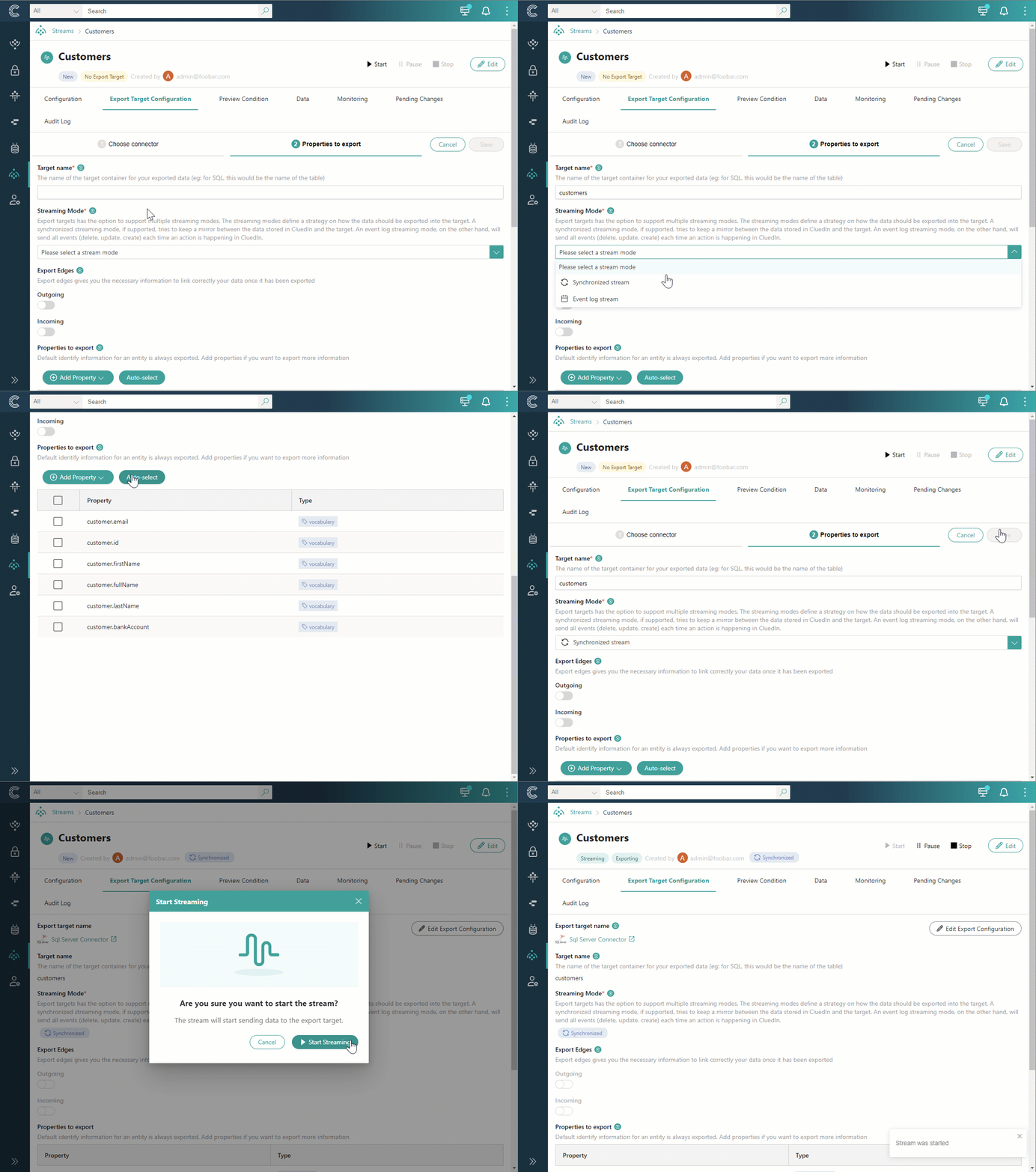
You configured the export target for the stream and defined what properties will be sent to the export target. Now, you’re ready to start streaming records to the external system.
Verify the result
- After you save the stream, it appears in the list on the Streams page, and its details page shows the New status, which means that the stream has not been started yet.
- The indicators next to the status show what is still missing: No export target, No filters, or No properties selected. See Stream indicators.
- On the Preview Condition tab, you can see the golden records that match the stream’s filters. On the Data tab, you can see the records that will be sent, with the properties you selected.
- After you start the stream, its status is Streaming, and the Stream Log tab lists the golden records that the stream exported, along with any errors. Each exported golden record shows the stream on its Streams tab. See Stream logs.
What this changes
- Creating and configuring a stream saves configuration. No records are sent until you start the stream.
- Actions change only the records that are sent to the export target. They do not affect the golden records stored in CluedIn.
- Once the stream is started, it sends data to the external system:
- With Synchronized stream, the records in the export target mirror the golden records in CluedIn. When a golden record changes, it changes in the export target; when a golden record is deleted in CluedIn, it is deleted in the export target.
- With Event log stream, an event (for example, Create, Insert, Update, Delete) is sent to the export target each time an action occurs in CluedIn.
- Changing filters, actions, or the export target configuration later triggers stream reprocessing when you save: all records in the export target are deleted, and the stream sends the records again. See Edit a stream.
- Stopping the stream clears its queue and its logs. If you start it again, it sends records from the beginning. To halt sending without losing the queue, pause the stream instead.
If something goes wrong
- You cannot select the export target. Its status is Unhealthy. Check the export target’s Health Checks tab and its configuration in Export targets.
- The stream shows Not exporting. The export target is not receiving records. Check the export target configuration.
- The stream stopped on its own. When the export target becomes Unhealthy, the stream associated with it is stopped, and a log is added to the Stream Log tab. See Stream logs.
- More golden records than expected are sent. Without filters, all golden records are sent. Add filters on the Configuration tab.
- Only some properties arrive in the export target. Without a selection, only the export target’s default properties are sent. Select properties on the Properties to export tab.
- Field mappings cannot be saved. A mapping is missing a source field or an export field name. Fix or remove the incomplete mapping. See Manage field mappings.