

Manage groups of duplicates
how-to Steps to accomplish one task
On this page
- Prerequisites
- Process a group of duplicates
- Merge groups
- Check merged record
- Unmerge records
- Verify the result
- What this changes
- If something goes wrong
Process and merge groups of duplicates when a deduplication project has generated matches and you want to turn each group into one golden record. You review each group, choose the values the merged golden record keeps, approve or reject the group, and then merge the approved groups. Merging changes golden records; if a merge did not go as expected, you can unmerge it.
Prerequisites
- The Deduplication Review claim, which covers processing, approving, rejecting, merging and unmerging groups of duplicates. See Claims.
- A deduplication project with the Ready for review status, which means that matches have been generated.
- If you want to fix conflicts automatically with Auto-select, the survivorship rules that should pick the values.
When you generate matches and CluedIn detects duplicates, they are organized into groups. These groups contain golden records identified as potential duplicates based on your matching rules. The following diagram illustrates basic group workflow. For more information about group statuses, see Deduplication reference.
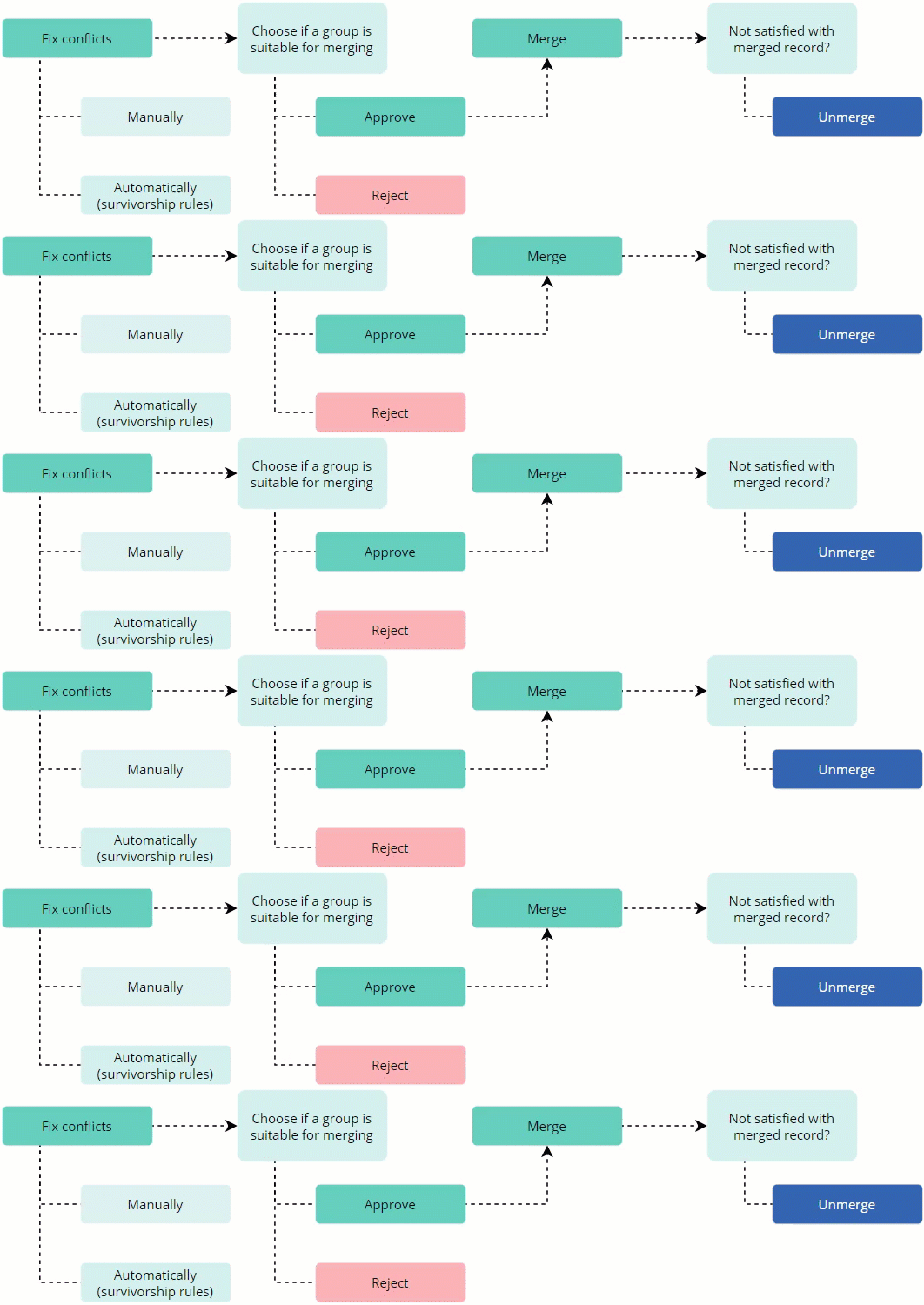
When you open a group of duplicates, you can find the following details:
-
Golden records that were identified as possible duplicates.
-
Conflicting values – variations in the same property or vocabulary key across all golden records within the group.
-
Matching values – consistent values for the same property or vocabulary key across all golden records within the group.
Process a group of duplicates
To ensure the merged golden records meet your requirements, you need to process each group of duplicates. Processing a group of duplicates involves three key steps:
-
Fixing duplicates – select the appropriate values from conflicting values that will be used in the merged golden record. You can fix duplicates in one of the following ways:
-
Manually – by selecting the appropriate values on your own.
-
Automatically – by turning on the Auto-select toggle. CluedIn will select the appropriate values based on your survivorship rules.
-
-
Defining if a group is suitable for merging – approve or reject the group.
To process a group of duplicates
-
On the Matches tab of the deduplication project, select the group name.
-
On the Fix Conflicts tab, review conflicting values and choose the appropriate values to be used in the merged golden record. If you are not certain about the correctness of the selected values, you can Reset Conflicts and start again.
Turning on the Auto-select toggle prevents the display of selected values on the Fix Conflicts tab. Instead, you can review those values on the next tab (Preview Merge).
-
Go to the Preview Merge tab and review the property or vocabulary keys values that the merged golden record will hold.
-
Depending on the results of your review, choose if a group is suitable for merging:
-
If you want to merge the group, select Approve, and then confirm your choice. This is a preliminary step before merging.
If you change your mind, you can Revoke the approval, which brings the group back to the New status.
-
If you don’t want to merge the group, select Reject, and then confirm your choice. Rejected groups cannot be merged. However, if you change your mind, you can Approve the rejected group later.
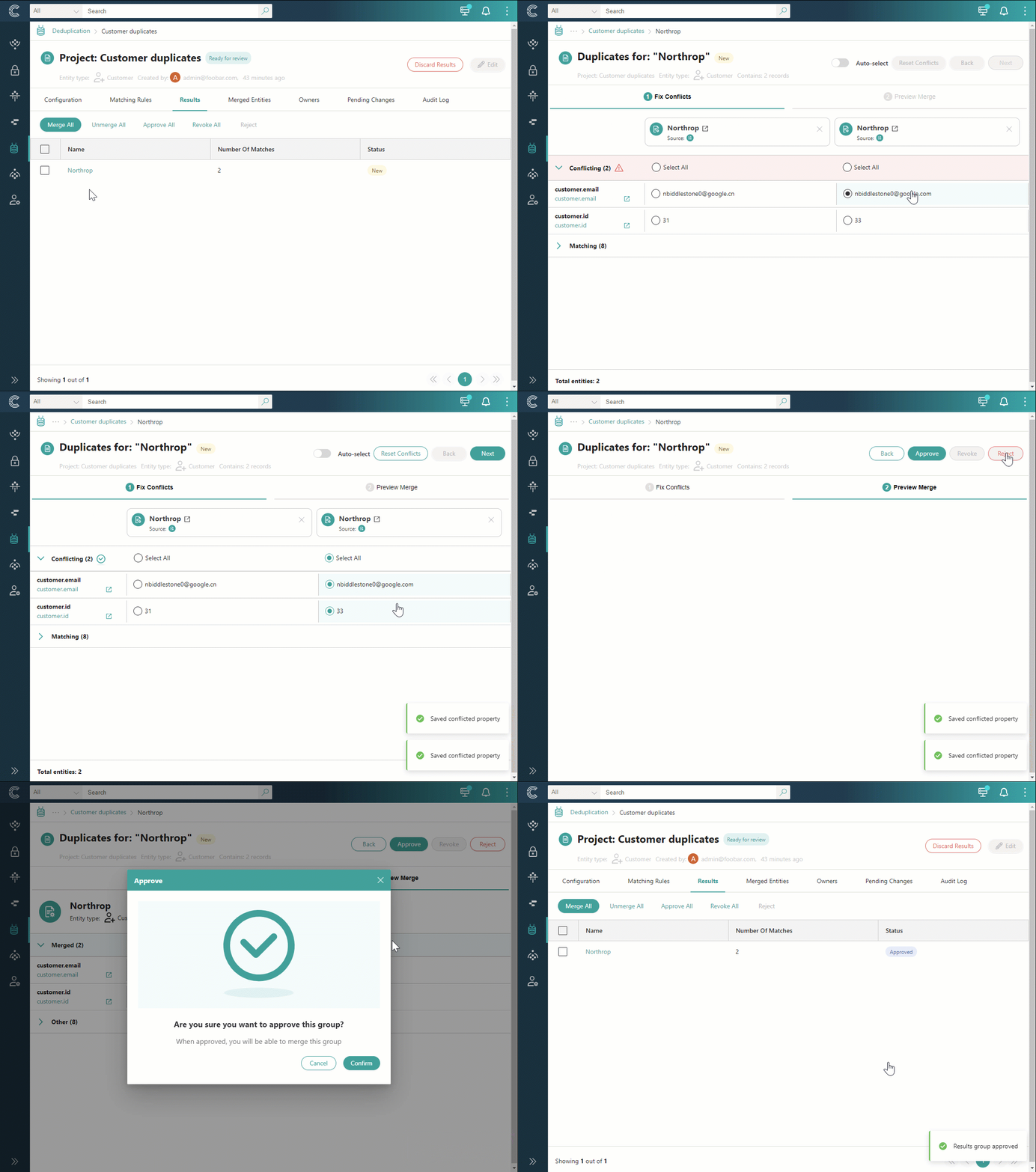
Once all groups within the project have been processed, proceed to merge the groups.
-
Merge groups
Only groups with the Approved status can be merged. For additional details on group statuses, see Deduplication reference.
To merge groups
-
Select the checkboxes next to the groups that you want to merge, and then select Merge. Alternatively, you can use the Merge All option, and CluedIn will automatically select groups suitable for merging.
-
Review the groups that will be merged, and then select Next.
-
Choose the strategy for dealing with stale data if it is identified during merging.
-
Select Confirm.
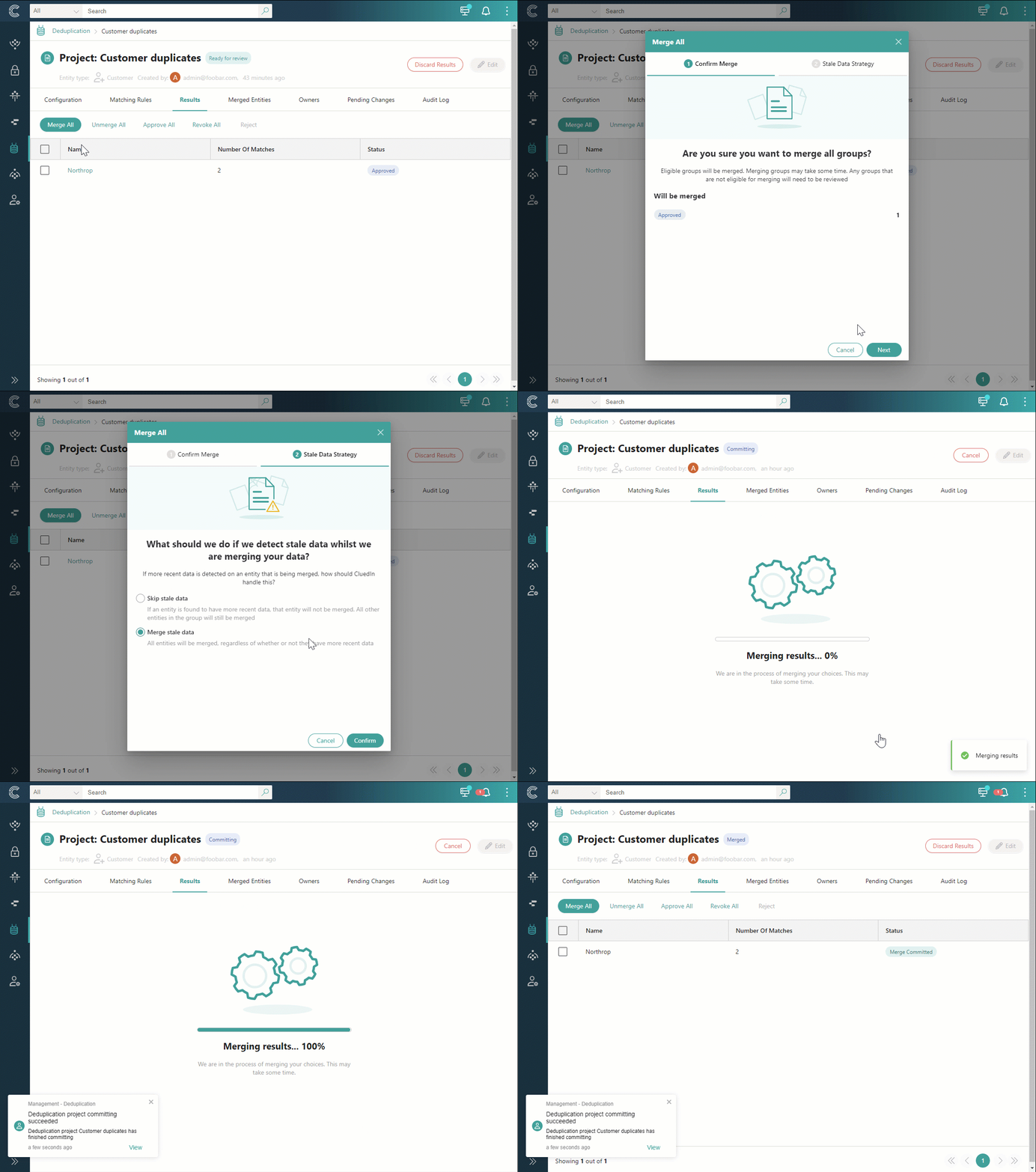
The groups are merged, each generating merged golden records. Next, check the merged golden records to ensure they align with your specific requirements. If you are not satisfied, you have the option to revert changes by unmerging records.
Check merged record
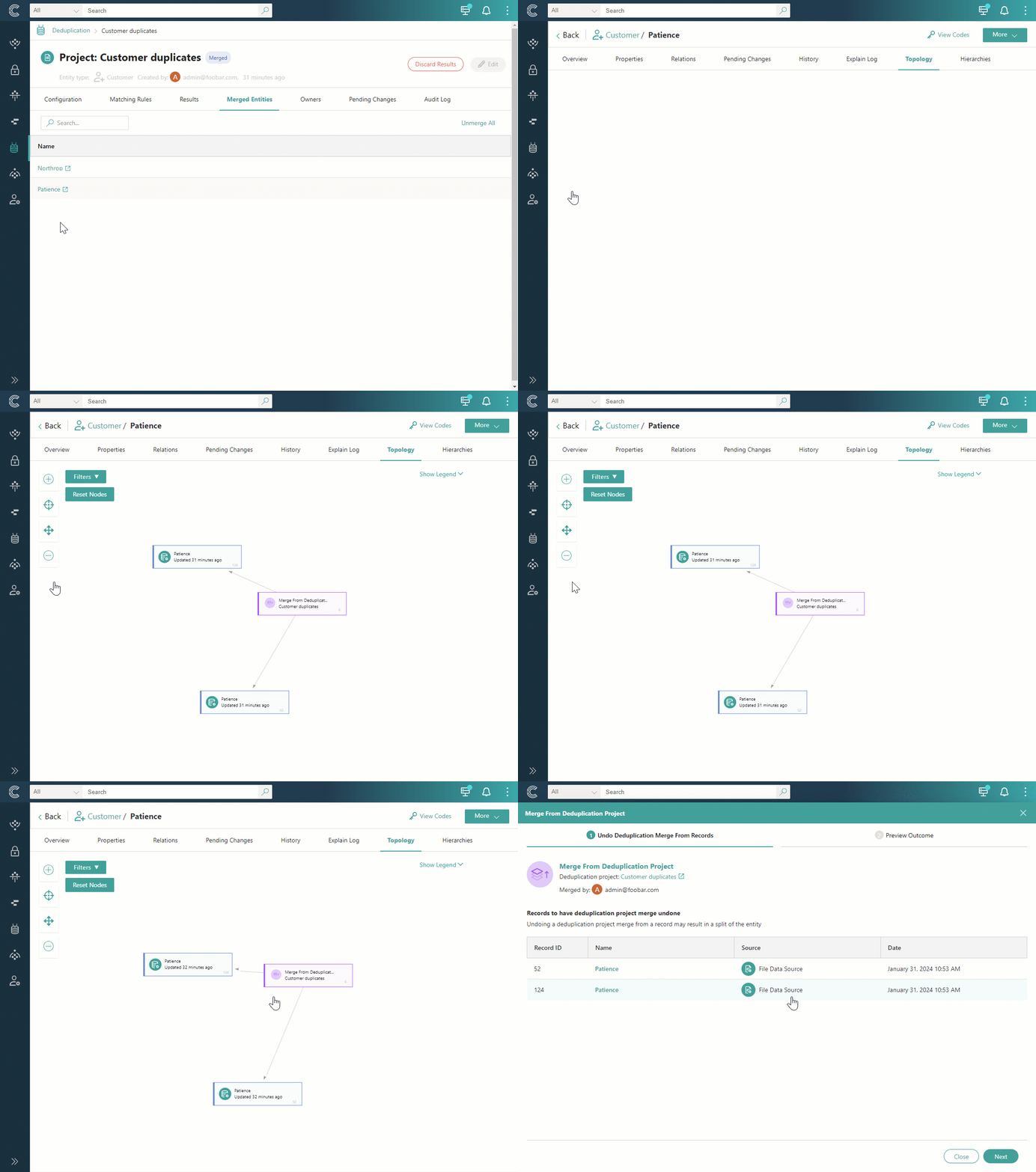
All merged golden records produced within the deduplication project are listed on the Merges tab. Selecting a golden record takes you to the Topology tab, where you can view the records that make up the golden record, linked together in a visual representation. The link between such records is the deduplication project. Having such link allows you to easily unmerge records in needed.
Unmerge records
If merged golden record is not as you expected, you can revert the changes by unmerging records.
The unmerging option enables dynamic testing of your deduplication project configuration, allowing you to iteratively refine it until you achieve the desired results.
You can unmerge records in one of the following ways:
-
On the Topology tab of the golden record – select the deduplication project that links the records together and then undo deduplication merge.
-
On the Matches tab of the deduplication project – select the checkboxes next to the groups that you want to unmerge, and then select Unmerge.
-
On the Merges tab of the deduplication project – select Unmerge All.
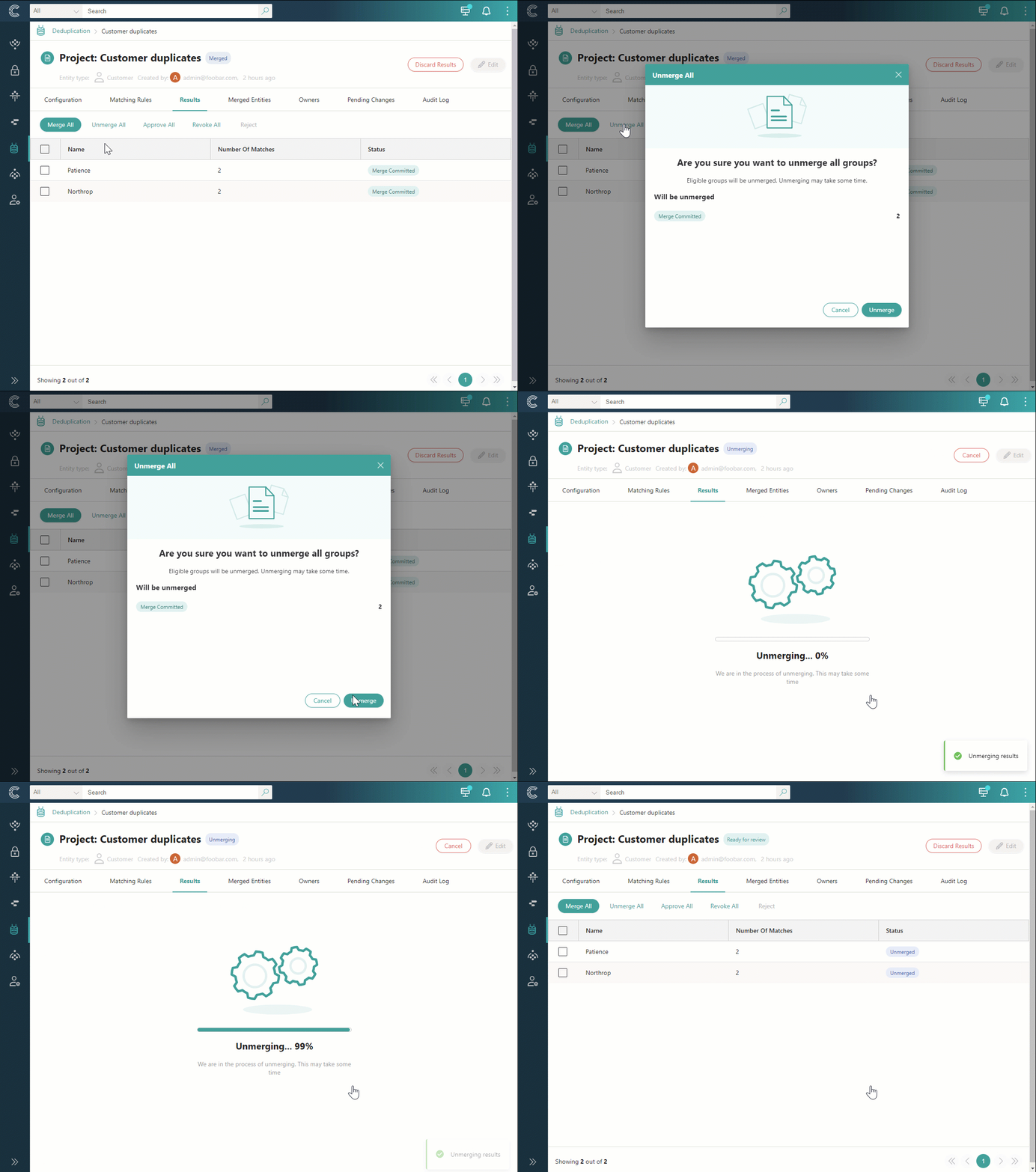
After you unmerge the records, the group status is changed to Unmerged, and you can no longer process the group. If you want to continue working with the same group, you can discard matches and start again.
Verify the result
- After you approve or reject a group, its status on the Matches tab is Approved or Rejected. Approving and rejecting change only the group’s status; no golden records are changed yet.
- While groups are being merged, the project status is Committing, which means that CluedIn is merging records from the selected groups.
- When the merge has finished, each merged group has the Merge Committed status. If every group in the project was merged, the project status becomes Merged; if some groups were not selected for merge, the project status stays Ready for review.
- The merged golden records are listed on the project’s Merges tab. On a merged golden record’s Topology tab, the records that make it up are linked through the deduplication project, and the golden record’s history has a data part whose source is the deduplication project.
- After you unmerge, the group status is Unmerged. While records are being unmerged, the project status is Unmerging; when it finishes, the project status becomes Ready for review.
- Approvals, rejections, merges and unmerges are recorded on the project’s Audit Log tab. See Deduplication project audit log actions.
For all statuses, see Group statuses and Project statuses.
What this changes
- Fixing conflicts, approving, rejecting and revoking change only the group. Golden records are not changed until you merge.
- Merging changes golden records. Merging does not create a new golden record. It uses one of the duplicate records as a base and aggregates data from the others into it, with the values you chose on the Fix Conflicts tab. The duplicates in the group become one golden record, so the number of golden records decreases.
- A merge can lead to further merges. A merged golden record can contain new information that meets a matching rule, so generate matches again after merging until no more duplicates are found. See Concept of deduplication.
- A merge can be undone. Unmerging reverts the changes made to the golden record through merging, and restores the duplicate records to their state before the merge. Unmerge All reverts every merge in the project, including merges produced by rules that worked as intended; this is why separate projects for strict and fuzzy matching are recommended.
- Discarding matches or archiving the project does not affect golden records that have already been merged.
If something goes wrong
- A group cannot be merged. Only groups with the Approved status can be merged. Rejected groups cannot be merged until you approve them.
- You are not sure about the values you selected. Before merging, select Reset Conflicts to start again, or Revoke the approval to bring the group back to New.
- The merged golden record is not what you expected. Unmerge the records, then discard matches, adjust the matching rules, and generate matches again.
- You want to work with an unmerged group again. A group with the Unmerged status can no longer be processed. Discard matches and generate them again.