

Azure Event Hub connector
reference Facts, options, APIs
This article outlines how to configure the Azure Event Hub connector to publish data from CluedIn to Azure Event Hubs.
Prerequisites: Make sure you have an existing Event Hubs namespace with a specific event hub where you want to store the data from CluedIn. In addition, the event hub must have a policy with Manage, Send, and Listen access.
To configure Azure Event Hub connector
-
On the navigation pane, go to Consume > Export Targets. Then, select Add Export Target.
-
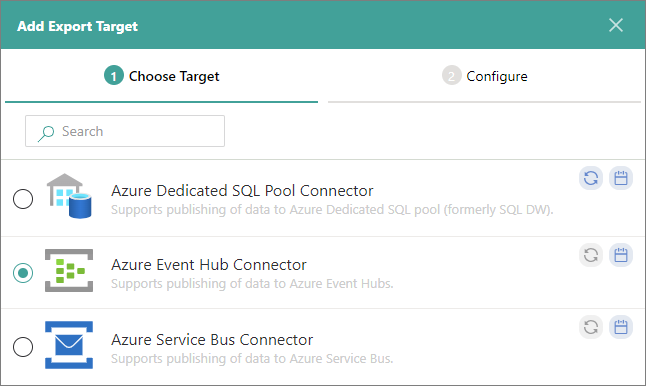
On the Choose Target tab, select Azure Event Hub Connector. Then, select Next.
-
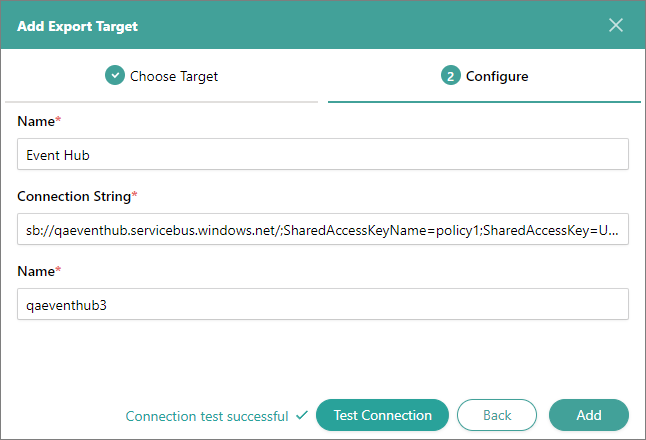
On the Configure tab, enter the connection details:
-
Name – user-friendly name of the export target that will be displayed on the Export Target page in CluedIn.
-
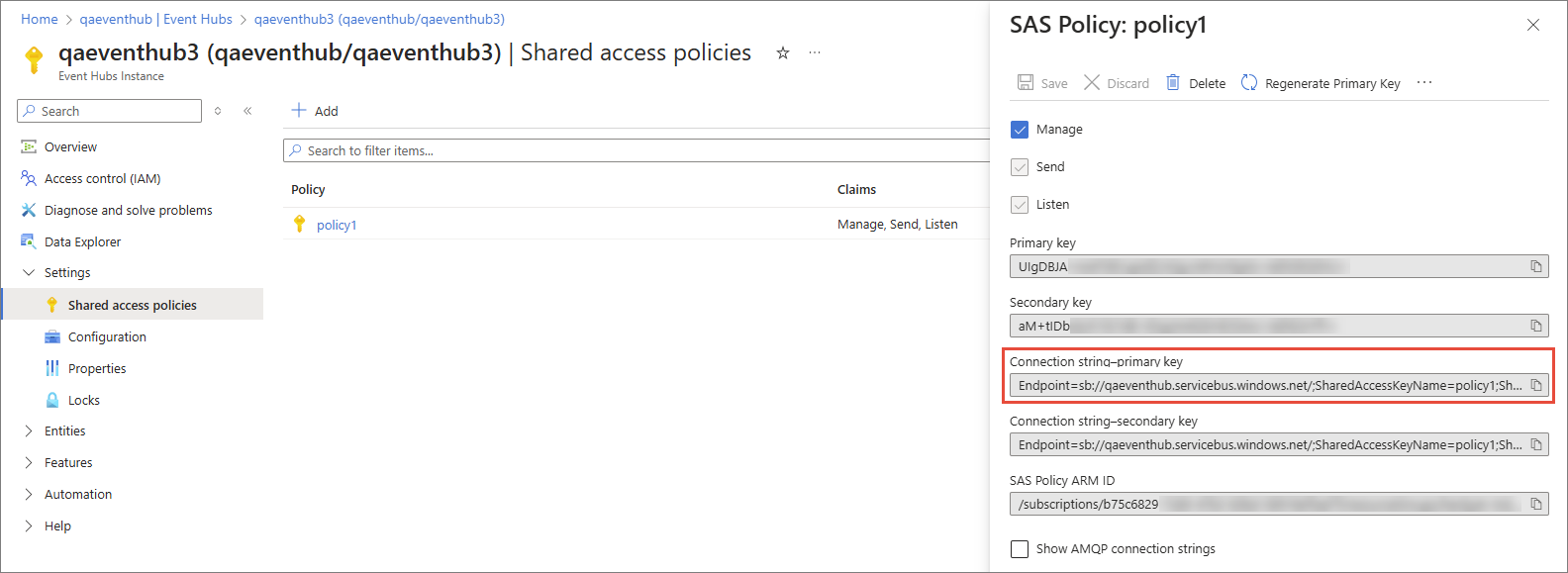
Connection String – connection string to the event hub within a namespace where you want to store the data from CluedIn. To find this value, select the needed event hub. Then, select Shared access policies on the left menu under Settings. Finally, select the policy, and then select the Copy button next to the Connection string-primary key field. For more information, see Microsoft documentation.
-
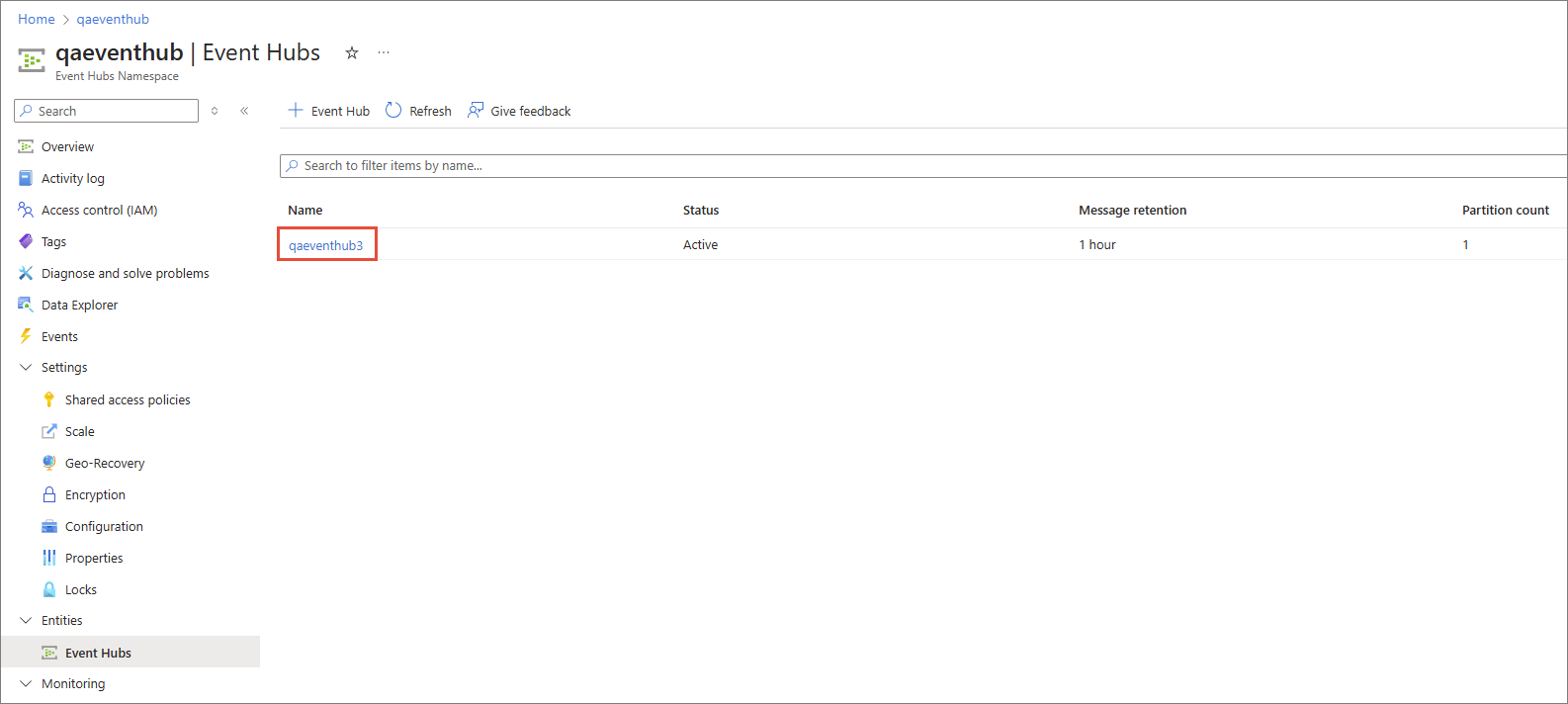
Name – name of the event hub in the Event Hubs namespace where you want to store the data from CluedIn.
-
-
Test the connection to make sure it works, and then select Add.
Now, you can select the Azure Event Hub connector in a stream and start exporting golden records.
Batch events
The Azure Event Hub connector supports batching events before they are sent to Azure Event Hubs.
Batching can reduce the number of individual send operations and can improve throughput when a stream is publishing a high volume of records.
Batching is configured on the stream that uses the Azure Event Hub export target, rather than on the export target itself. This means that different streams using the same Azure Event Hub connector can use different batching settings.
To configure batching:
-
Go to Consume > Streams and open the stream that uses the Azure Event Hub export target.
-
Open the Export Target Configuration for the stream.
-
Configure the batching options available for the Azure Event Hub connector.
-
Save the stream configuration.
When batching is enabled, CluedIn groups multiple events and sends them to Azure Event Hubs together instead of sending every event as an individual operation.
Batching settings are specific to each stream. Changing the batching configuration on one stream does not change the configuration of other streams that use the same Azure Event Hub export target.