

Bulk actions on the search results page
how-to Steps to accomplish one task
In this article, you will learn how to select multiple golden records on the search results page and perform a bulk action on them: delete, merge, reprocess, split, or add a tag.
Select golden records
To select golden records on the search results page
-
On the search results page, find the golden records that you want to act on. You can search for golden records by entering a keyword or applying filters.
-
Select the checkboxes next to the golden records that you want to act on.
As soon as you select at least one golden record, a toolbar with the available bulk actions appears above the search results.

Select all golden records across all pages
If your search or filter criteria matches more golden records than fit on the current page, you can extend your selection to every matching golden record, not just the ones on the page you’re viewing.
To select all golden records across all pages
-
Select all the golden records on the current page.
-
In the banner that appears above the search results, select Select all
<number>items across all pages.
CluedIn selects every golden record that matches your current search and filters, including the ones on other pages. The banner updates to confirm how many records are selected.

The selection is kept as you move between pages. To remove the selection, select Clear all selection.
Note: If you change your search term or filters while all records are selected, the selection is cleared, since it no longer matches your current search.
Delete golden records
To delete the selected golden records, see Delete several golden records.
Merge golden records
To merge the selected golden records, select Merge in the toolbar. For more information about reviewing and completing a merge, see Deduplication.
Reprocess golden records
Reprocessing a golden record re-runs the existing processing pipeline against it, for example after you’ve changed rules or other configuration that affects how records are processed.
To reprocess several golden records
-
Select the golden records that you want to reprocess.
-
In the toolbar, select Reprocess.
-
In the confirmation dialog, select Reprocess.
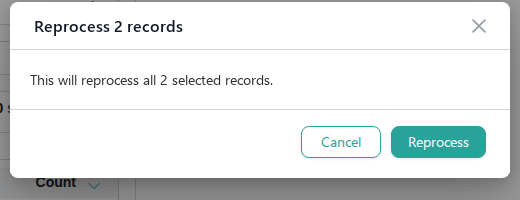
Each selected golden record is reprocessed individually. If reprocessing fails for some of the selected records, a notification tells you how many succeeded and how many failed.
Split golden records
Splitting undoes a previous merge (a manual merge, a deduplication project merge, or a merge based on a shared identifier), separating a golden record back into the individual records it was made up of. This is the same split capability available from a single golden record’s Entity Topology page, applied to every selected record in turn.
Golden records that have nothing to split (no merged data parts) are skipped automatically — you’re only prompted for the ones that can actually be split.
To split several golden records
-
Select the golden records that you want to split.
-
In the toolbar, select Split.
CluedIn reviews the selected golden records and, for the first one that has data parts to split, shows the split details.
-
Review the details, and then do one of the following:
-
Select Confirm split to split the golden record.
-
Select Skip to move on without splitting it.
-
-
Repeat the previous step for each remaining golden record that has data parts to split. The dialog shows your progress (for example, Record 2 of 5) and closes automatically once every selected record has been reviewed. A summary tells you how many records were split.
Add a tag to golden records
To add a tag to several golden records
-
Select the golden records that you want to tag.
-
In the toolbar, select Add tag.
-
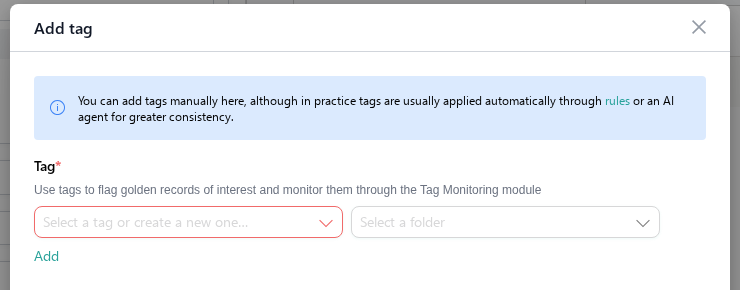
In the Tag field, select an existing tag or enter a name to create a new one. Optionally, select a folder to organize the tag in.
-
Select Add.
The tag is applied to every selected golden record. You can find more information about tags in Tag monitoring.