Sync Purview glossaries to CluedIn glossaries
how-to Steps to accomplish one task
On this page
In this article, you will learn how to sync Purview glossaries to CluedIn glossaries.
Preparation
This section contains the steps required to prepare for syncing glossaries from Purview to CluedIn glossary categories and terms.
Preparation in Purview
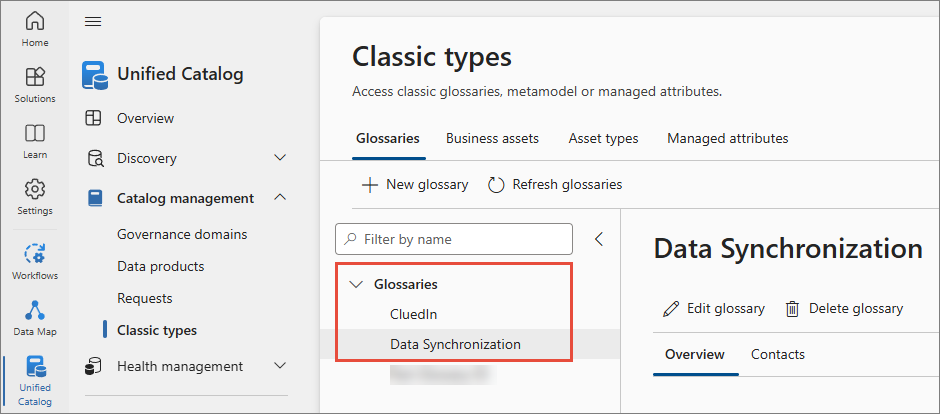
Make sure you have the existing classic type glossaries that contain some terms. In the following screenshot, we have 2 glossaries: CluedIn and Data Synchronization.
Preparation in CluedIn
-
In CluedIn, go to Administration > Settings, and then scroll down to find the Purview section.
-
Turn on the toggle in Sync Purview glossaries to CluedIn glossaries.

-
Select Save.
Feature demonstration
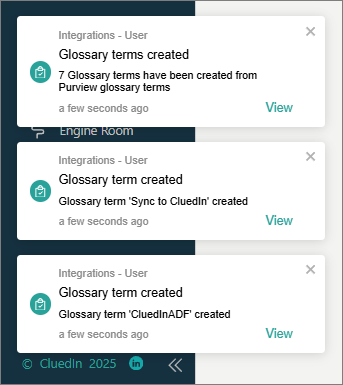
Once you enable synchronization of Purview glossaries to CluedIn glossaries, you will receive a notification when the glossary term is created in CluedIn.
To find terms in CluedIn
-
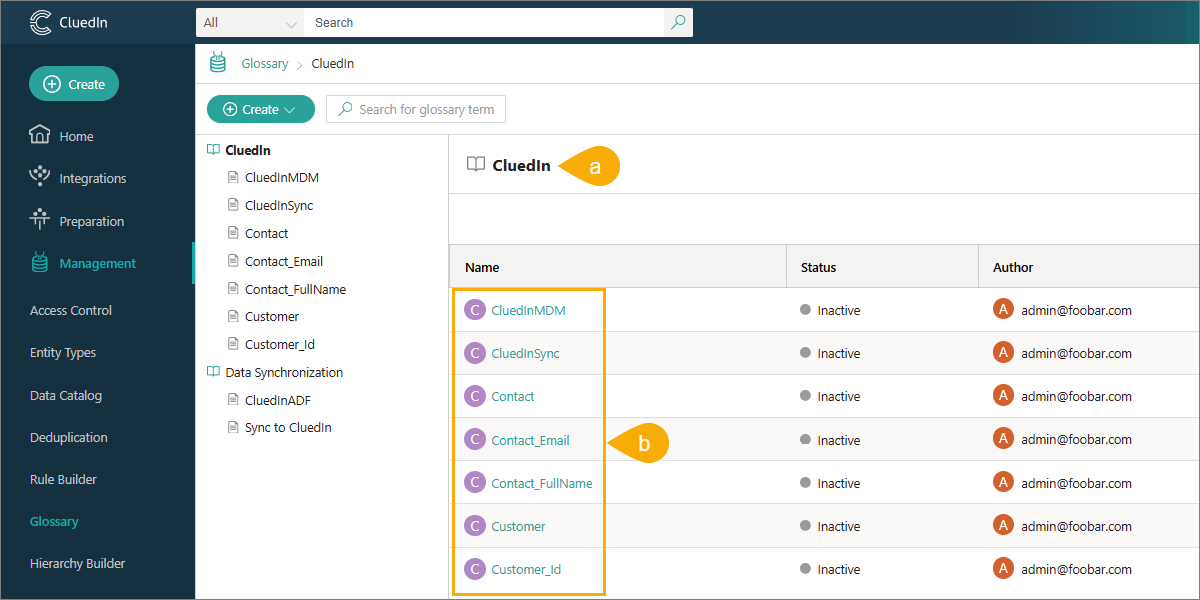
On the navigation pane, go to Management > Glossary.
On the terms page, you can find the categories (a) and terms (b). The category in CluedIn corresponds to the glossary in Purview.