

Create a deduplication project
how-to Steps to accomplish one task
On this page
- Prerequisites
- Inputs
- Create a deduplication project
- Add a matching rule
- Matching semantics
- Verify the result
- What this changes
- If something goes wrong
Create a deduplication project when you want CluedIn to find golden records that describe the same thing, so that you can review and merge them. The project defines which golden records are checked, and its matching rules define what counts as a duplicate. Creating the project and adding matching rules only saves configuration: duplicates are detected when you generate matches, and golden records change only when you merge groups. The approach described here ensures that you can easily revert merges when needed.
Prerequisites
- The Deduplication Project Management claim, which covers creating and editing a deduplication project. See Claims.
- Golden records to deduplicate, in the business domain you want to check or matching the filters you plan to use.
- The vocabulary keys or properties that you want to compare. If equivalent values are stored in several fields, combine them into one vocabulary key first, as described in Match one of multiple fields.
Inputs
The project:
| Field | Required | What it accepts | Example |
|---|---|---|---|
| Name | Required | A name that helps you find the project later. | Contact duplicates |
| Choose project type | Required | By business domain or Using advanced filters. | By business domain |
| Business domain | Required for By business domain | One or more business domains. | TrainingContact |
| Filter rules | Required for Using advanced filters | One or more filter rules. | Business domain is Company, and country is Denmark |
Each matching rule:
| Field | Required | What it accepts | Example |
|---|---|---|---|
| Matching rule name | Required | A name for the rule. | Same first and last name |
| Matching criteria Name | Required | A name for the criterion. | Similar first name |
| Select property type | Required | Vocabulary Key or Property, and then the key or property to compare. | trainingcontact.firstName |
| Matching Function | Required | One of the matching functions. Fuzzy match - Sift4 also needs a threshold, a percentage from 0 to 100. | Equals |
| Normalization rules | Optional | One or more normalization rules. Some rules need extra values, such as the separator for Split text. | To lowercase |
Create a deduplication project
Before creating a deduplication project, take the following aspects into account:
-
Number of golden records that you want to check for duplicates. For an extensive set of data with hundreds of thousands or millions of records, use advanced filters to narrow down the number of records in the project to test your configuration. When you are satisfied with the configuration, you can then modify the filters and run the project on the entire set of data.
For example, if you want to deduplicate all golden records of the Company business domain, start by narrowing down the companies to a specific country. To do this, apply two filter rules: one to identify all golden records of the Company business domain, and another to find all golden records that match the specific country. This approach allows you to refine your matching rules on a targeted subset of data. When you are satisfied with the configuration, simply remove the filter rule for the specific country and run the project for all golden records of the Company business domain.
-
Matching functions that you want to use for detecting duplicates. To ensure a faster deduplication process and make it easier to revert merges, create separate projects for equality matching functions and fuzzy matching functions. You can create multiple deduplication projects.
To create a deduplication project
-
On the navigation pane, go to Management > Deduplication.
-
Select Create Deduplication Project.
-
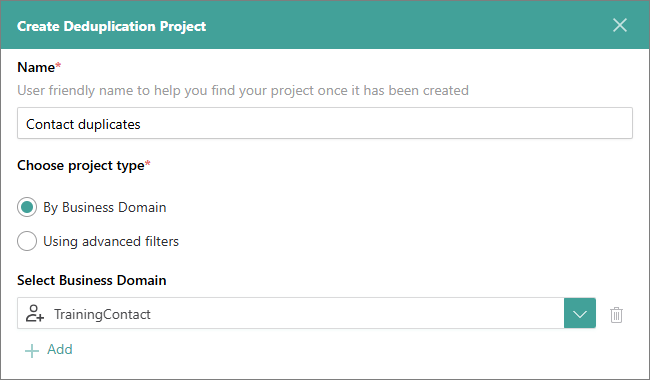
Enter the name of the deduplication project.
-
In the Choose project type section, select an option for identifying the golden records that you want to deduplicate:
-
By business domain – select the business domain; all golden records belonging to the selected business domain will be checked for duplicates. You can add multiple business domain. This is useful when you want to run a deduplication project across similar business domain.
-
Using advanced filters – add filter rules; all golden records that meet the filter criteria will be checked for duplicates. You can add multiple filter rules. Read more about filters here.
This option is useful when you are working with a large set of data. You can narrow down the number of golden records and run a deduplication project on a sample set of data to make sure your matching rules work correctly. When you are confident in the effectiveness of your configuration with the sample set, you can then modify the filters and run the project on a larger set of data.
-
-
Select Create.
After you create a deduplication project, add matching rules for detecting duplicates among golden records that correspond to the selected business domain or filter criteria.
Add a matching rule
Deterministic and probabilistic matching rules play a crucial role in detecting duplicates. You can add multiple matching rules into a single deduplication project. However, the fewer rules you have in a project, the faster it runs and the easier it is to revert merges if necessary.
In the project, matching rules are combined using the OR logical operator, while matching criteria within a rule are combined using the AND logical operator.
To add a matching rule
-
On the Matching Rules tab, select Add Matching Rule.
-
Enter the name of the matching rule, and select Next.
-
On the Matching Criteria tab, do the following:
-
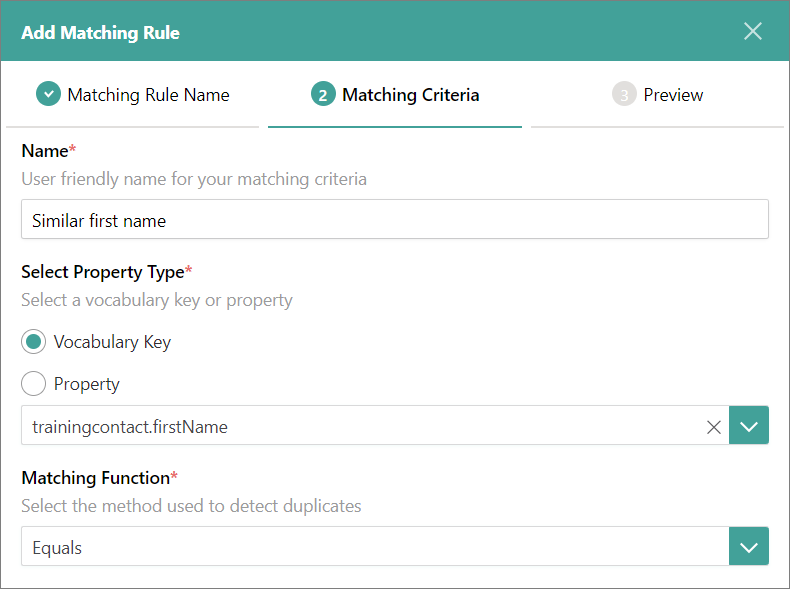
Enter the name of the matching criteria.
-
Select the property type—vocabulary key or property—that will be checked for duplicate values.
If the property or vocabulary key contains empty values, they will be ignored when generating the deduplication project results.
-
Choose the matching function for detecting duplicates.
-
(Optional) Select the normalization rules to apply during duplicate detection. These rules are temporarily applied solely for the purpose of identifying duplicates. For example, selecting To lower-case means that the system will convert values to lower case before comparing them to identify duplicates.
-
Select Next.
-
-
On the Preview tab, do one of the following:
-
If you want to add another matching criteria, select Add Matching Criteria, and then repeat step 3.
Multiple matching criteria within one rule are combined using the AND logical operator. It means that a golden record is identified as a duplicate only if it meets all the matching criteria specified in the rule. However, if you want to add another matching criteria combined using the OR logical operator, then add another rule.
-
If you are satisfied with the matching rule configuration, select Add Rule.
After you add matching rules, generate matches to detect duplicates among golden records that correspond to the selected business domain or filter criteria.
-
Matching semantics
These rules decide which golden records end up in the same group of duplicates. Check a configuration against them before you generate matches.
- Rules combine with OR. Golden records are identified as duplicates if they meet the criteria of at least one matching rule in the project.
- Criteria within a rule combine with AND. A rule identifies golden records as duplicates only if they meet all of its matching criteria.
- To require all of several conditions, put them in one rule. To accept any one of them, put each in its own rule.
- Deactivated rules are not used. A rule whose toggle is turned off is not executed when matches are generated.
- A criterion compares the same field on both records. A criterion on
customer.email1comparescustomer.email1on one record withcustomer.email1on the other, never withcustomer.email2. To compare values across fields, see Match one of multiple fields. - Empty values are ignored. Empty values of the selected property or vocabulary key are ignored when generating matches. With Equals, two empty values are never a match.
- A matching function decides only its own criterion. It defines how the two values of one criterion are compared; whether records are duplicates follows from the AND and OR combination above.
- Normalization is temporary. Normalization rules are applied before matching, only for the purpose of identifying duplicates. They do not change the values stored in golden records.
- A single-value normalization rule contributes nothing when it changes nothing. If the transformed value is identical to the input, or the result is empty, no normalized value is emitted.
- A multi-value normalization rule produces several candidates, and any one can match. Rules such as Split text or Person name variations produce several comparison candidates from one value. If one of the candidates matches, the value is considered a match.
- One run is not always enough. A merged golden record can contain new information that meets a matching rule, so after merging, generate matches again until no more duplicates are found. See Concept of deduplication.
Verify the result
- The project appears in the list on the Deduplication page. Right after you create it, its status is Requires configuration, which means that no matching rules have been added yet.
- Each rule that you add appears on the Matching Rules tab, with its toggle in the Status column. Expand a rule to see its matching criteria.
- Once the project has matching rules, its status is Ready to generate: it is configured, and no matches have been generated yet.
- Creating the project and each rule is recorded on the project’s Audit Log tab.
For all statuses, see Project statuses.
What this changes
Creating a deduplication project and adding matching rules only saves configuration. No golden records are compared or changed. Generating matches detects duplicates and organizes them into groups for review; golden records change only when you approve and merge groups, and merges made in a deduplication project can be unmerged.
If something goes wrong
- You need to change the project or its rules after generating matches. You can edit a project only when its status is Requires configuration or Ready to generate. Discard matches first, and then edit the project.
- You created the project by mistake. A deduplication project cannot be deleted. Archive it instead; archiving cannot be undone. See Why can I not delete certain objects in CluedIn.
- Expected duplicates are not found. Check the configuration against Matching semantics: an AND where you meant an OR, empty values, or values stored in different fields. For ways to improve match quality, see Get better matches in deduplication projects.
- Matching is slow. Overly broad matching rules increase the number of comparisons. Narrow the project with filters, keep strict and fuzzy functions in separate projects, and see Slow CluedIn performance.