

Delete golden records
how-to Steps to accomplish one task
In this article, you will learn how to delete golden records. Please note that deleting golden records is permanent and irreversible, so carefully consider which golden records you want to delete.
You can delete a golden record in two places:
-
On the golden record page – use this option if you want to delete one golden record.
-
On the search results page – use this option if you want to delete several golden records at once.
Important! Deleting a golden record is different from deleting data parts or removing records from a data source. When you remove records from a data source, all data parts originating from that source are removed from every golden record in which they are used. Deleting data parts from a golden record allows you to delete specific data parts originating from almost any source in a golden record. In contrast, deleting a golden record means that the entire record is permanently removed.
Delete one golden record
If you no longer need a specific golden record, you can delete it on the golden record page.
To delete a golden record
-
Open the golden record that you want to delete.
-
In the upper-right corner, select Delete.
-
Review the details of the golden record that will be deleted, and then select Next.
-
Confirm that you want to delete the golden record by entering DELETE. Then, select Confirm.
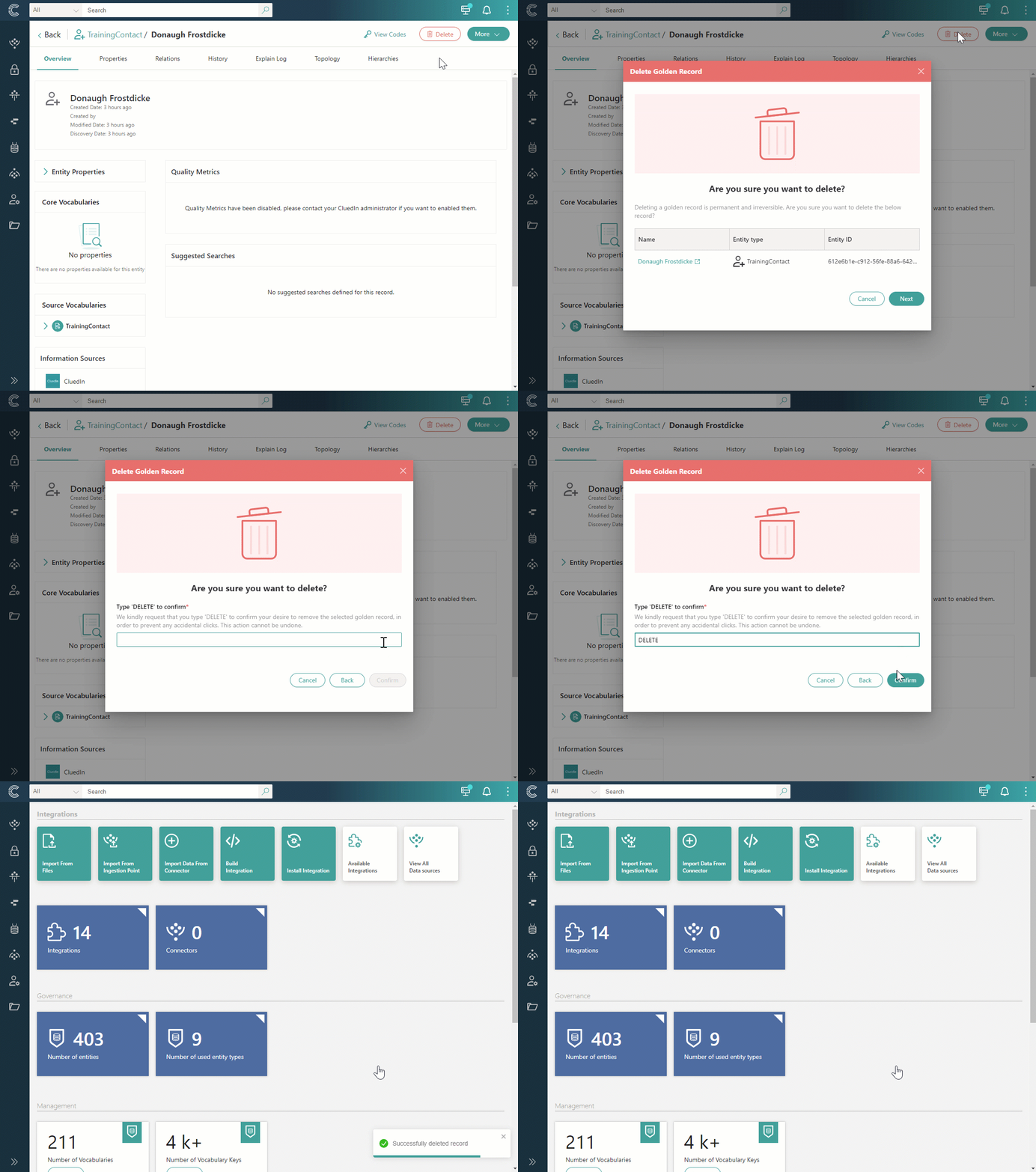
The entire golden record is permanently deleted and cannot be restored.
Delete several golden records
If you no longer need a set of golden records, you can select those golden records on the search results page and delete them. The search results page also lets you merge, reprocess, split, or tag several golden records at once, using the same selection.
To delete several golden records
-
On the search results page, find golden records that you want to delete. You can search for golden records by entering a keyword or applying filters.
-
Select the checkboxes next to the golden records that you want to delete.
As soon as you select at least one golden record, a toolbar with the available bulk actions appears above the search results.

If you want to select every golden record matching your current search across all pages, not just the ones on the current page, see Select all golden records across all pages.
-
In the toolbar, select the delete icon.
-
Review the details of the golden records that will be deleted, and then select Next.
-
Confirm that you want to delete golden records by entering DELETE. Then, select Confirm.
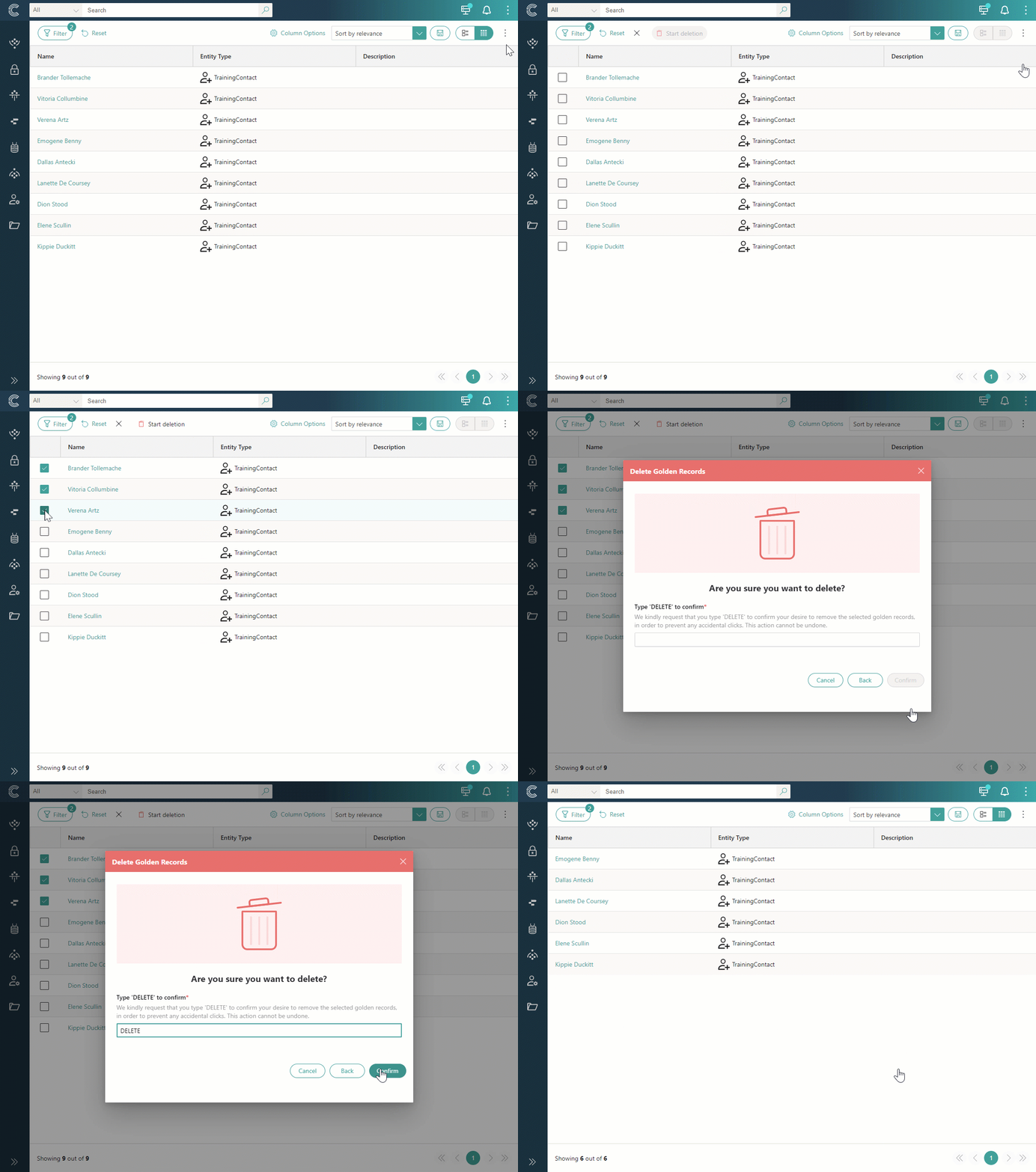
The selected golden records are permanently deleted and cannot be restored.