

Manage approval requests
how-to Steps to accomplish one task
On this page
To use the Workflow module in CluedIn, you need to configure Power Automate integration.
In this article, you will learn how to view, approve, and reject approval requests sent from the Power Automate widget in CluedIn.
View pending approval requests
If you’re an approver in the approval flow or if you made some changes in CluedIn that require approval from somebody else, you can find your pending requests in CluedIn.
To view pending approval requests
-
On the navigation pane, go to Workflow > Approvals.
-
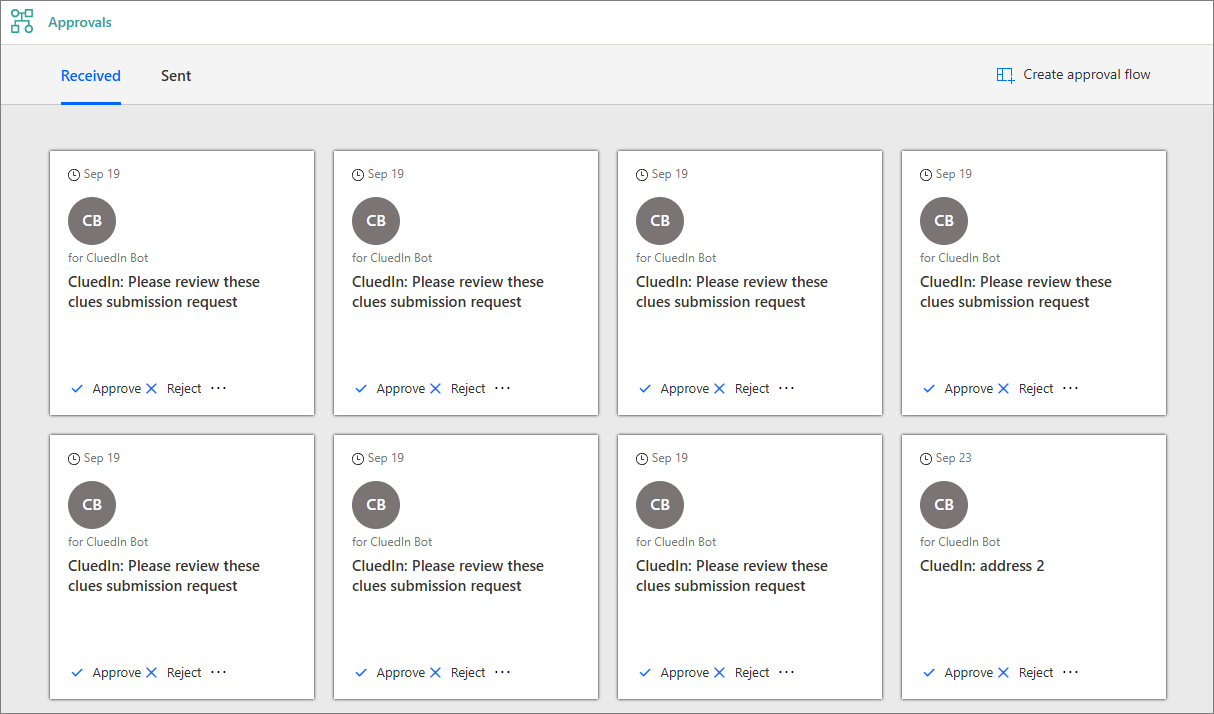
To view the approval requests that are assigned to you, go to the Received tab. Here, you can also approve or reject a request right away.
-
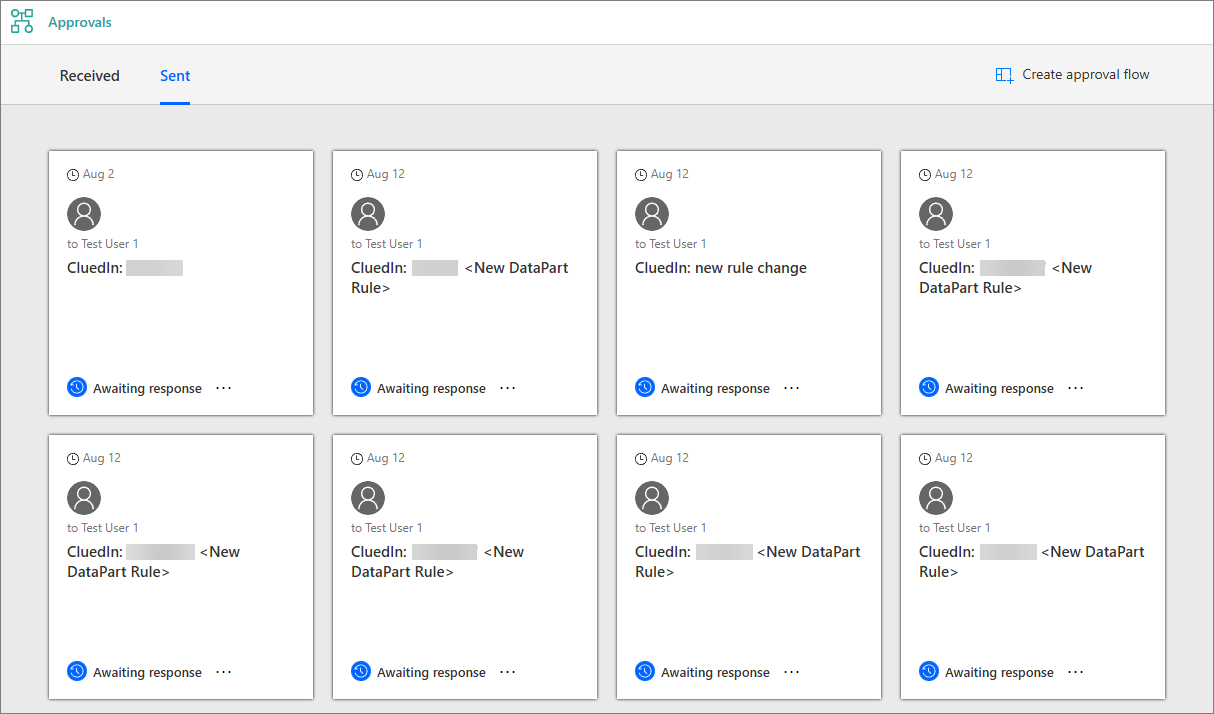
To view the approval requests that were sent out on your behalf, go to the Sent tab. Here, you can view the status of each request, indicating whether they have been approved, rejected, or still pending.
Approve or reject an approval request
When a specific activity in CluedIn requires your approval, you receive an email in Outlook or a message in the Approvals app in Teams. You can then approve or reject a request from the email, Teams, or the Power Automate widget in CluedIn (Workflow > Approvals).
To approve or reject a request from email
-
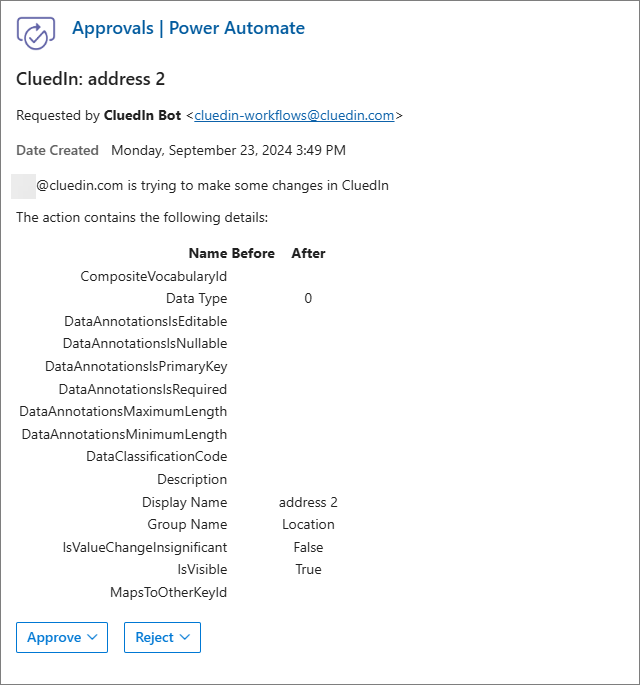
Open the email and review the request details.
-
Make an approval decision by selecting Approve or Reject. Optionally, you can add a comment before sending your approval decision.
To approve or reject a request from the Approvals app in Teams
-
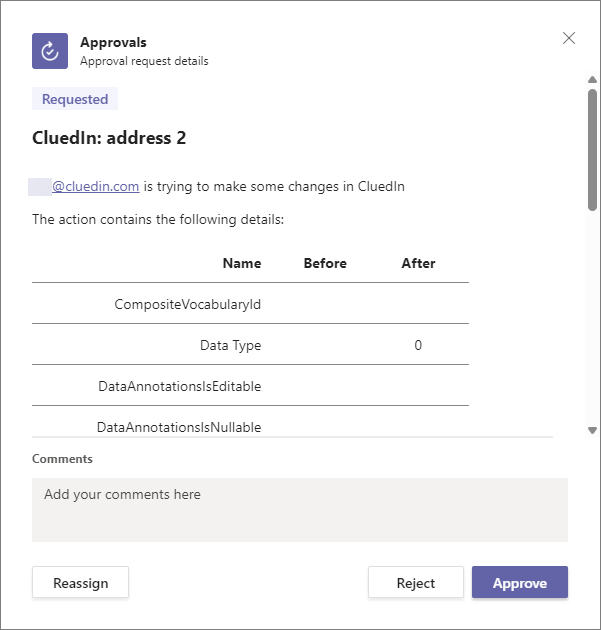
Open the request and review its details.
-
Make an approval decision by selecting Approve or Reject. Optionally, you can add a comment before sending your approval decision.
If you approved the request, the action that required your approval is automatically performed in CluedIn. Regardless of the approval decision, the user who performed the action receives a notification in CluedIn.