Property rules
how-to Steps to accomplish one task
On this page
Property rules help you improve the quality of mapped records (clues) by normalizing and transforming property values. The difference between property rules and pre-process rules is that property rules are applied only to property values of the record while pre-process rules are applied to the whole record. So, if you want to apply some changes to the property values, create a property rule.
Property rules are applied to the clues before pre-process rules and advanced mapping code.
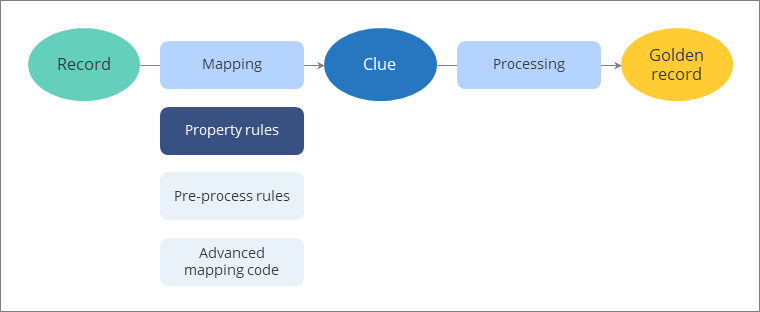
You can create property rules on you own or use the CluedIn AI recommendation engine to generate property rules.
Prerequisites
To access property rules, go to Administration > Feature Flags and make sure that the following features are enabled:
-
Mapping Property Rules
-
Data Set Quarantine
Create property rules on your own
You can apply the rule to all values of the property or define specific values. The available actions for the rule depend on the type of the property and are divided into several categories:
-
Basic – set a new value (for example, you can enter a new value or use the value from another property) or write custom CEL expression.
-
Normalization – transform data into a consistent form.
-
Quarantine – send records to the quarantine where you can modify them and decide what to do with them afterwards.
You can add multiple rules for one property.
To create a property rule
-
On the navigation pane, go to Integrations > Data Sources. Then, find and open the data set.
-
Go to the Map tab, and then select Edit mapping.
-
On the Map columns to vocabulary key tab, find the property for which you need to create a rule, and then select Add property rule.
-
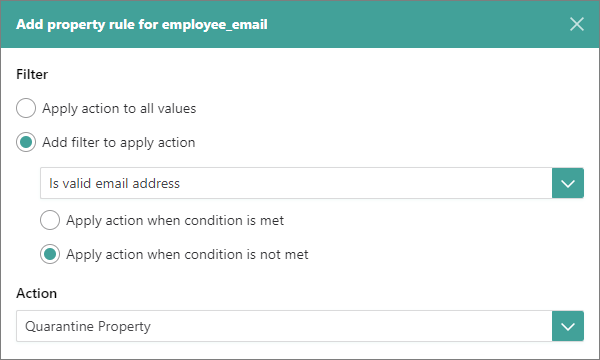
In Filter, select whether you want to apply the rule to all values or to specific values.
-
If you want to apply the rule to specific values:
-
Select a condition to determine which values will be affected by the rule.
-
Select whether you want to apply the rule when the condition is met or when the condition is not met.
For example, if you want to detect all invalid email addresses, select Is valid email address, and then select Apply action when condition is not met.
-
-
Select the Action that will be applied to the values of the property.
-
In the lower-right corner, select Add rule.
The rule is added next to the property. The rule will be applied when you process the records.
Create property rules using AI
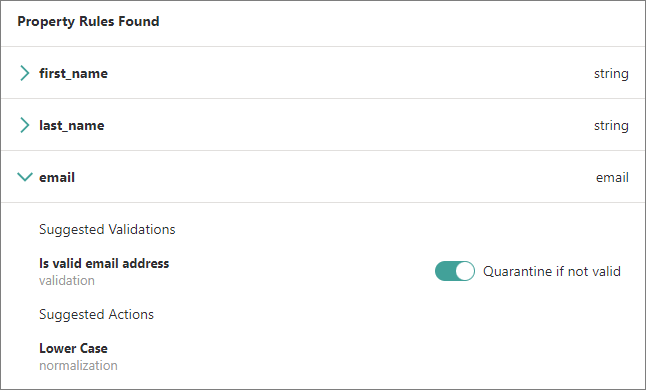
CluedIn AI recommendation engine helps you create property rules in a quick and efficient manner. The engine analyzes properties and runs data type checks to come up with suggested actions.
To use AI capabilities to create property rules, first complete all the steps described in Azure Open AI Integration.
To create property rules using AI
-
On the navigation pane, go to Integrations > Data Sources. Then, find and open the data set.
-
Go to the Map tab, and then select Edit mapping.
-
On the Map columns to vocabulary key tab, select Generate rules.
-
In the pane that opens, expand each property to review suggested validations and actions.
-
In the lower-right corner, select Create rules.
The rules are added next to the properties.
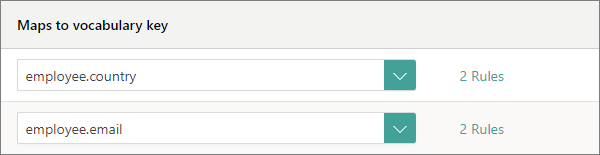
By selecting these rules, you can view, create, or remove rules from the property. The rules will be applied when you process the records.
Custom CEL expression examples
This section contains some examples of CEL expressions in property rules.
Remove the first occurrence of characters
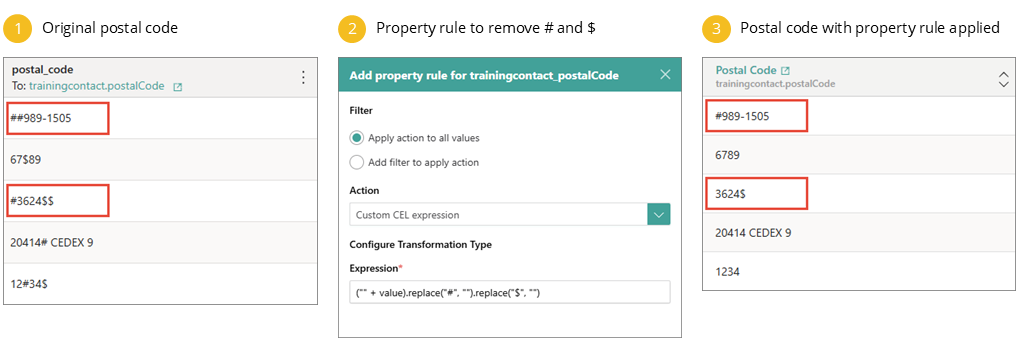
The following CEL expression removes the first occurrences of the characters # and $ from property values. You can use this expression if you have a property (for example, postal code) that contains values with one occurrence of # and $.
("" + value).replace("#", "").replace("$", "")
On the screenshot, rows 1 and 3 contain several occurrences of # and $. The property rule removed only the first occurrences of those characters. To remove all occurrences of specific characters, use the expression from the next section.
Remove all occurrences of characters
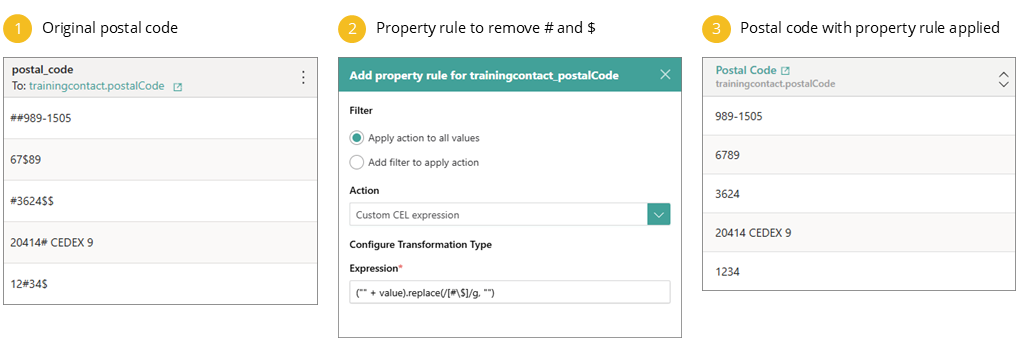
The following CEL expression removes all occurrences of the characters # and $ from property values. You can use this expression if you have a property (for example, postal code) that contains values with multiples occurrences of # and $.
("" + value).replace(/[#\$]/g, "")
Turn non-numeric values to blank or null
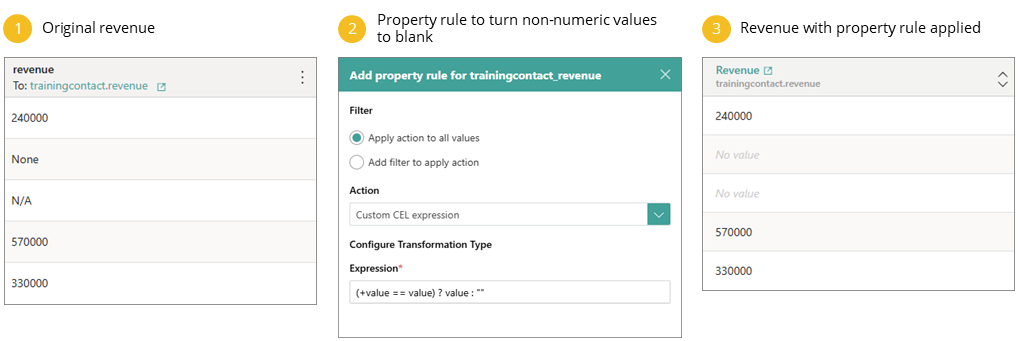
The following CEL expressions turn the value to blank or null if the value is not a number. You can use any of these expressions if you have a property (for example, revenue) that should contain only numbers, and you want to remove any non-numeric values.
(+value == value) ? value : ""
(+value == value) ? value : null
If the property contains non-numeric values, applying any of the above expressions will result in golden records without such property. Regardless of the expression you use, the result will be the same.