

Sync processing rules to Purview
how-to Steps to accomplish one task
On this page
In this article, you will learn how to sync CluedIn rules (data part rules, survivorship rules, golden records rules) to Purview assets.
Preparation in CluedIn
-
In CluedIn, go to Administration > Settings, and then scroll down to find the Purview section.
-
Turn on the toggle in Sync Processing Rules to Purview.

-
Select Save.
-
Make sure you have existing rules of any type.
Feature demonstration
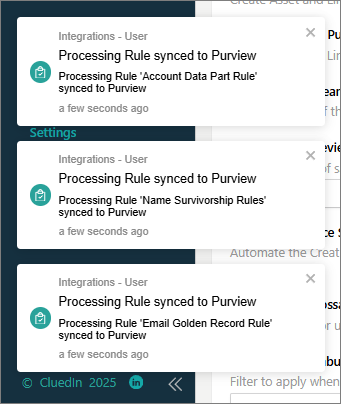
Once you enable synchronization of rules to Purview, you will receive a notification when the rule is synced.
To find the asset in Purview
-
In the Microsoft Purview portal, navigate to Data Map > Domains.
-
In your default domain, select the collection that stores the assets from CluedIn.
-
Select the assets card.
-
In the list of assets, find and select the asset with the same name as the data set in CluedIn.
-
On the asset details page, go to Lineage. Here, you can view a visual representation of how rules are applied to the data set within the CluedIn processing pipeline.
The following screenshot shows the application of a data part rule, a survivorship rule, and a golden record rule within the CluedIn processing pipeline.
