

Manage rules
how-to Steps to accomplish one task
On this page
- Edit a rule
- Reorder actions within a rule
- Delete a rule
- Activate and deactivate a rule
- Reprocess rules
- Edit rule processing order
- Process pending changes
- Organize rules into folders
- Duplicate a rule
In this article, you will learn how to manage rules to keep them organized, efficient, and aligned with your data management goals.
Edit a rule
You can edit a rule to make necessary changes in rule name, description, filters, and actions.
To edit a rule
-
On the navigation pane, go to Management > Rule builder.
-
Choose the needed type of rule, and then open the rule that you want to edit.
-
In the rule details page, make the needed changes.
-
If you are the owner of the rule, near the upper-right corner of the rule details page, select Save.
If you modified filters or actions, select the checkbox to reprocess the records affected by the previous and current rule configuration. Selecting the checkbox will revert the records affected by the previous rule configuration to their initial state before the rule was applied. Simultaneously, the records affected by the current rule configuration will be adjusted according to the rule’s action. If you don’t select the checkbox, the rule will be updated but the records won’t be reprocessed.
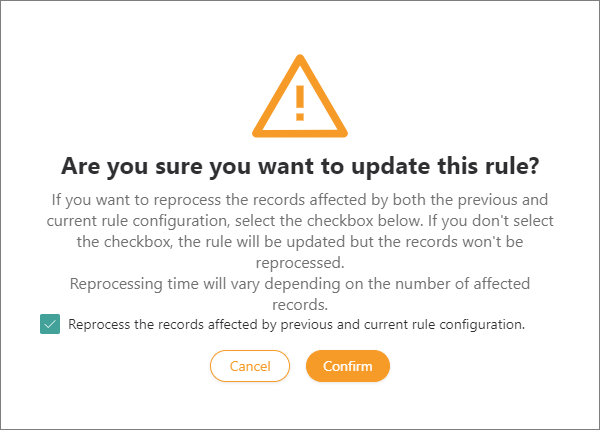
After you confirm that you want to update the rule, your changes will be applied immediately.
-
If you are not the owner of the rule, near the upper-right corner of the rule details page, select Submit for approval.
The owner of the rule will receive a notification about your changes and can then approve or reject them.
Reorder actions within a rule
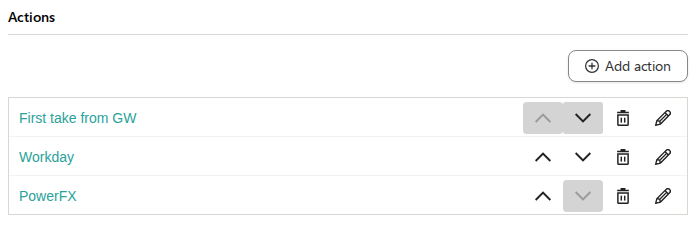
A rule can have multiple actions, and they are applied in the order in which they’re listed. You can change this order without having to delete and re-add actions.
To reorder actions within a rule
-
On the navigation pane, go to Management > Rule builder.
-
Choose the needed type of rule, and then open the rule that you want to edit.
-
In the Actions section, next to the action that you want to move, select the up or down arrow to move it to the needed position.
-
Near the upper-right corner of the rule details page, select Save, and then confirm that you want to save the rule.
Delete a rule
You can delete a rule in any status if you no longer need it. You can delete a rule only if you are the owner of the rule; you cannot delete rules created by other users.
After the rule is deleted, the records affected by the rule will still contain changes according to the rule’s action. However, when you reprocess such records, they will return to their initial state before the rule was applied.
There are two ways to delete a rule:
-
From the list of rules – this option allows you to delete multiple rules at once.
-
From the rule details page.
To delete a rule from the list of rules
-
Select the checkbox next to the rule that you want to delete.
-
Select Delete, and then confirm your choice.
To delete a rule from the rule details page
- Select the delete icon. Then, confirm your choice.
Activate and deactivate a rule
When active, the rule is applied to records that match its filter during processing or reprocessing. If you no longer want to apply the rule, you can deactivate it. If you change your mind, you can easily activate the rule.
After the rule is deactivated, the records affected by the rule will still contain changes according to the rule’s action. However, when you reprocess such records, they will return to their initial state before the rule was applied.
There are two ways to activate and deactivate a rule:
-
From the list of rules – this option allows you to activate or deactivate multiple rules at once.
-
From the rule details page.
To activate or deactivate the rule from the list of rules
-
Select the checkbox next to the rule that you want to activate or deactivate.
-
Near the upper-right corner of the list of rules, select the needed action.
To activate or deactivate the rule from the rule details page
- Near the upper-right corner, turn on or off the status toggle.
Reprocess rules
You can select multiple rules from the list and reprocess them all at once, instead of reprocessing each rule individually from its details page.
To reprocess multiple rules
-
On the navigation pane, go to Management > Rule builder.
-
Choose the needed type of rule.
-
In the list of rules, select the checkbox next to each rule that you want to reprocess. You can also select the checkbox in the header row to select all rules on the page.
-
Near the upper-right corner of the list of rules, select Reprocess.
Each selected rule starts reprocessing independently; if reprocessing fails to start for one rule, the rest of the selected rules are not affected.
Edit rule processing order
The default rule processing order is the order in which the rules were created. However, you have the flexibility to adjust the rule processing sequence. This allows you to prioritize the execution of specific rules over others. For example, if you have two rules with the same filters but different actions, you can determine which rule should be applied to the records first.
To edit the rule processing order
-
In the list of rules, near the upper-right corner, select Edit rule processing order.
-
Change the rule processing order by doing one of the following:
-
Select the rule and drag it to the needed position.
-
Choose the number of the rule to define the order of processing.
-
Move the rule up or down by using the arrows in the right side of the rule.
-
-
Select Save.
Process pending changes
If you are the owner of the rule and somebody else makes changes to the rule, you’ll receive a notification about a request for approval. All requests are listed on the Pending changes tab of the rule.
To process pending changes
-
Review the details of the change request by selecting View changes.
A new pane opens, where you can view the changes to the rule.
-
Depending on whether you agree with the suggested changes, in the Actions tab, select Approve or Reject.
If you approved the change request, the rule is updated accordingly. If you rejected the change request, no changes are made to the rule.
Organize rules into folders
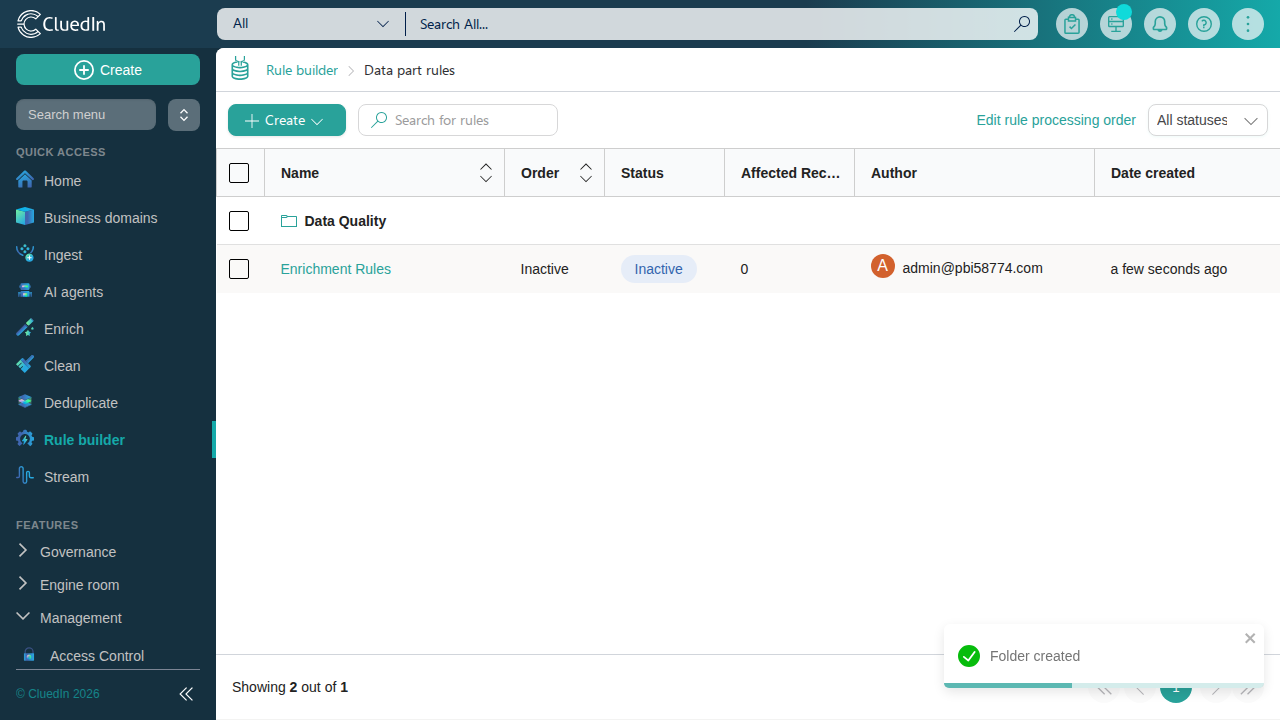
You can use folders to organize rules—for example, by business domain or by team. Folders and rules appear together in the same list, similar to files and folders in a file explorer. Rules that aren’t assigned to a folder appear in the root list, alongside any folders.
To create a folder
-
On the navigation pane, go to Management > Rule builder, and then choose the needed type of rule.
-
In the list of rules, select Create > Add folder.
-
Enter a folder name, and then select Save.
The new folder appears as a row in the list.
To assign a rule to a folder
-
Drag the rule row and drop it onto the folder row.
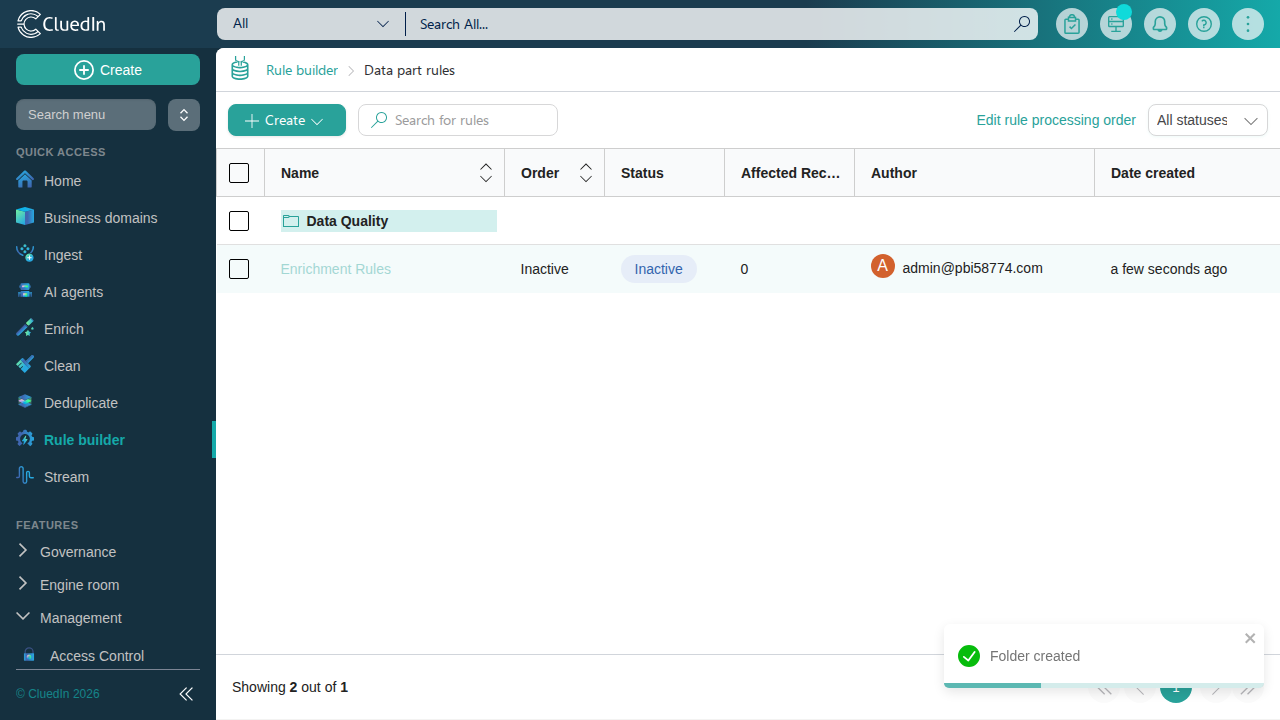
You can also assign a folder from the rule details page: in Folder, select an existing folder, or type a new folder name to create one, and then select Save. This field is also available when you create a rule.
To view the rules in a folder
-
In the list of rules, select the folder that you want to view.
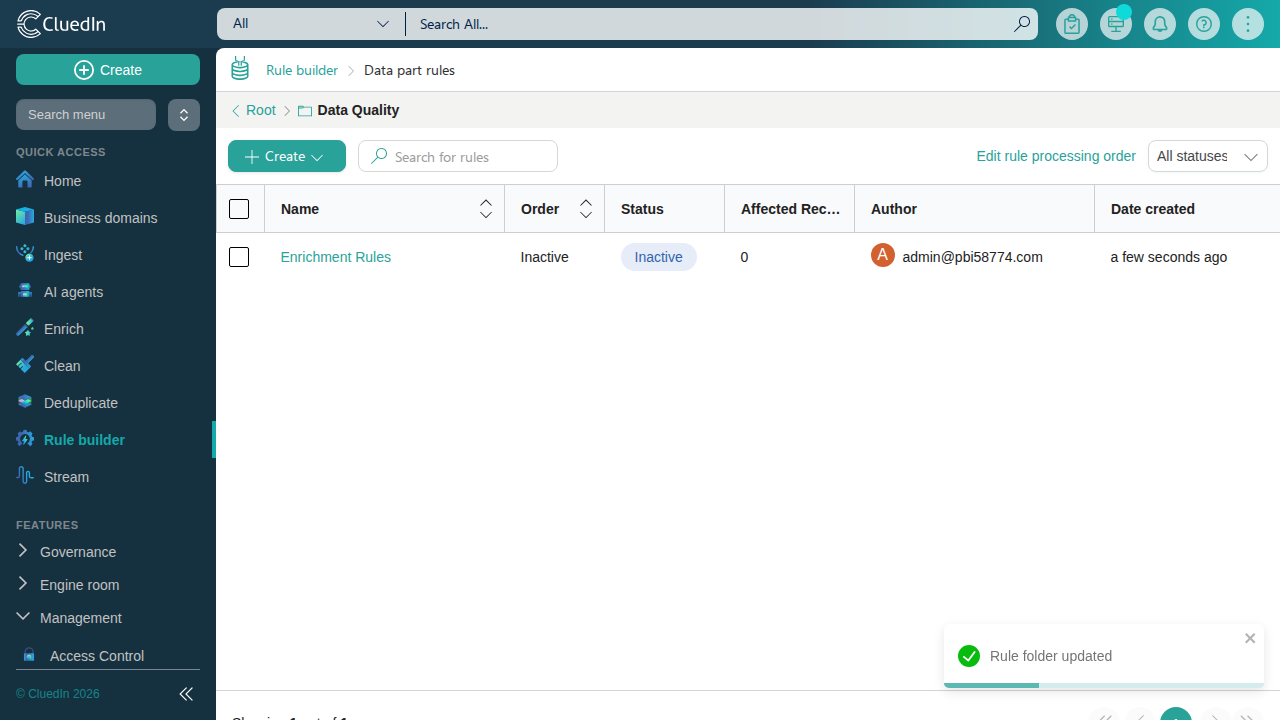
The breadcrumb at the top of the list shows Root >
<folder name>. Select Root in the breadcrumb to return to the merged list of folders and unfoldered rules.
To remove a rule from its folder
- While viewing the folder’s contents, drag the rule row and drop it onto Root in the breadcrumb. The rule returns to the root list. You can also remove the rule from its folder from the rule details page by clearing the Folder field and selecting Save.
Duplicate a rule
Duplicating a rule means creating a new rule with the configuration of the existing rule. This configuration includes filters and rule actions but does not include the activities performed by the rule. By activities, we mean the changes applied to data parts or golden records according to the rule’s actions. For example, if you duplicate a golden record rule with the action to add tags to all golden records, the new rule will not automatically add the same tags to golden records.
You can duplicate a rule if you want to:
- Use the same actions for a different set of golden records. In this case, you only need to modify the filters in the duplicated rule.
- Use different rule actions for the same set of golden records. In this case, you only need to modify the actions in the duplicated rule.
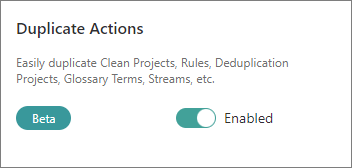
Duplication is a beta feature. To access it, go to Administration > Feature Flags, and enable the Duplicate Actions feature.
To duplicate a rule
-
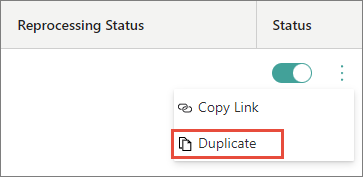
In the list of rules, find a rule that you want to duplicate. Then, open the three-dot menu for the rule, and select Duplicate.
-
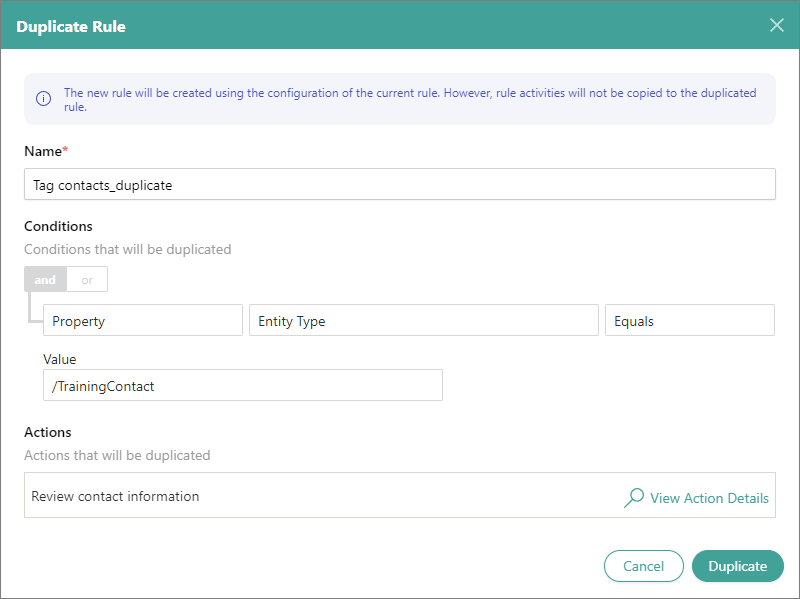
In Name, review the default name of the new rule and modify it if needed. The default name is created by adding _duplicate to the name of the rule that you’re duplicating.
-
In Conditions, review the filters that will be duplicated for the new rule.
-
In Actions, review the list of rule actions that will be duplicated for the new rule. To view the details of a specific rule action, select View Action Details.
-
Select Duplicate.
The new rule is created. By default, it is inactive. Now, you can modify the rule configuration as needed. When you reach the desired configuration, save your changes, activate the rule, and then reprocess the affected records.