

Getting access
how-to Steps to accomplish one task
On this page
- TOC
In this article, you will find instructions on how to get access to CluedIn.
Getting access for administrators
Depending on the type of CluedIn installation that you performed, do one of the following:
-
Sign up for CluedIn Saas - , see CluedIn SaaS.
-
Installation of CluedIn Private SaaS – sign in to CluedIn using the email address and password that you specified when configuring your CluedIn account. For more information, see CluedIn Private SaaS installation guide.
-
Installation of CluedIn PaaS – sign in to CluedIn using the email address and password that you specified on the Instance Setup tab of CluedIn installation. For more information, see CluedIn PaaS installation guide.
-
Local installation of CluedIn – sign in to CluedIn using the email address and password you created on the last step of local CluedIn installation. For more information, see Local installation guide.
Getting access for business users
You can sign in to your CluedIn account in one of the following ways:
-
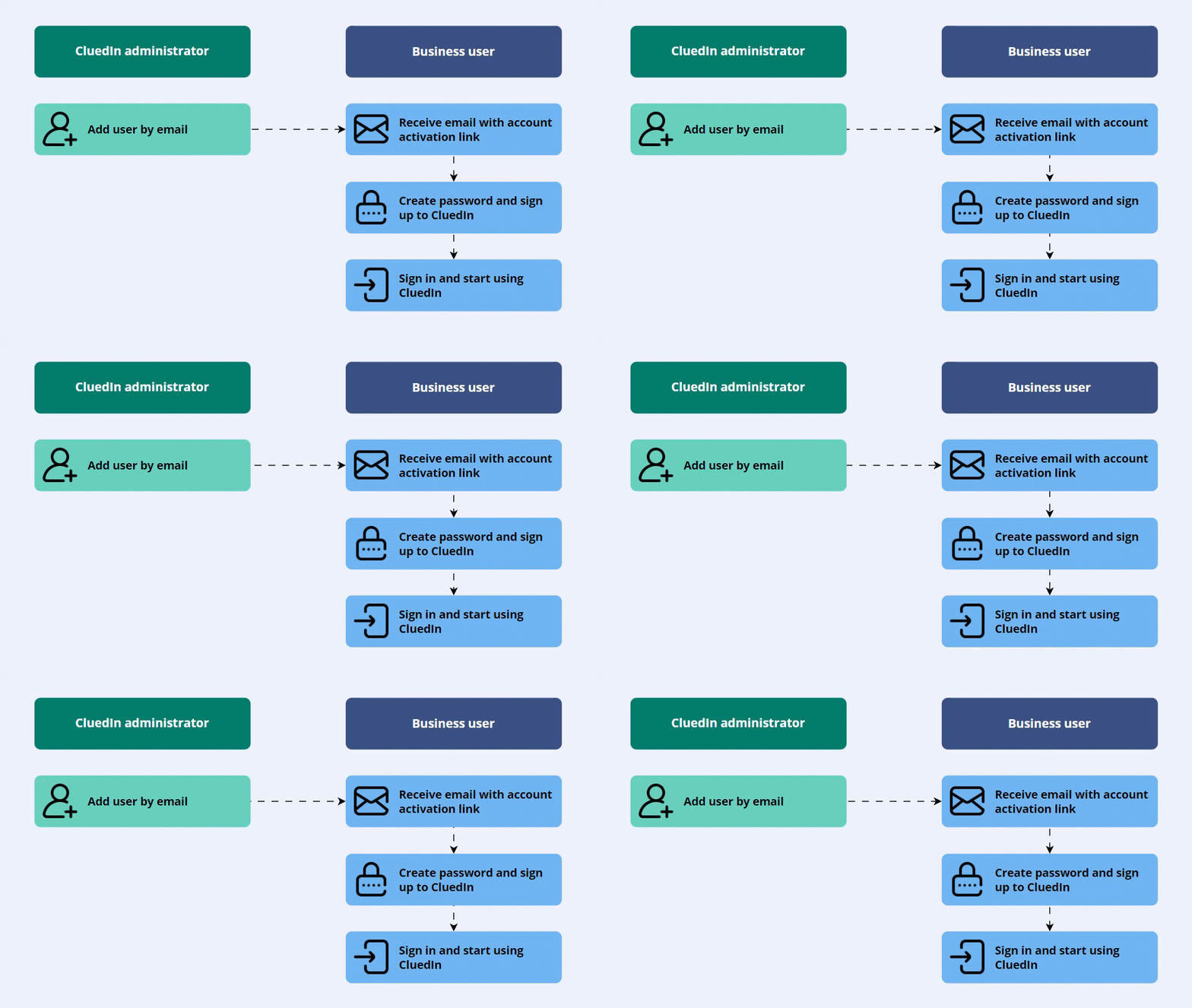
Sign in with your email address and password - if your administrator invites you to CluedIn, you will receive an email with a link to sign up for your CluedIn account.
The following diagram shows the steps involved in getting access to your CluedIn account by email.
-
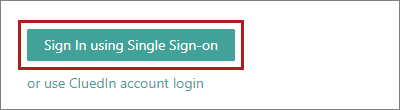
Sign in using Single Sign-On (SSO) – SSO is not enabled by default. If your administrator has set up SSO, you’ll be able to sign in to your CluedIn account by authenticating through your company’s identity provider.
If the SSO method is enabled for your organization, you can select the corresponding button on the CluedIn sign-in page.
Sign in by email
After you created password for your account, you can sign in and start using CluedIn.
To sign in to CluedIn by email
-
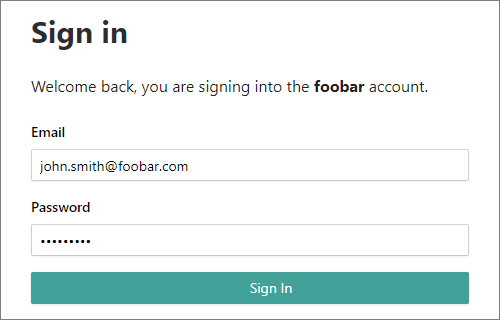
On the CluedIn sign-in page, enter your email and password and then select Sign In.
After you sign in for the first time, you may notice that you have read-only access to all sections and modules.
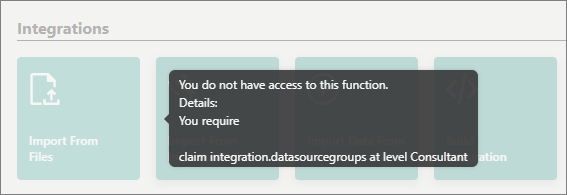
To get permissions to specific modules and functions, you need to request access.
Request access
To get access to more functions within the platform, contact your CluedIn administrator or request access to the needed modules directly in CluedIn.
The following diagram shows the flow of requesting access directly in CluedIn.
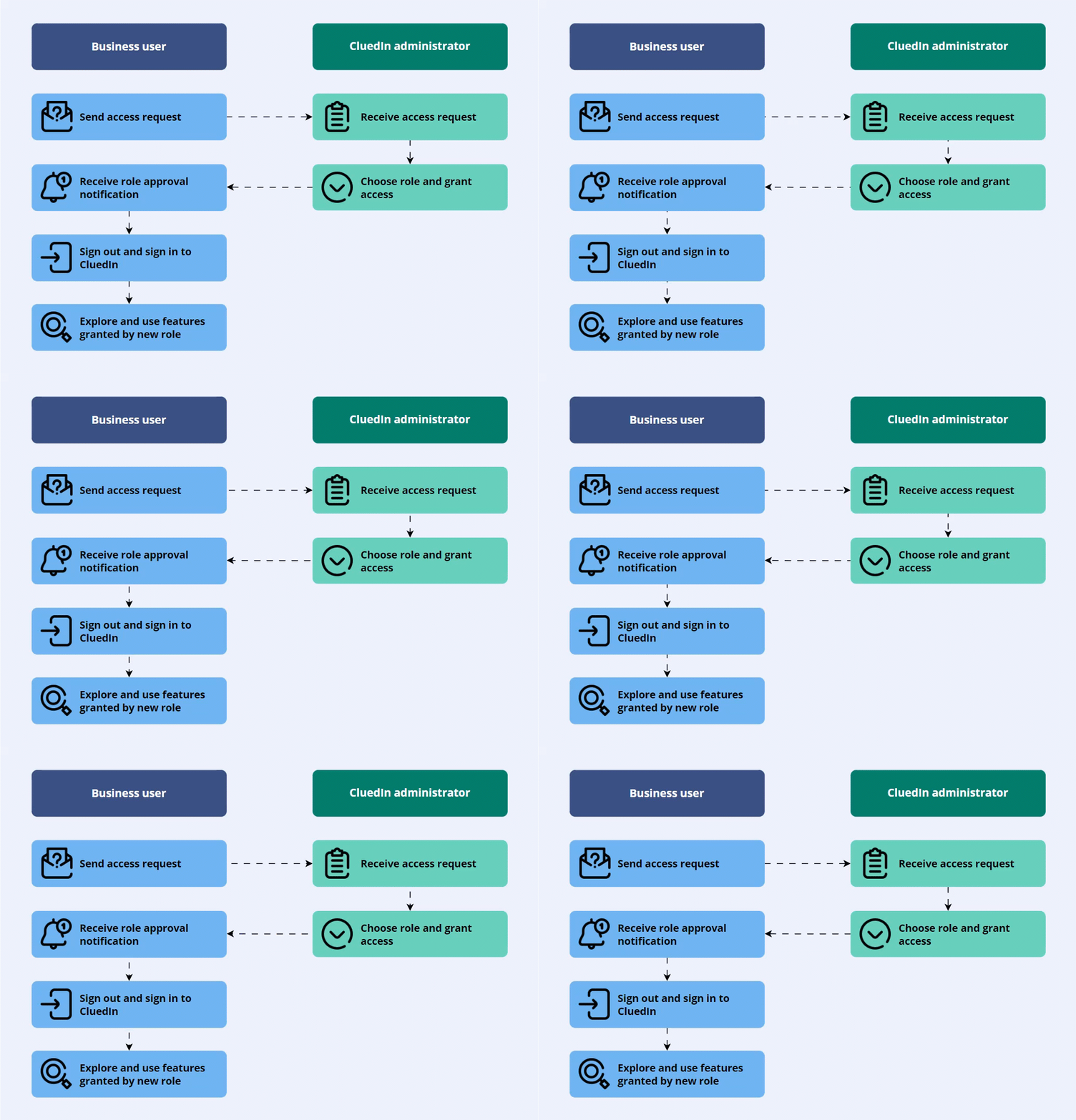
To request access to CluedIn modules
-
Sign in to CluedIn.
-
Find the module that you want to get access to.
For example, if you want to view deduplication projects, go to Management > Deduplication.
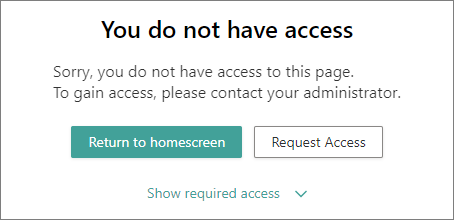
You will see a message similar to the following.
-
Select Request Access.
The request has been sent to your CluedIn administrator.
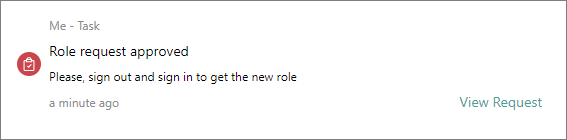
When the request gets approved, you’ll receive a notification.
-
Sign out and sign in again for the changes to take the effect.
Now, you can use CluedIn modules and functions granted by new role.