

Review the results returned by AI agent
how-to Steps to accomplish one task
AI agents examine incoming data and provide suggestions based on configured prompts. These suggestions are not automatically applied to the golden records. Instead, you must review each suggestion and decide whether to apply or reject it. In this article, you will learn how to interpret, validate, and take action based on the outputs generated by AI agents.
You need to review the results of AI agent jobs that use the following skills:
-
Create Rules
-
Fix Data Quality Issues
For the Find Duplicates skill, AI agent suggestions are approved automatically. This avoids a two-tier approval process, because matches within a deduplication project already require user approval.
Your administrator can enable the automatic approval of AI agent suggestions. When this setting is turned on, you do not need to approve any results, regardless of the AI agent skill.
The total number of pending suggestions across all your AI agents is also shown in the AI suggestions tile, in the Requires Attention section of the Home dashboard.
This article explains how to manage final suggestions generated by an AI agent. For details on how to view test run results, see Test an AI agent job.
To review the results returned by an AI agent
-
On the navigation pane, go to AI Agents (or, alternatively, Management > AI Agents).
-
Select the AI agent whose results you want to review, and then choose the job of interest.
-
On the job page, go to the Results tab. Here you can view the list of all suggestions generated by the AI agent.
If the Results tab is empty, this may mean the following:
-
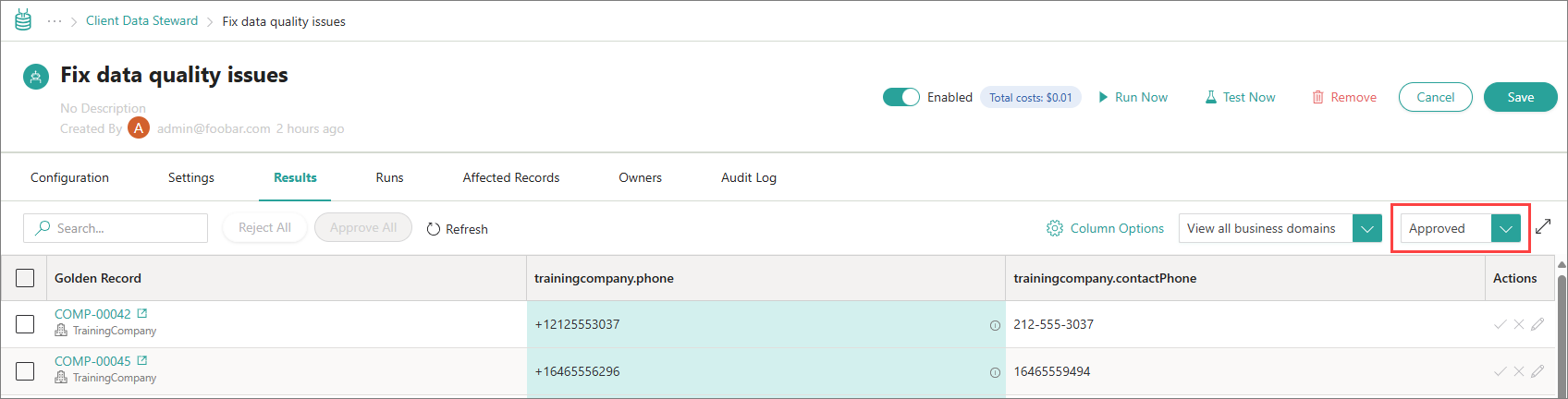
Your administrator enabled the auto-approval of AI agent suggestions. In this case, all suggestions become approved as soon as the agent provides them. To view approved suggestions, in the status filter, select Approved.
-
All suggestions from the AI agent were already approved or rejected (by you or another user).
-
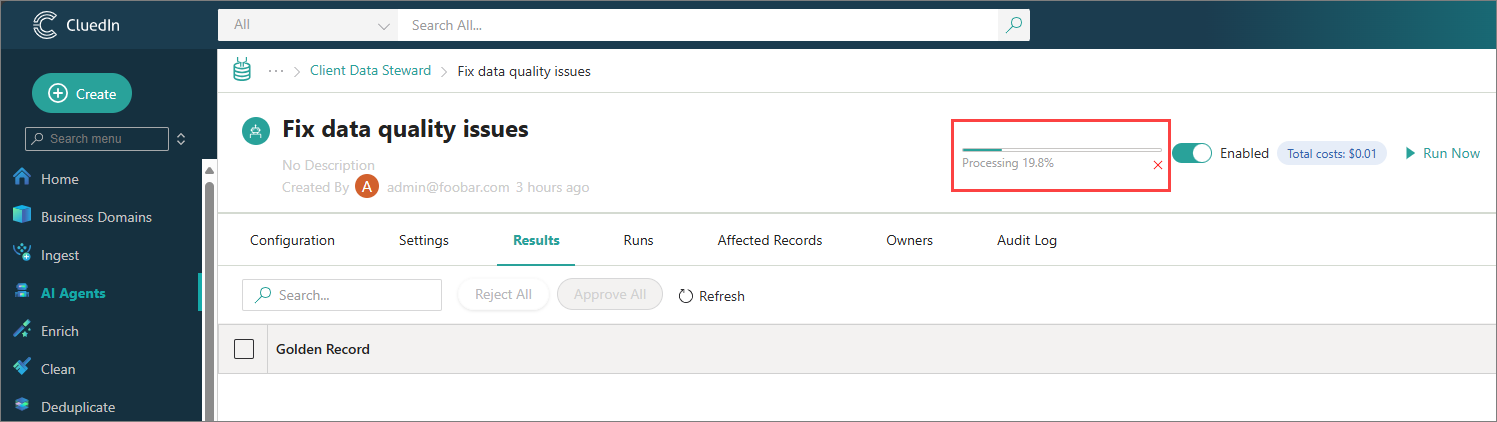
The AI agent job is still running or was not run at all. If the job is still running, you will see a progress bar at the top of the AI agent job page.
To check if the job was run before, go to the Runs tab. If the job was run at least once (not in test mode), you will see at least one record with the Completed status and without the Test label.
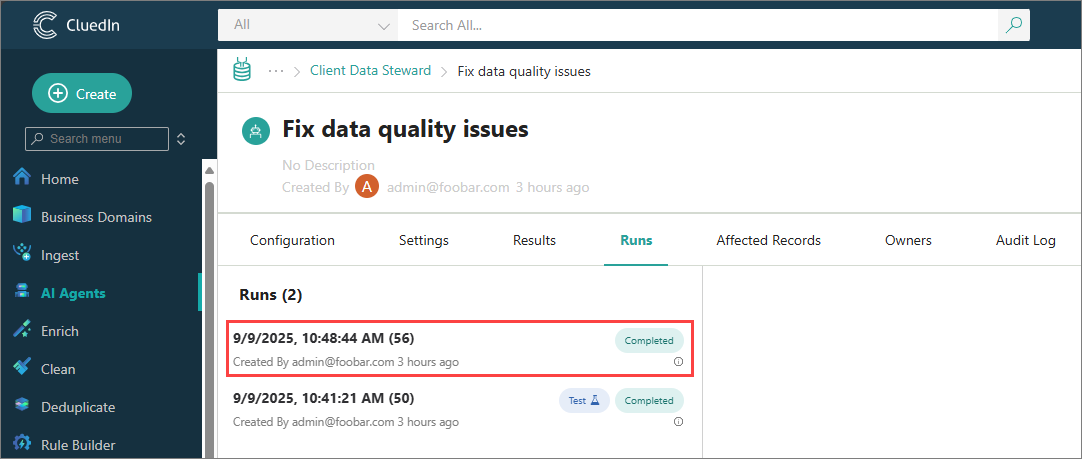
You can also view AI agent suggestions on the Runs tab. However, you cannot approve or reject them from that tab. The layout of the Runs tab changes depending on the skill selected when configuring the prompt. In the example above, the image is for the Fix Data Quality Issues skill.
-
-
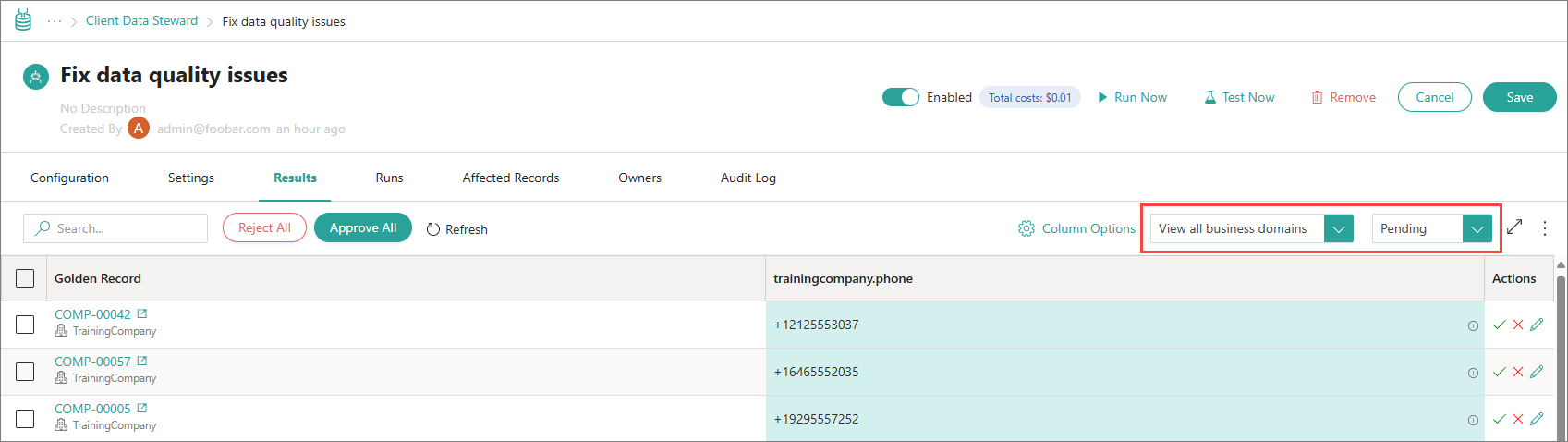
(Optional) Filter the suggestions by business domain or suggestion status (pending, approved, or rejected). Select the Pending status if you want to approve and reject the suggestions.
-
Review each suggestion. Depending on the review result, do one of the following:
-
If the suggestion is correct and you want to apply the suggested changes, next to the suggestion, select Approve. The AI agent makes the suggested change to the golden record; information about this change is recorded in the golden record history.
-
If the suggestion is incorrect or not necessary, next to the suggestion, select Reject.
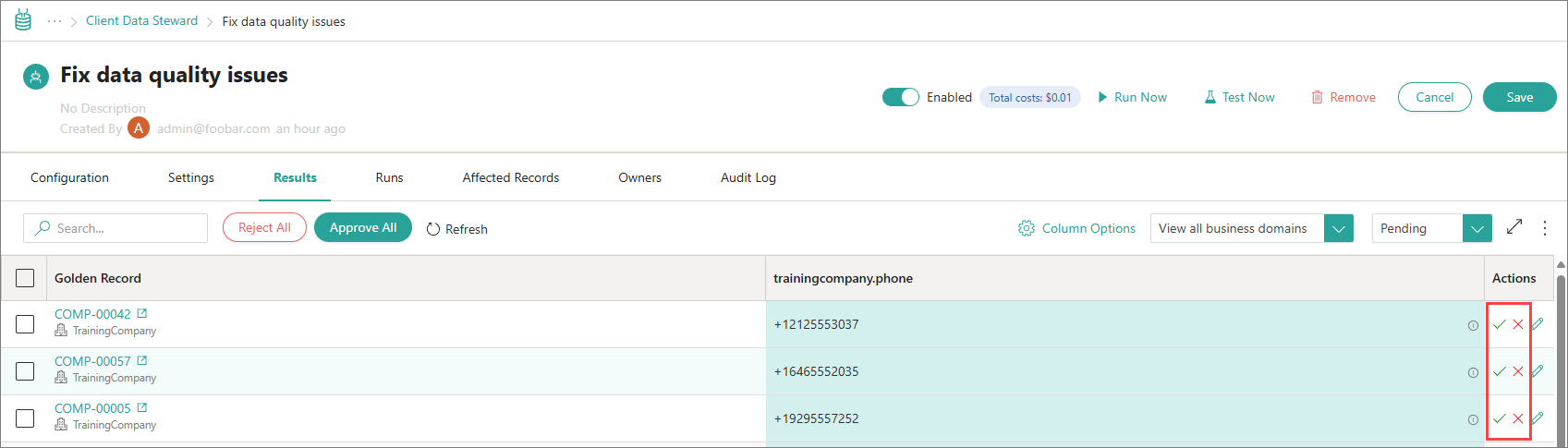
-
To accept or reject all suggestions, in the upper-left corner of the Results tab, select Approve All or Reject All.
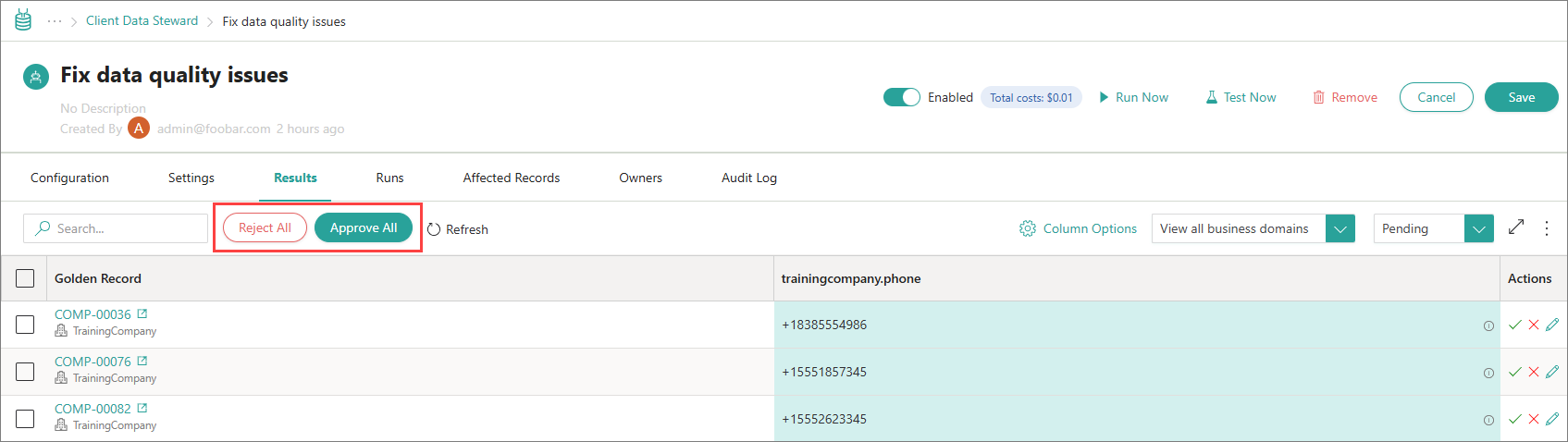
-
To accept or reject specific suggestions only, select these suggestions. Then, in the upper-right corner of the Results tab, open the three-dot menu, and then select Approve or Reject.
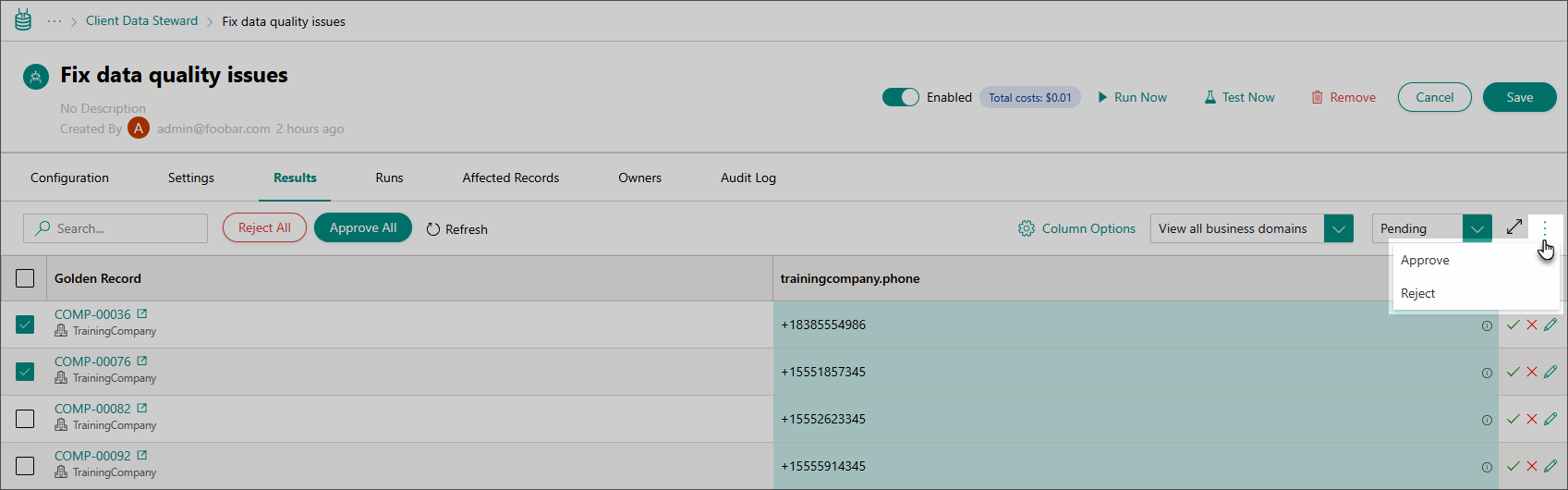
Once a suggestion is approved or rejected, its status changes accordingly (to Approved or Rejected). You can find this suggestion by selecting Approved or Rejected in the status filter.
-
-
After you run the job, the AI agent may not immediately produce all expected suggestions. The recommended approach is to work iteratively – run the job, review the results, then run the job and review the results again. Repeat this process until the AI agent generates all expected suggestions.