Delete CluedIn instance
how-to Steps to accomplish one task
On this page
This article outlines how to delete your CluedIn instance if you no longer want to use it. Note that all data that you have in CluedIn will be permanently deleted. Therefore, consider making backups if needed.
Delete CluedIn PaaS
If you no longer want to use CluedIn PaaS or if the installation of CluedIn PaaS failed, you can delete the instance. Deleting CluedIn PaaS instance will reset your CluedIn license. It means that you can install CluedIn again using the same license key.
There are two ways to delete the CluedIn PaaS instance:
-
Delete the resource group where you installed CluedIn.
-
Delete the managed application within the resource group where you installed CluedIn.
Delete resource group
-
In the Azure portal, navigate to the resource group where you installed CluedIn.
-
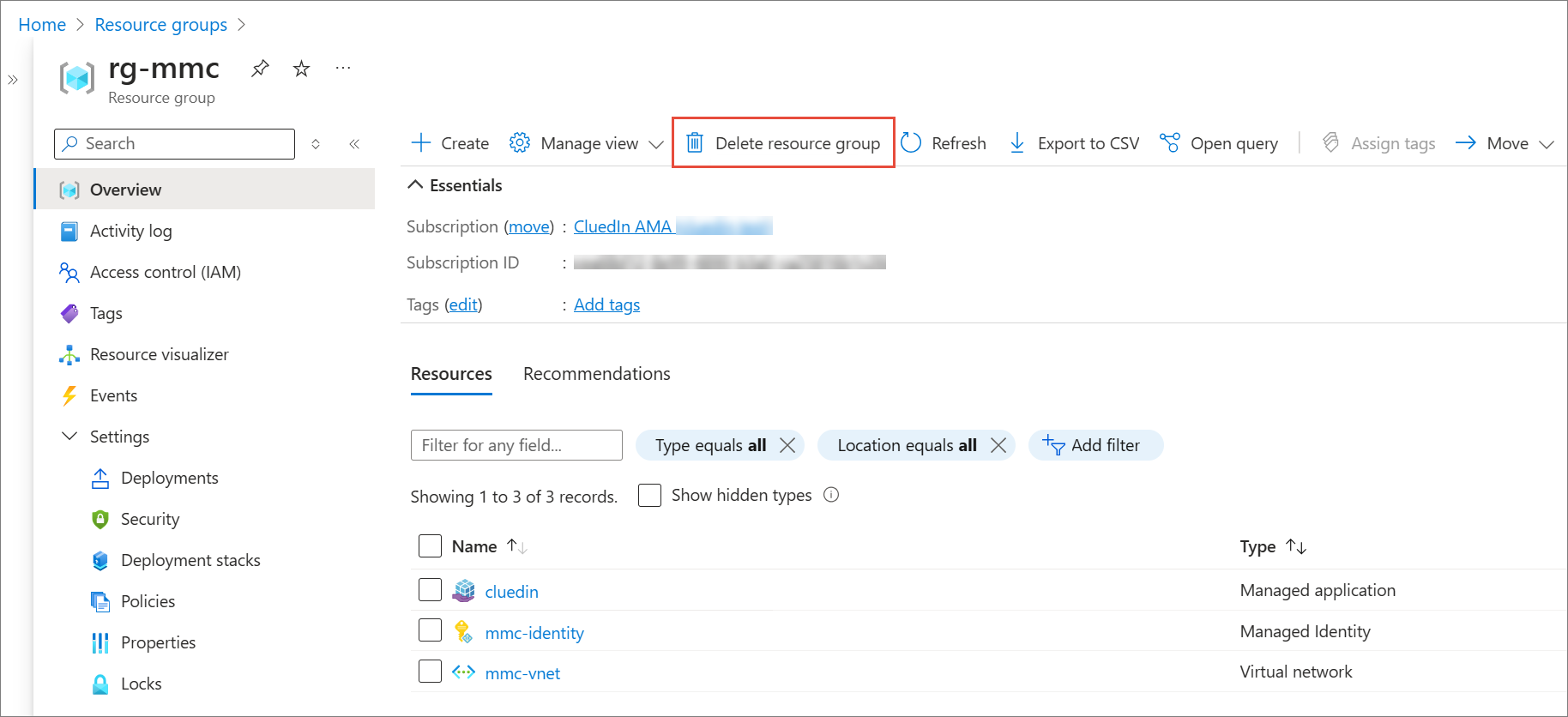
At the top of the page, select Delete resource group.
-
Confirm the deletion by typing the name of the resource group.
Delete managed application
-
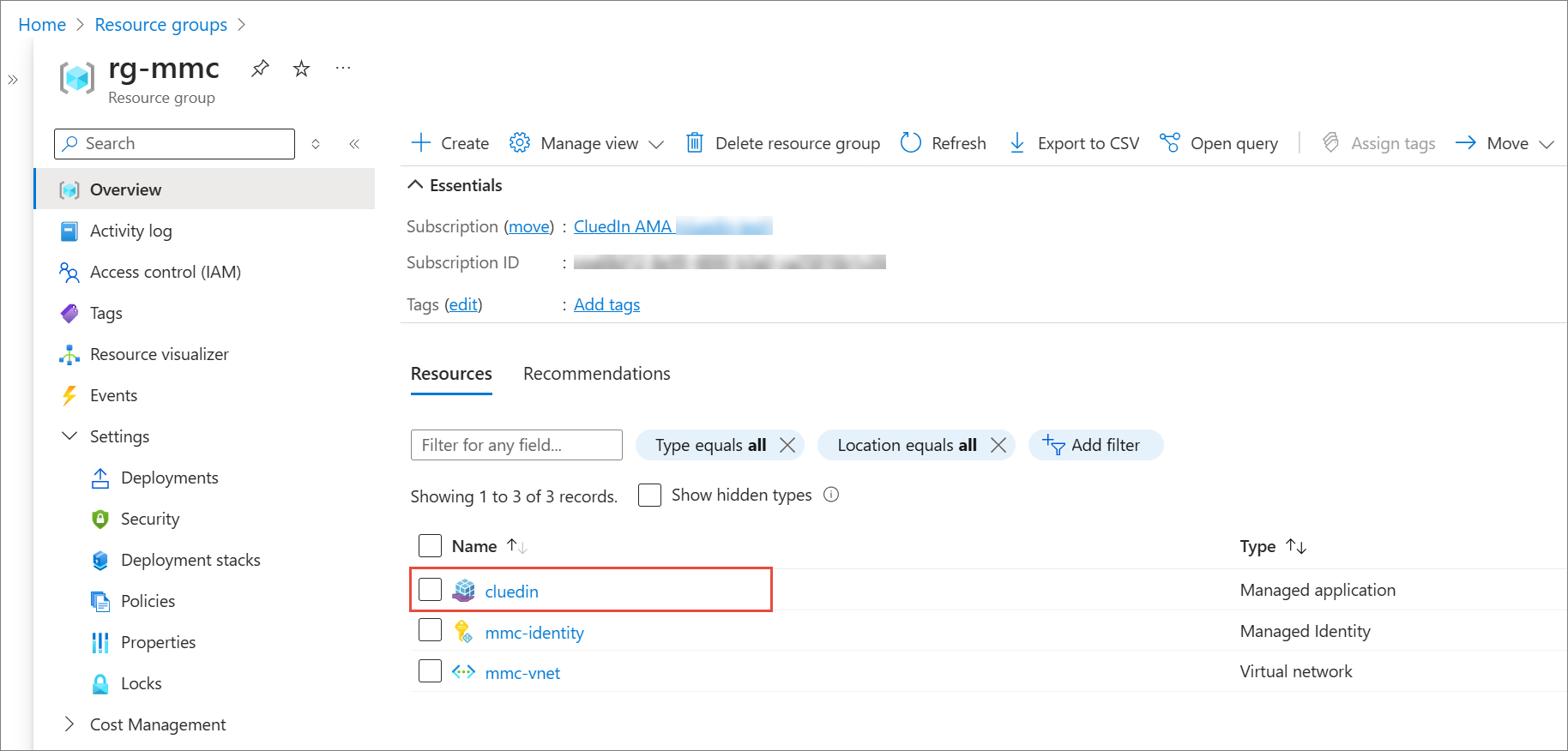
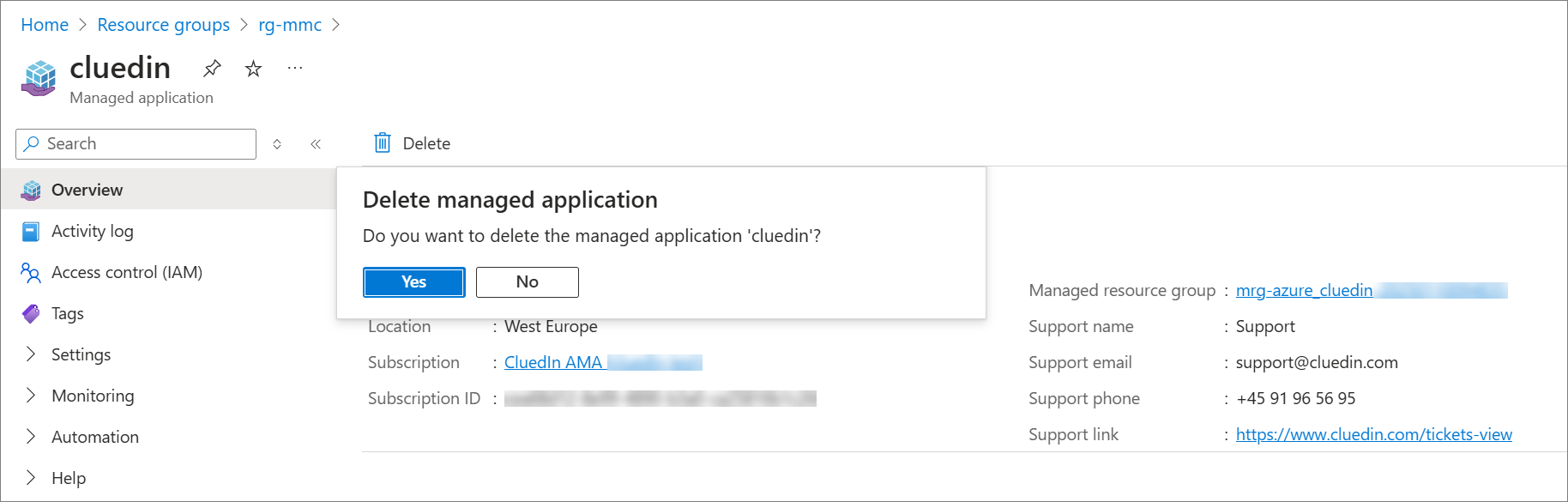
In the Azure portal, navigate to the resource group where you installed CluedIn, and then find the corresponding managed application.
-
Open the managed application that you want to delete.
-
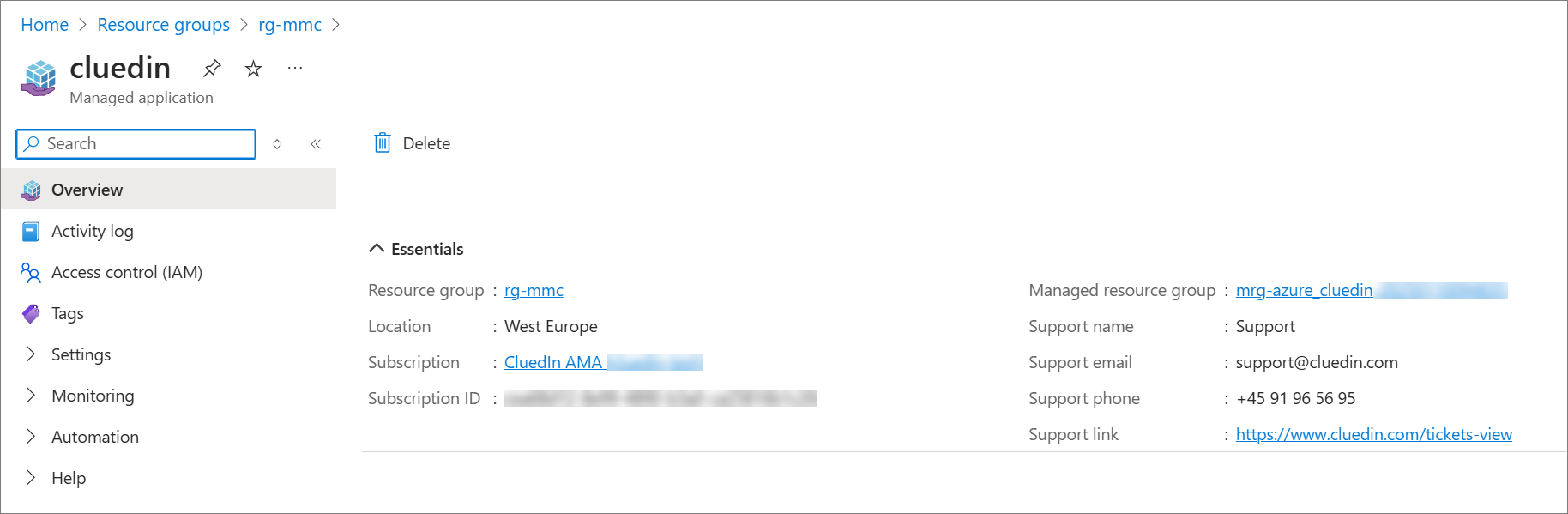
At the top of the page, select Delete, and then confirm your choice.
Delete CluedIn SaaS
If you no longer want to use CluedIn SaaS, you can delete the instance in one of two ways:
-
Cancel CluedIn SaaS subscription.
-
Delete the resource group within the CluedIn SaaS subscription.
Cancel CluedIn SaaS subscription
-
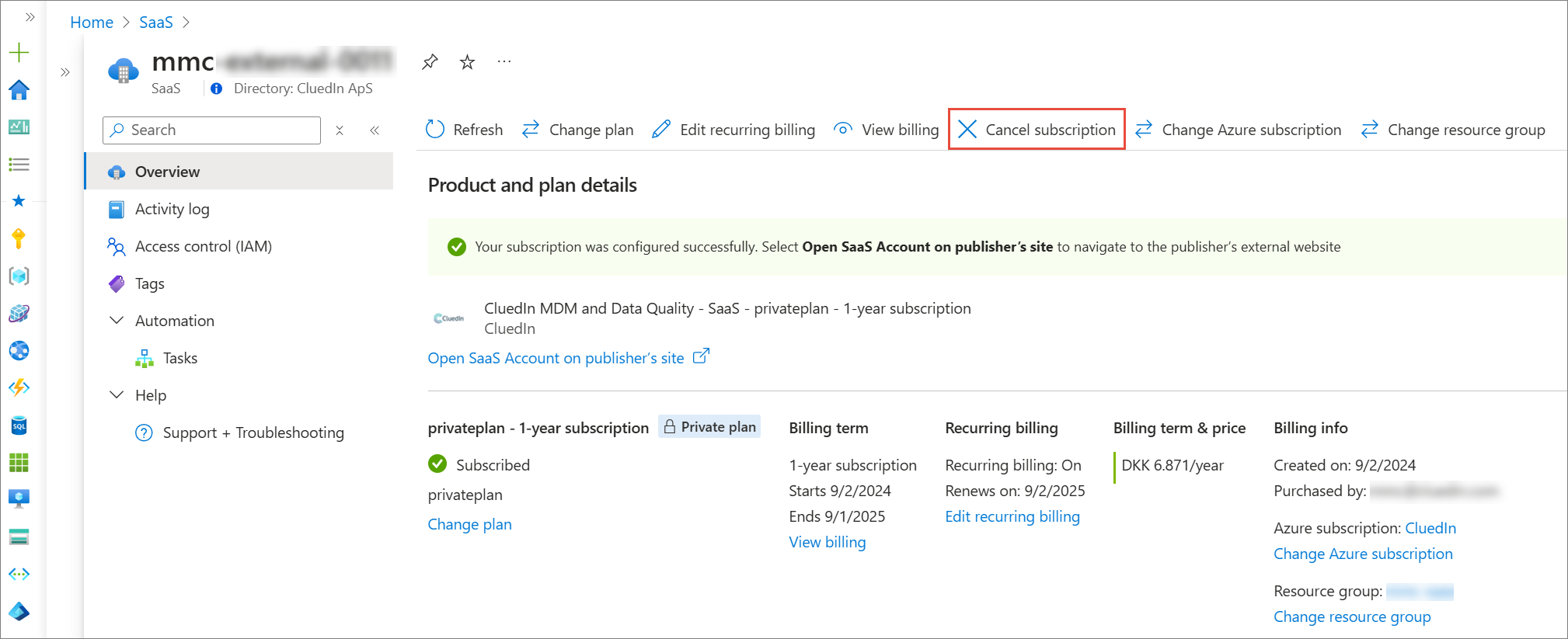
In the Azure portal, navigate to your CluedIn SaaS subscription. At the top of the subscription page, select Cancel Subscription.
-
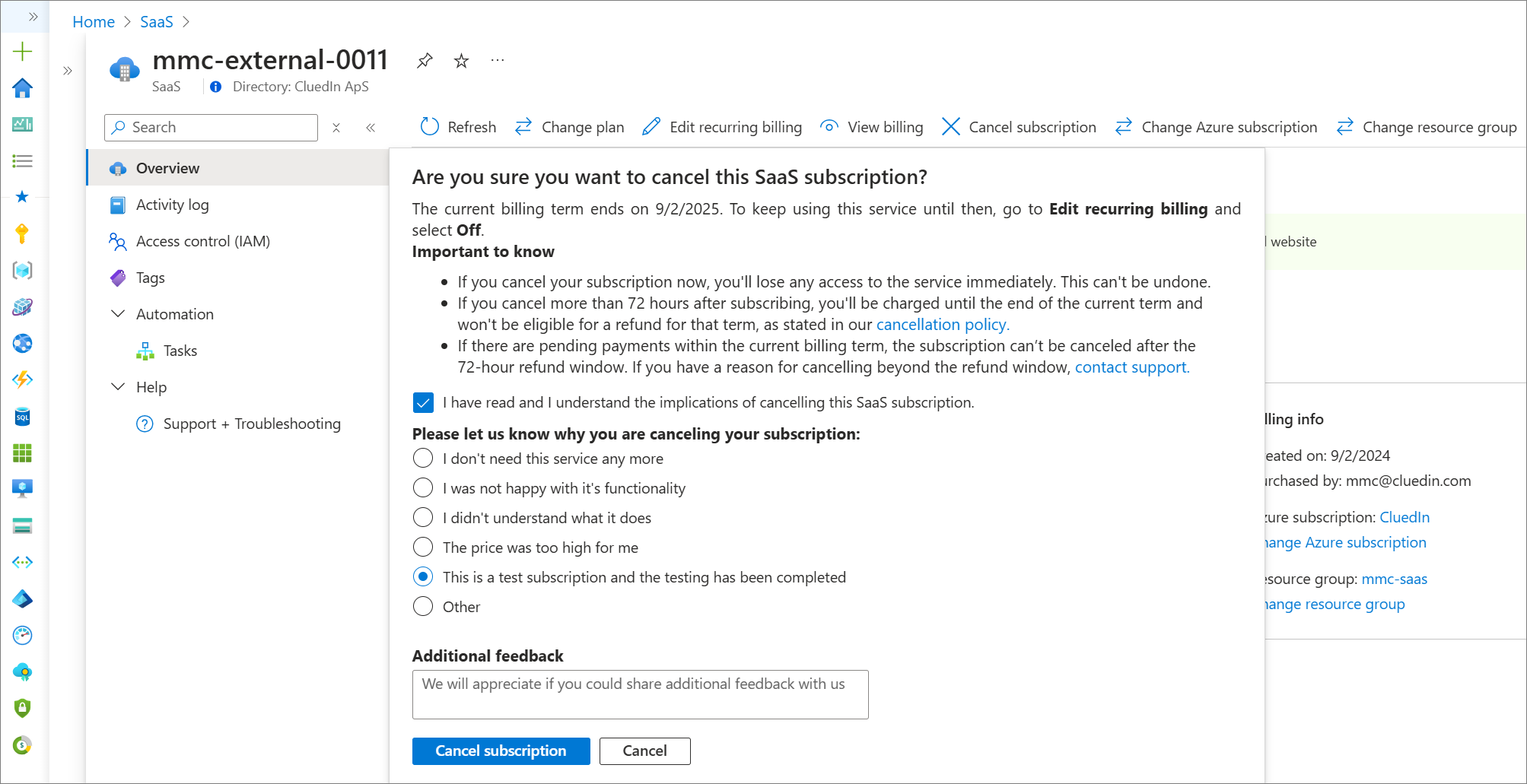
Review the terms for cancelling the subscription and select the checkbox to confirm that you have read and understood the implications. Optionally, provide a reason for cancellation. Finally, select Cancel subscription.
Delete resource group within subscription
-
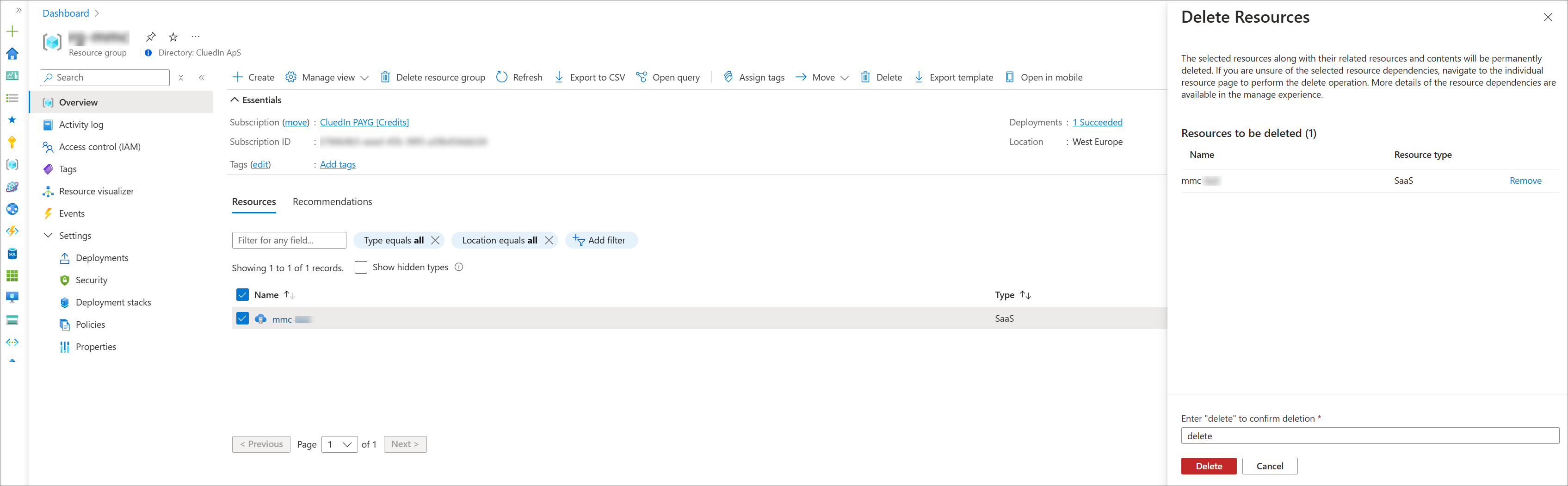
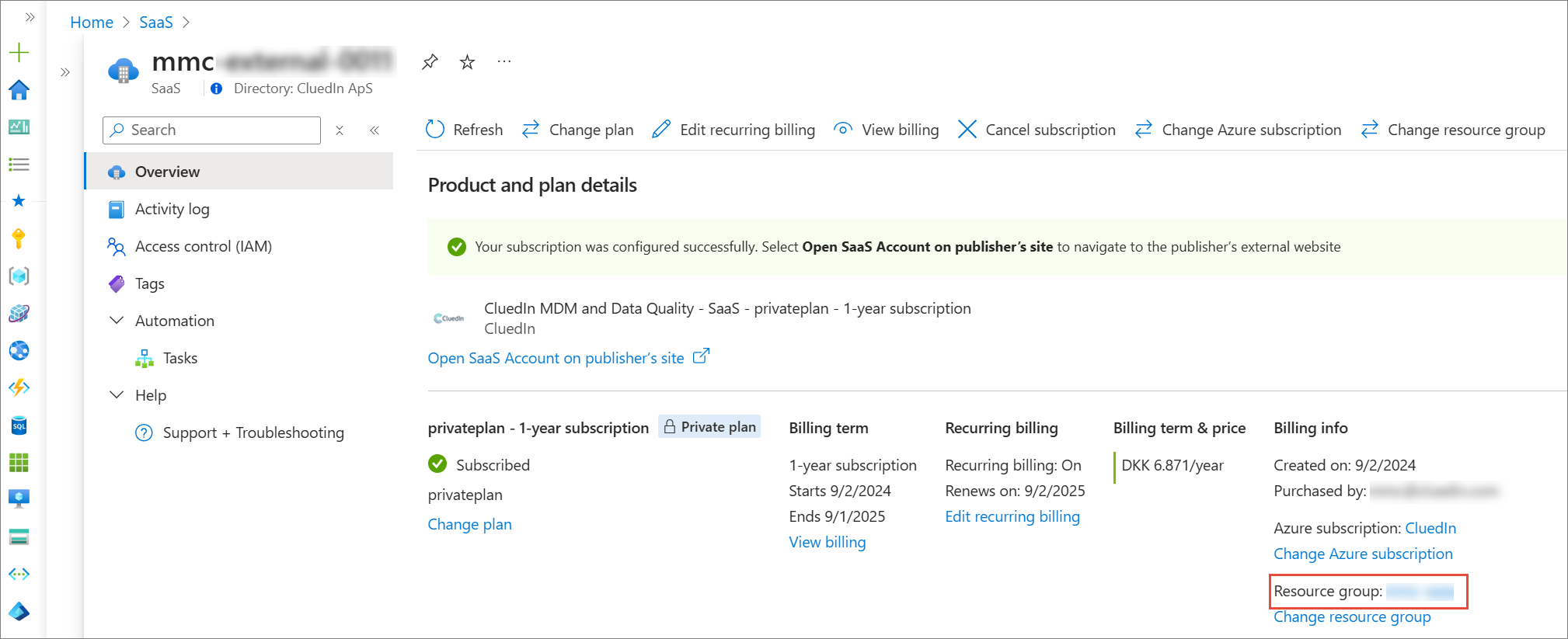
In the Azure portal, navigate to your CluedIn SaaS subscription. On the subscription page, in the Product and plan details section, select the resource group.
-
Select the checkbox next to the resource group. At the top of the page, select Delete.
-
Enter delete to confirm your choice, and then select Delete.