

Configure ADF with private link
how-to Steps to accomplish one task
In this article, you will learn how to configure a private link service between Azure Data Factory (ADF) and CluedIn.
Prerequisites
-
CluedIn endpoint is configured to be private. For detailed instruction, see Internal load balancer.
-
Host name resolution is configured with private IP. For detailed instruction, see Host name resolution.
If you have any questions, you can request CluedIn support by sending an email to support@cluedin.com (or reach out to your delivery manager if you have a committed deal).
To configure private link between ADF and CluedIn
-
Create a private link service to CluedIn private endpoint as described in Private link service with private endpoint. You may skip creating a private endpoint as we will use managed private endpoint from ADF.
-
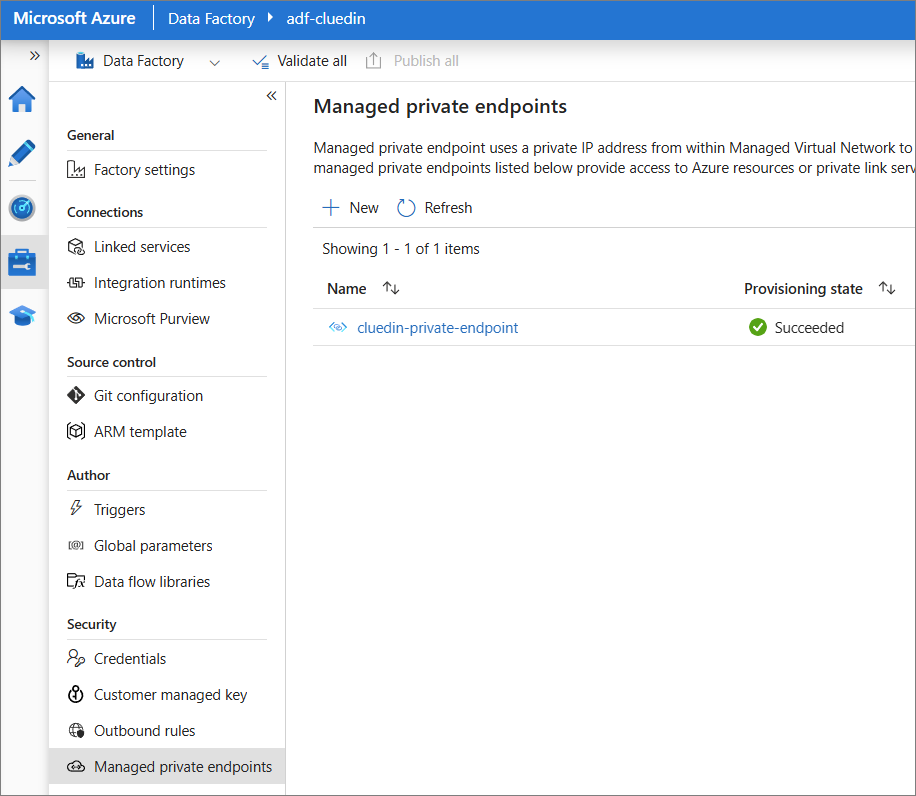
In Azure Data Factory Studio, go to the Manage tab. In the Security section, select Managed private endpoints.
-
Select New.
-
Find and select the private link service.
-
Enter the following information:
-
Name – enter cluedin-private-endpoint.
-
Account selection method – select From Azure subscriptions.
-
Azure subscriptions – enter the subscription of private link service created in step 1.
-
Private link service – enter the name of private link service created in step 1.
-
FQDN names – enter your company CluedIn host name. The following names are provided as an example:
-
app.company.com -
clean.company.com -
cluedin.company.com
-
-
-
Select Create.
Once the managed private endpoint is created, wait for provisioning state to be Succeeded.
-
Go to the private link service created in step 1 and approve the managed private endpoint:
-
Open the private link service created in step 1.
-
Go to Settings > Private endpoint connections.
-
Check and approve the managed private endpoint. Make sure the private endpoint name matches [adf name].[managed private endpoint name].
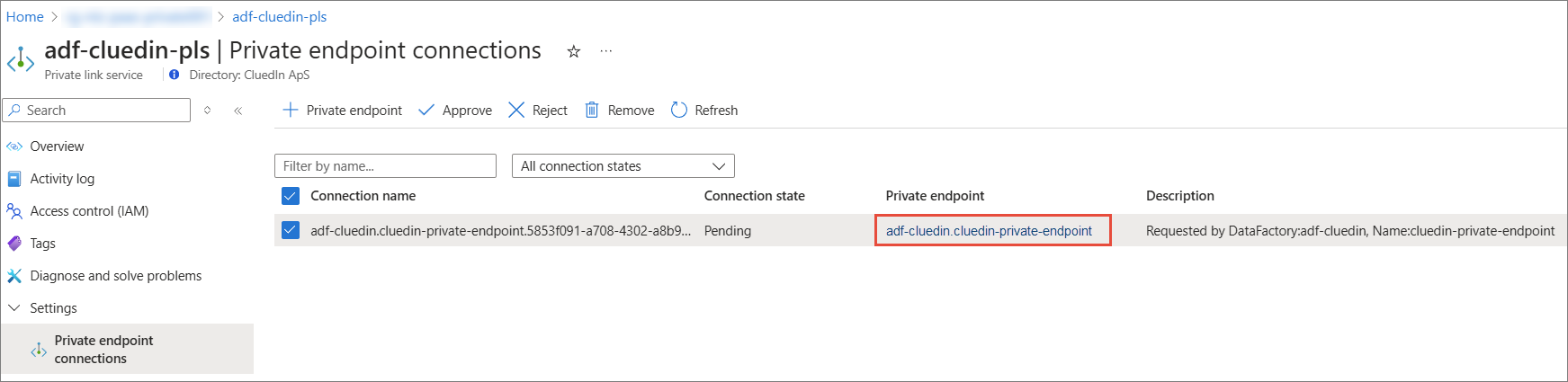
Once approved, your ADF should gain connectivity towards CluedIn private endpoint. Next, create ADF pipeline using the Copy data or Data flow activity to send data to CluedIn.
-