

Add an enricher
how-to Steps to accomplish one task
On this page
- Prerequisites
- Add and configure an enricher
- Trigger enrichment
- View enrichment results
- Verify the result
- What this changes
- If something goes wrong
Add an enricher when you want CluedIn to add information from a third-party source to your golden records. While CluedIn offers a range of predefined enrichers for your use, you also have the option to create custom enrichers tailored to your specific needs. An added enricher is active: it enriches golden records during processing, and you can trigger enrichment for golden records that were processed before you added it.
Prerequisites
- The Enrichment claim to add and edit enrichers, and the Data Management claim to trigger enrichment for a golden record. See Claims.
- The details the enricher needs, such as an API key for the external service. The fields depend on the enricher; see its page under Enricher reference.
- Golden records that have values in the vocabulary keys the enricher uses as input. If the enricher has no vocabulary key value to search with, it cannot look for additional information. See Concept of enricher.
Add and configure an enricher
You can add an enricher both before and after processing the data.
To add and configure an enricher
-
On the navigation pane, go to Preparation > Enrich.
-
Select Add Enricher.
-
On the Choose Enricher tab, select the needed enricher, and then select Next.
-
On the Configure tab, enter the authentication details. The list of fields that you need to complete depends on the selected enricher. You can complete the fields now or do it later on the enricher details page.
-
Select Save.
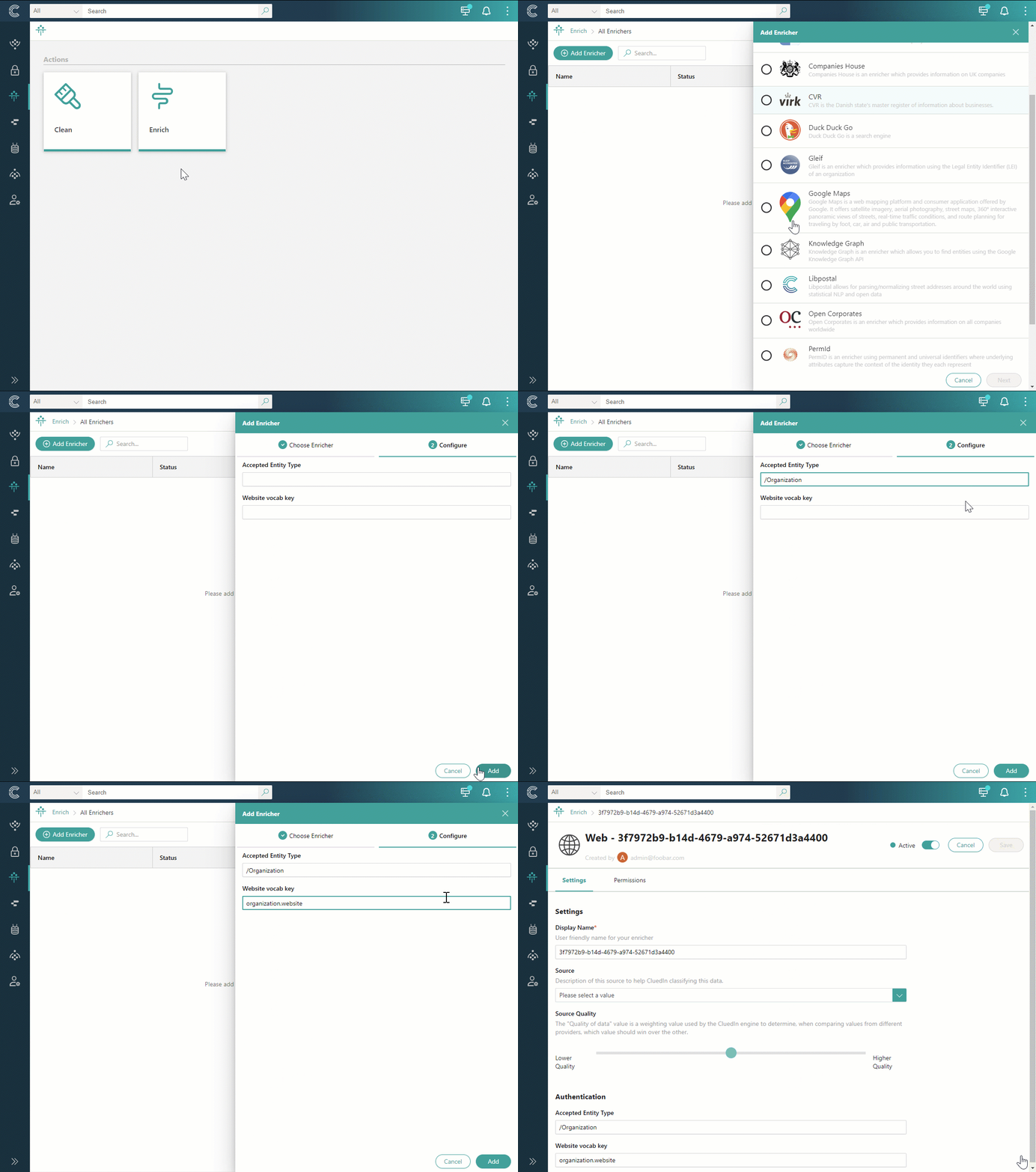
The enricher details page opens, where you can view and change configuration information and other settings. The enricher is active, which means that the enrichment process will begin immediately after you start processing. If you have already processed the data before adding an enricher, you can trigger the enrichment for the existing golden records.
On the enricher details page, you can manage the enricher:
-
Change the display name of the enricher.
-
Select the source of data coming through the enricher.
-
Specify the quality of data coming through the enricher.
-
Inactivate the enricher if you no longer need it.
-
Manage users who have access to the data coming through the enricher. For more details, see Data access.
Trigger enrichment
If you process the data and then add an enricher, the enrichment won’t start automatically. To enrich the existing golden records, you can trigger enrichment in one of the following ways:
-
Using the GraphQL tool.
-
Manually trigger enrichment for each golden record.
To trigger enrichment using the GraphQL tool
-
On the navigation pane, go to Consume > GraphQL.
-
Enter a query to enrich all golden records that belong to a certain business domain. Replace /Organization with the needed name of business domain.
{ search(query: "entityType:/Organization") { entries { actions { enrich } } } } -
Execute the query.
You triggered the enrichment for the golden records belonging to the specified business domain. Now, you can view the enrichment results on the golden record details page.
To trigger enrichment for each golden record manually
-
Find and open the needed golden record.
-
In the upper-right corner of the golden record details page, select More > Trigger external enrichment.
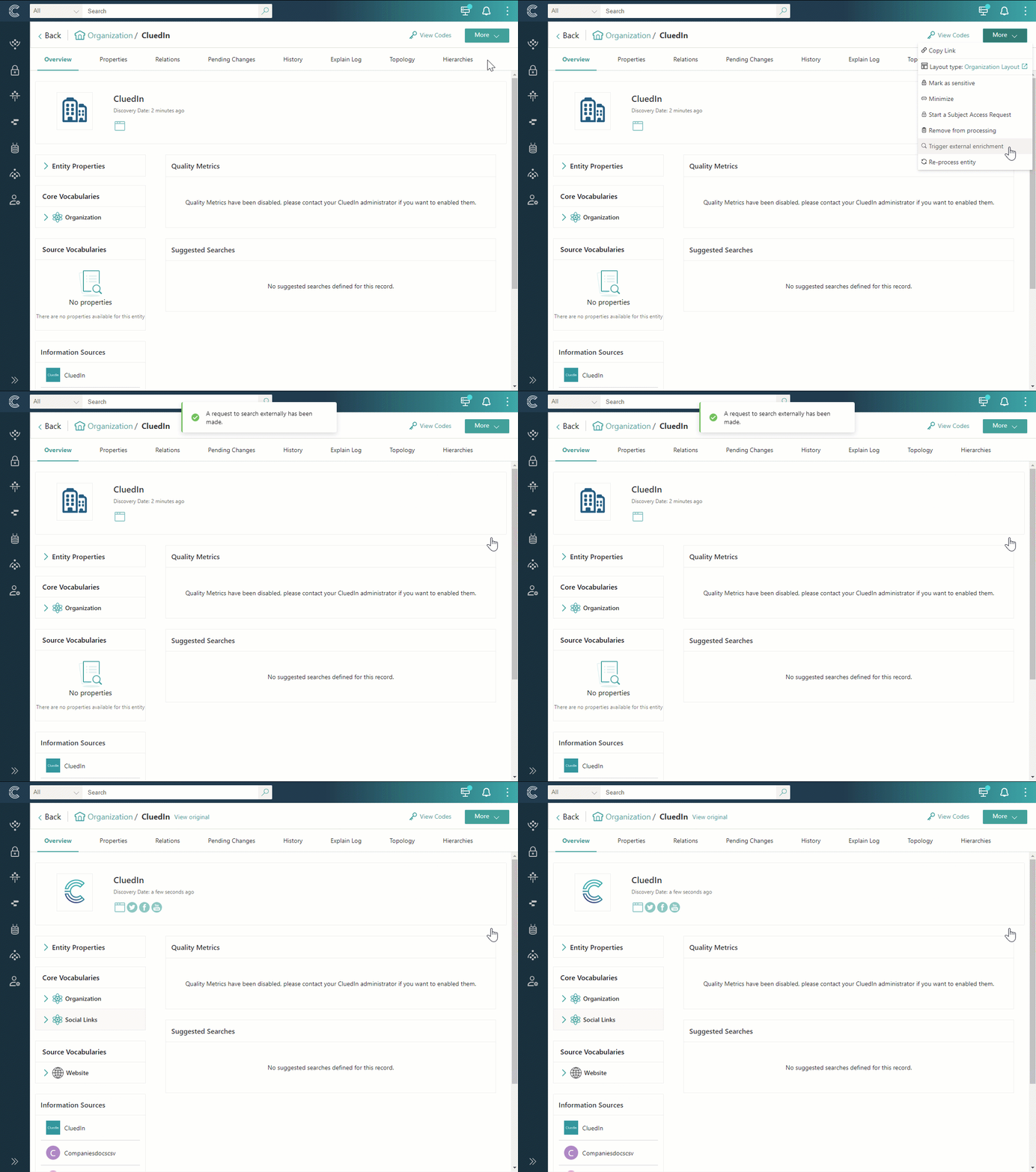
Now, you can view the enrichment results on the golden record details page.
View enrichment results
The Properties tab of the golden record lists new properties added through enrichment. The source of these properties is specified based on the type of enricher through which they were obtained.
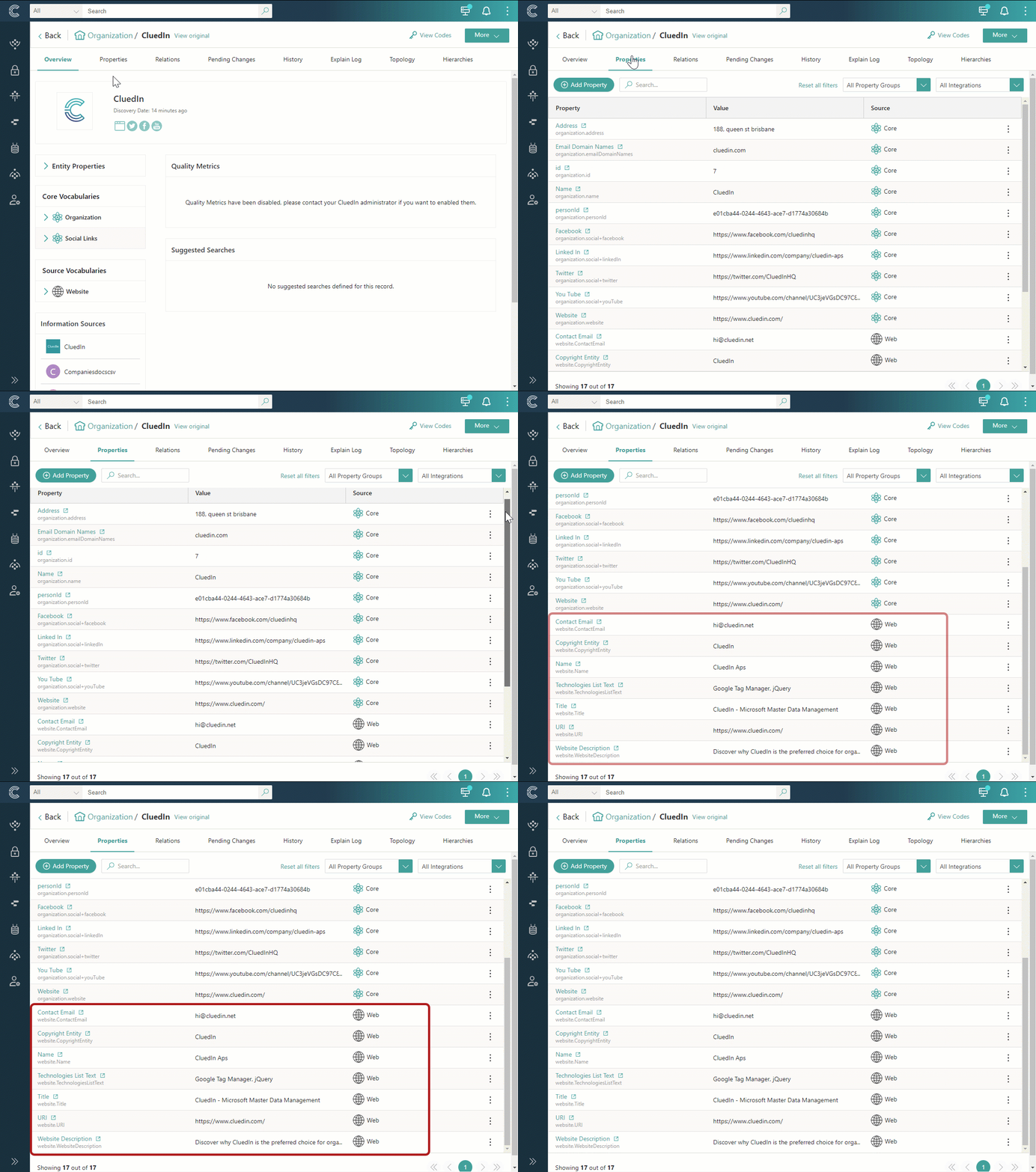
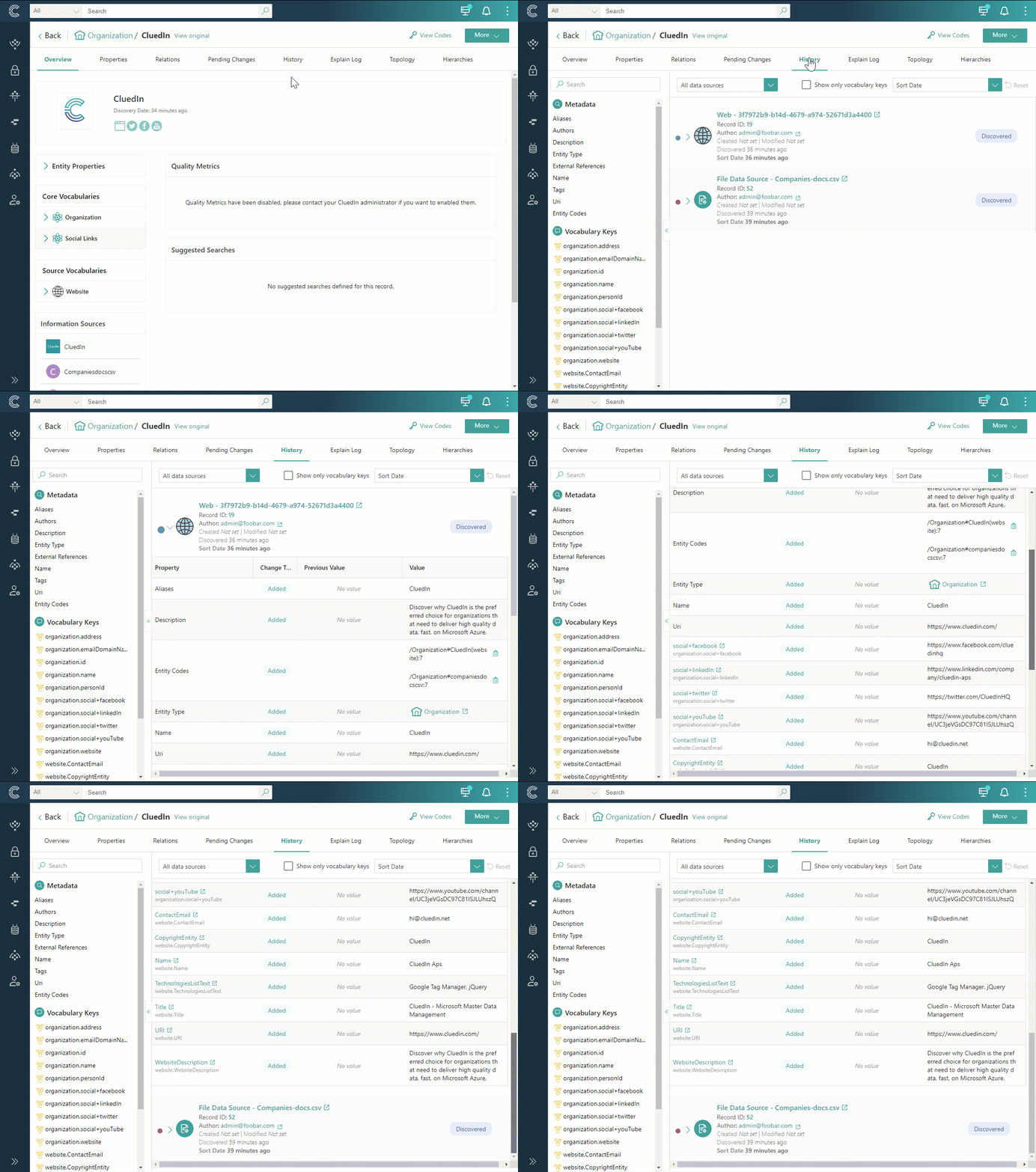
According to the data life cycle, properties added through enrichment appear in CluedIn as a clue. This clue is then transferred to the data part, which in turn becomes the constituent element of the golden record. The History tab of the golden record contains all the data parts that make up that golden record, including the data parts that came from the enricher. For more information, see History.
Verify the result
- After you save the enricher, its details page opens and the enricher is active. This means that the configuration is saved; it does not mean that any golden record has been enriched yet.
- After processing or triggering enrichment, the new properties appear on the golden record’s Properties tab and the enricher’s data part on its History tab, as described in View enrichment results. Enrichment data goes through the processing pipeline like any other clue, so it appears on the golden record once processing has finished, not at the moment you trigger it.
- If the enricher returns more than one possible match for a golden record, the candidates are not applied. They are stored on the enricher’s Matches tab for review. See Multi-match enrichment.
What this changes
- Adding an enricher saves its configuration and makes it active. From then on, golden records are enriched when data is processed. Golden records that were processed before you added the enricher are not enriched until you trigger enrichment.
- Enrichment changes golden records. Information from the enricher arrives as a clue with the same primary identifier as the golden record. During processing, CluedIn turns it into a data part and merges it into the existing golden record by identifiers, so the golden record gains new properties and a new data part in its history. See Concept of enricher.
- Triggering enrichment with GraphQL acts on every golden record that the search query returns, for example all golden records of a business domain.
- To remove enriched data, delete the enricher’s data part from the golden record. A data part from an enricher may appear again, so inactivate the enricher before you delete it.
If something goes wrong
- Existing golden records are not enriched. Enrichment does not start automatically for data processed before the enricher was added. Trigger enrichment.
- The enricher finds nothing for a golden record. Check that the golden record has a value in the vocabulary key the enricher searches with, and that the enricher’s authentication details are complete on the enricher details page.
- Enrichment results wait for review instead of appearing on the golden record. The enricher returned several candidates. Review them on the Matches tab; see Multi-match enrichment.
- Deleted enrichment data comes back. Inactivate the enricher, and then delete the data part again.