Power Automate private network configuration guide
On this page
In this guide, you will learn how to configure Power Automate access to a private CluedIn instance.
This guide is applicable to only private CluedIn instances.
Configure Power Automate / Power Apps access to a private network
To enable Power Automate or Power Apps to communicate with a private CluedIn instance, choose one of the following connectivity options:
-
Azure Virtual Network (VNet) injection – recommended when your Power Automate environment has an Azure VNet injection policy. Power Automate can reach CluedIn through your private Azure network; a public IP address and public DNS record are not required.
-
Public endpoint – use this option when VNet injection is not configured for the Power Automate environment. Expose CluedIn through a public URL that Power Automate can reach.
Option 1: Azure VNet injection
If the Power Automate environment has an Azure VNet injection policy, configure network routing and private DNS so that the environment can resolve and reach the private CluedIn endpoint. The domain used to access CluedIn must resolve to an address that is routable from the injected VNet.
You can skip the public DNS and public IP address setup when this option is configured.
For information about configuring Azure VNet support for Power Platform environments, see the Microsoft documentation:
Option 2: Public endpoint
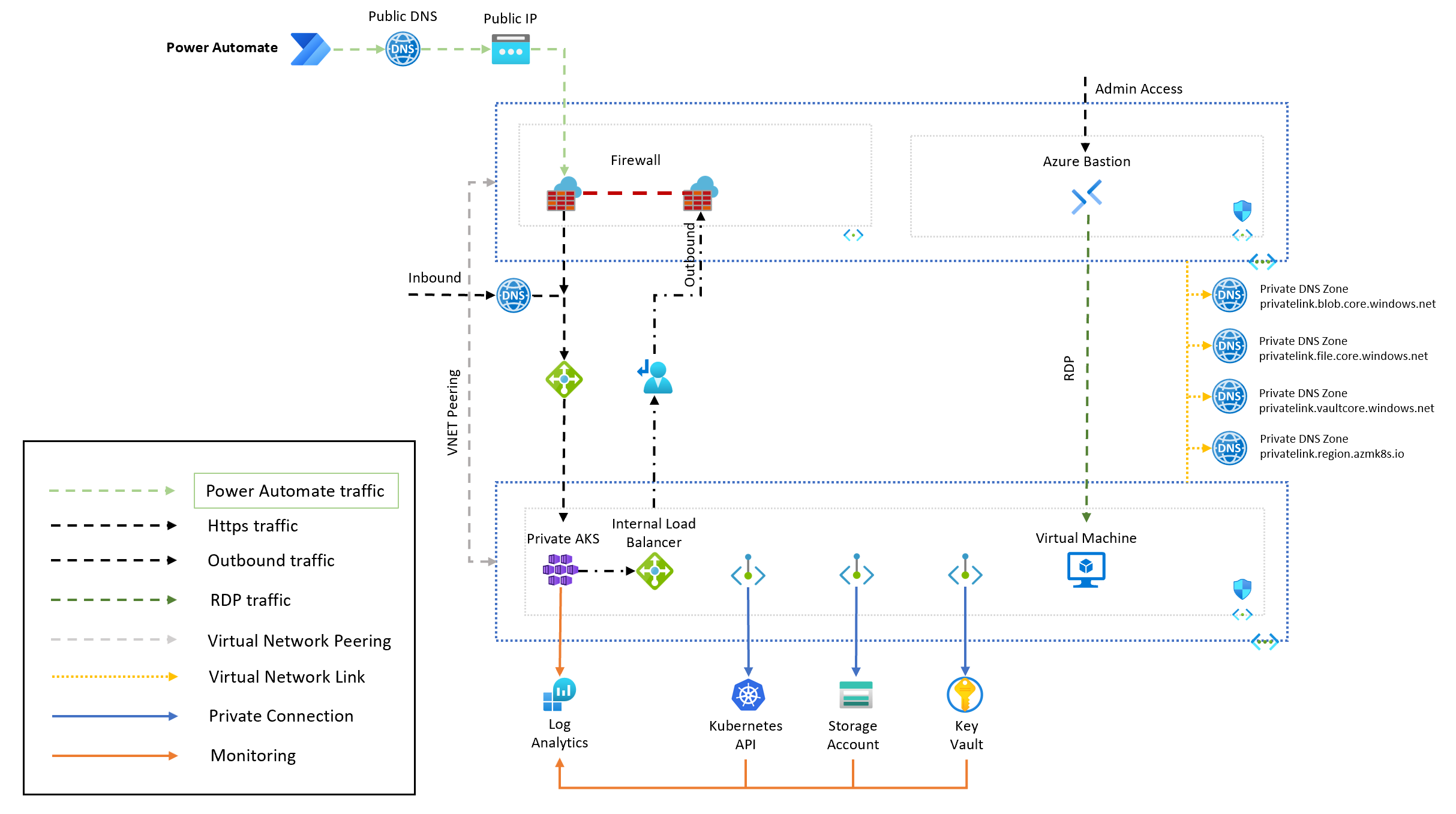
When VNet injection is not configured, Power Automate must access CluedIn through a public URL. The data flow diagram below illustrates this route.
To support this option, configure:
- Public DNS
- Public IP address
Configure a TLS certificate
The domain used to access CluedIn must use HTTPS and present a TLS certificate that is trusted by Power Automate. Use a certificate issued by a publicly trusted certificate authority (CA), with a complete certificate chain and a subject name or subject alternative name that matches the CluedIn domain.
Do not use a self-signed certificate or a certificate issued by a private, internal, or organization-specific CA. Power Automate validates the certificate when it calls the CluedIn HTTPS URL and rejects certificates that it cannot trust.
Configure the CluedIn server
Set the CluedIn URL using the following environment variable. For a VNet-injected environment, use the private DNS name; otherwise, use the public DNS name:
CLUEDIN_APPSETTINGS__PROXY_PUBLICURL = "workflow-{env}.{your-domain}"
-
Replace
{env}with your deployment environment (e.g.,dev,prod) -
Replace
{your-domain}with your organization’s domain name
Configure firewall rules
When you use the public endpoint option, Power Automate operates from Microsoft-managed IP ranges, which must be allowed through your network perimeter.
If you’re using Azure Firewall, Microsoft provides a service tag to simplify rule configuration:
-
Use the service tags:
AzureConnectorsandLogicApps -
This automatically includes all required outbound IP ranges for Power Automate and related services
Troubleshoot connectivity
Monitor both incoming and outgoing traffic in the network security group (NSG) or firewall that applies to the relevant subnet. This helps identify whether a request is blocked before it reaches CluedIn or while it leaves the CluedIn environment.
To troubleshoot incoming requests from Power Automate, create temporary dummy actions in the generated CluedIn custom connector and call them from a flow. Review the inbound traffic logs to confirm that the request reaches the CluedIn endpoint.
To troubleshoot outgoing requests from CluedIn, send test requests from the CluedIn cluster and review the outbound traffic logs. This confirms that the cluster can reach the required Power Automate or Power Platform endpoint.