Artificial Intelligence
On this page
This article explains how to add the Artificial Intelligence enricher. The purpose of this enricher is to enhance data quality by providing more complete, current, and detailed information for your golden records. It can automate the process of data research, offering up-to-date intelligence on your records and reducing the need for manual efforts.
You can instruct the Artificial Intelligence enricher to enhance your golden records with the help of prompts. These prompts must contain at least:
-
One input property – the vocabulary key that contains the information you provide to an AI model to process and generate a response.
-
One output property – the vocabulary key where the desired result will be stored.
Here are some examples of prompts:
-
Finding the country based on address:
Using the address in {Vocabulary:organization.address} provide the country of the organization in {output:Vocabulary:organization.aiCountry} -
Translating the text from one language to another:
Please get {output:vocabulary:organization.japaneseName} by translating {Vocabulary:organization.name} into Japanese. -
Generating the summary or description based on some text:
Generate a brief summary {output:vocabulary:website.SummaryAI} based on {Vocabulary:website.WebsiteDescription} and {Vocabulary:website.Title}
Add Artificial Intelligence enricher
To use the Artificial Intelligence enricher, you need to have an Azure OpenAI Service resource set up in the Azure portal and provide the necessary credentials for that resource in CluedIn.
To configure Artificial Intelligence integration in CluedIn
-
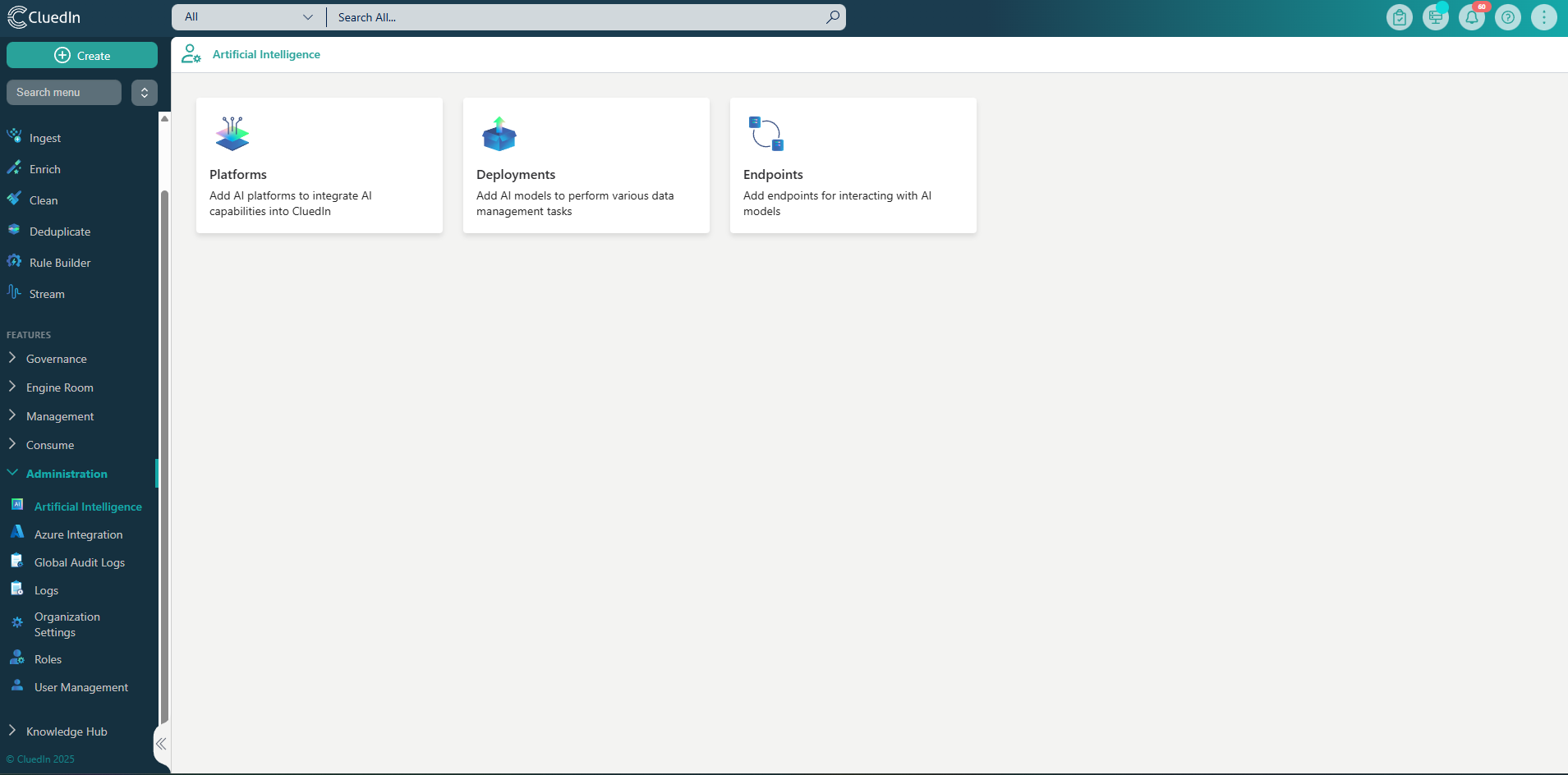
Go to Administration > Artificial Intelligence.
-
Create a platform using your Azure OpenAI resource. Enter the Base URL for your Azure OpenAI resource in the format similar to the following:
https://{resource-name}.openai.azure.com/.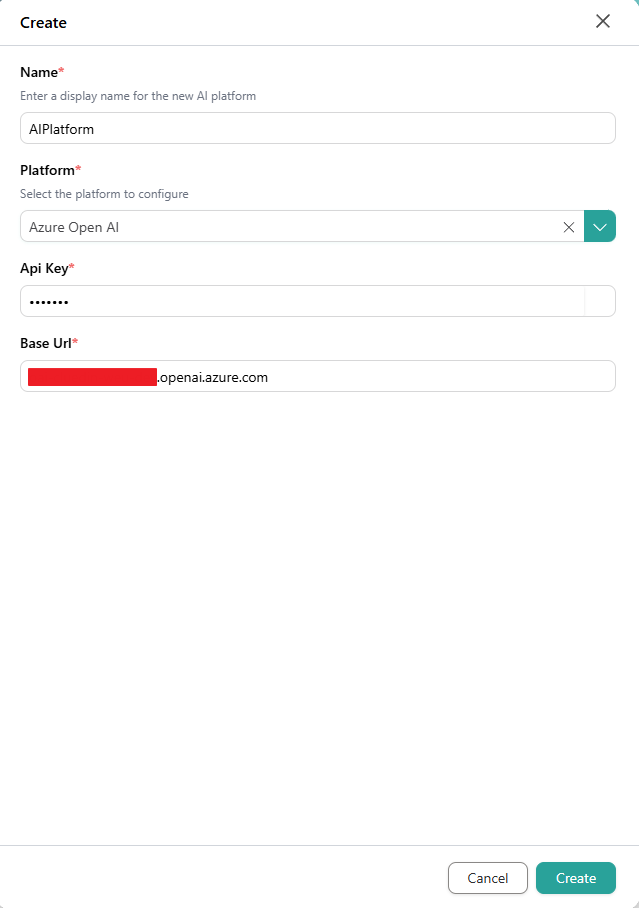
-
Create a deployment using the platform created. Please include the cost details for the deployment, if any.

-
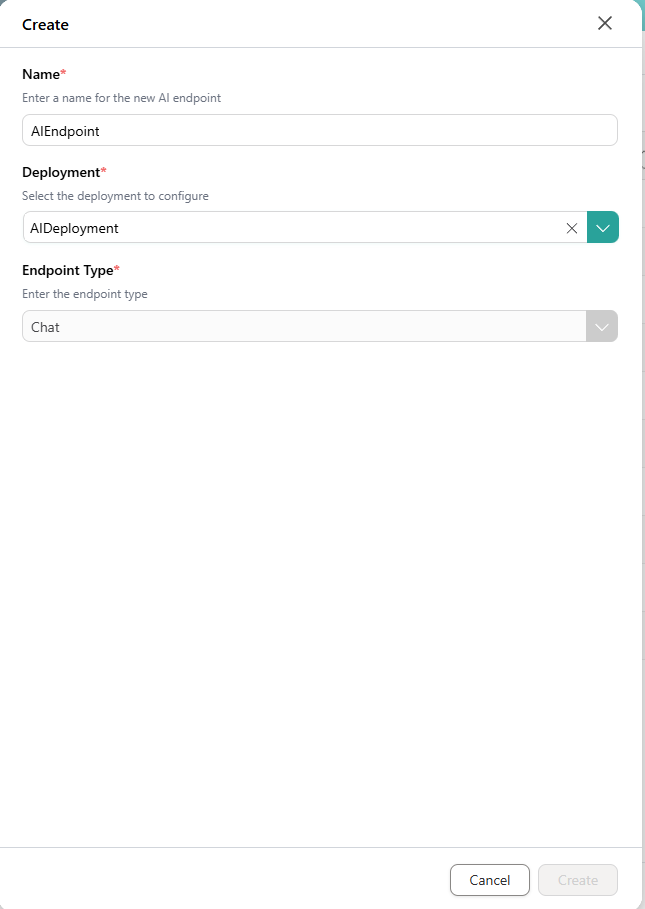
Create an endpoint using the deployment created.
To add Artificial Intelligence enricher
-
On the navigation pane, go to Preparation > Enrich. Then, select Add Enricher.
-
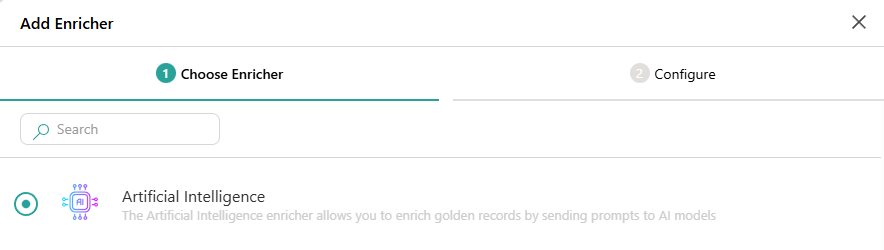
On the Choose Enricher tab, select Artificial Intelligence, and then select Next.
-
On the Configure tab, provide the following details:
-
Endpoint – select the endpoint created in Administration > Artificial Intelligence > Endpoints.
-
Accepted Business Domain – enter the business domain to define which golden records will be enriched.
-
Prompt – enter the instruction for Artificial Intelligence to generate results. The prompt requires at least one input (e.g.,
Vocabulary:XXXX.YYYY) and one output (e.g.,output:Vocabulary:PPPP.QQQQ). For example, the following prompt asks Artificial Intelligence to translate the company name and store the result in a dedicated vocabulary key:Using the address in {Vocabulary:companies2.address} provide the country of the organization in {output:Vocabulary:companies2.aiCountry}.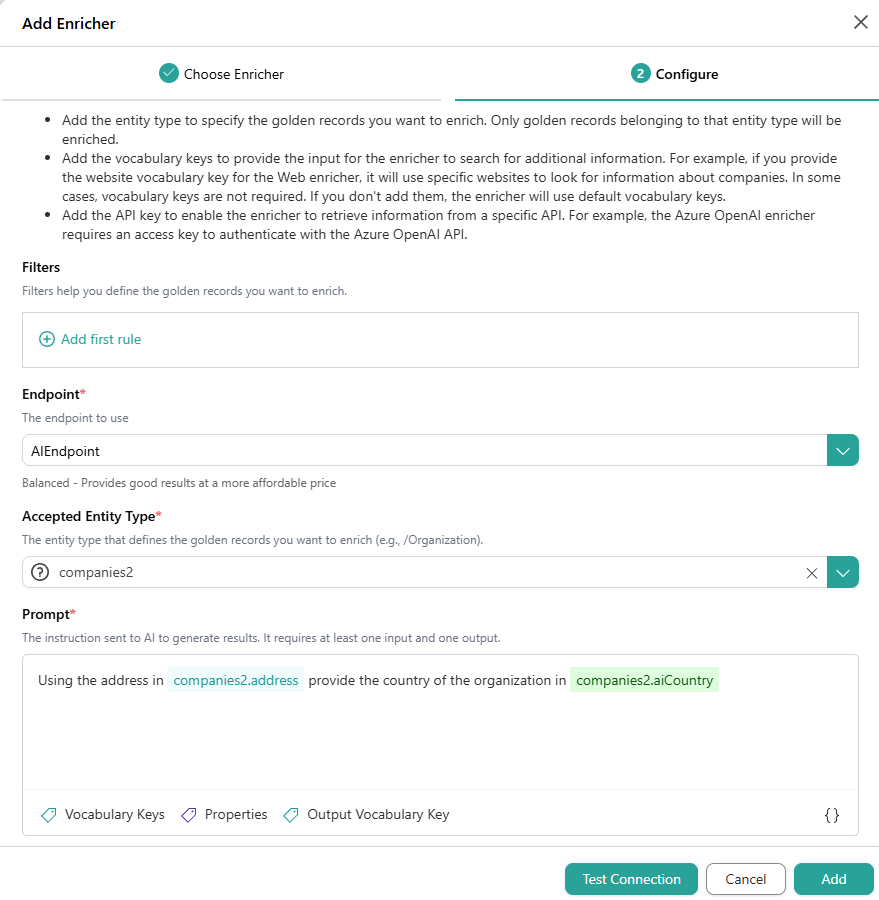
-
-
Click Save. The Artificial Intelligence enricher is added and has an active status. This means that it will enrich relevant golden records during processing or when you trigger external enrichment.
After the Artificial Intelligence enricher is added, you can modify its details:
-
Settings – add a user-friendly display name, select the description for data coming from the enricher, and define the source quality for determining the winning values.
-
Authentication – modify the details you provided while configuring the enricher.
Properties from Artificial Intelligence enricher
You can find the properties added to golden records from the Artificial Intelligence enricher on the Properties page.

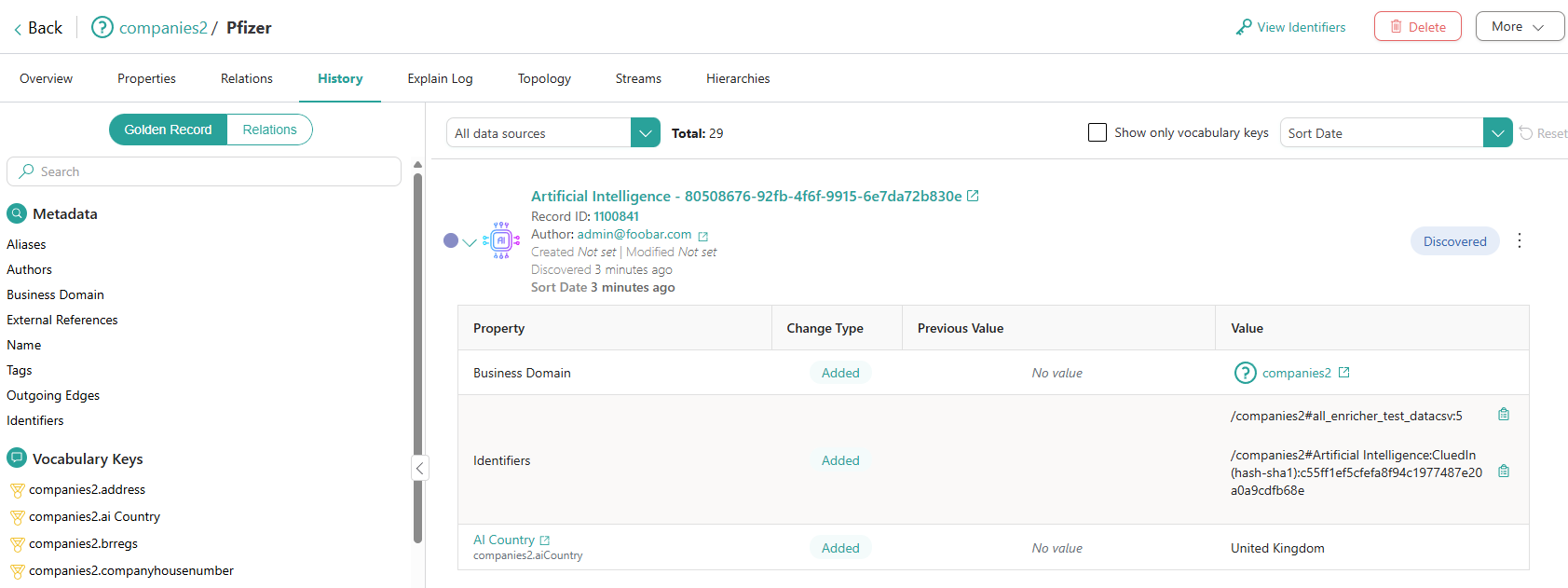
For a more detailed information about the changes made to a golden record by the Artificial Intelligence enricher, check the corresponding data part on the History page.